How to Rotate a PDF: Turn One Page, Several or All of Them
Rotating here goes page by page: the pages you select turn together from a bar at the bottom, a mouse gets each card's own turn buttons too, and nothing is written until you download. Here is how to put sideways and upside-down pages upright, check one up close, take back a reset you didn't mean, and save the PDF with every page the right way up.
Tools used in this guide
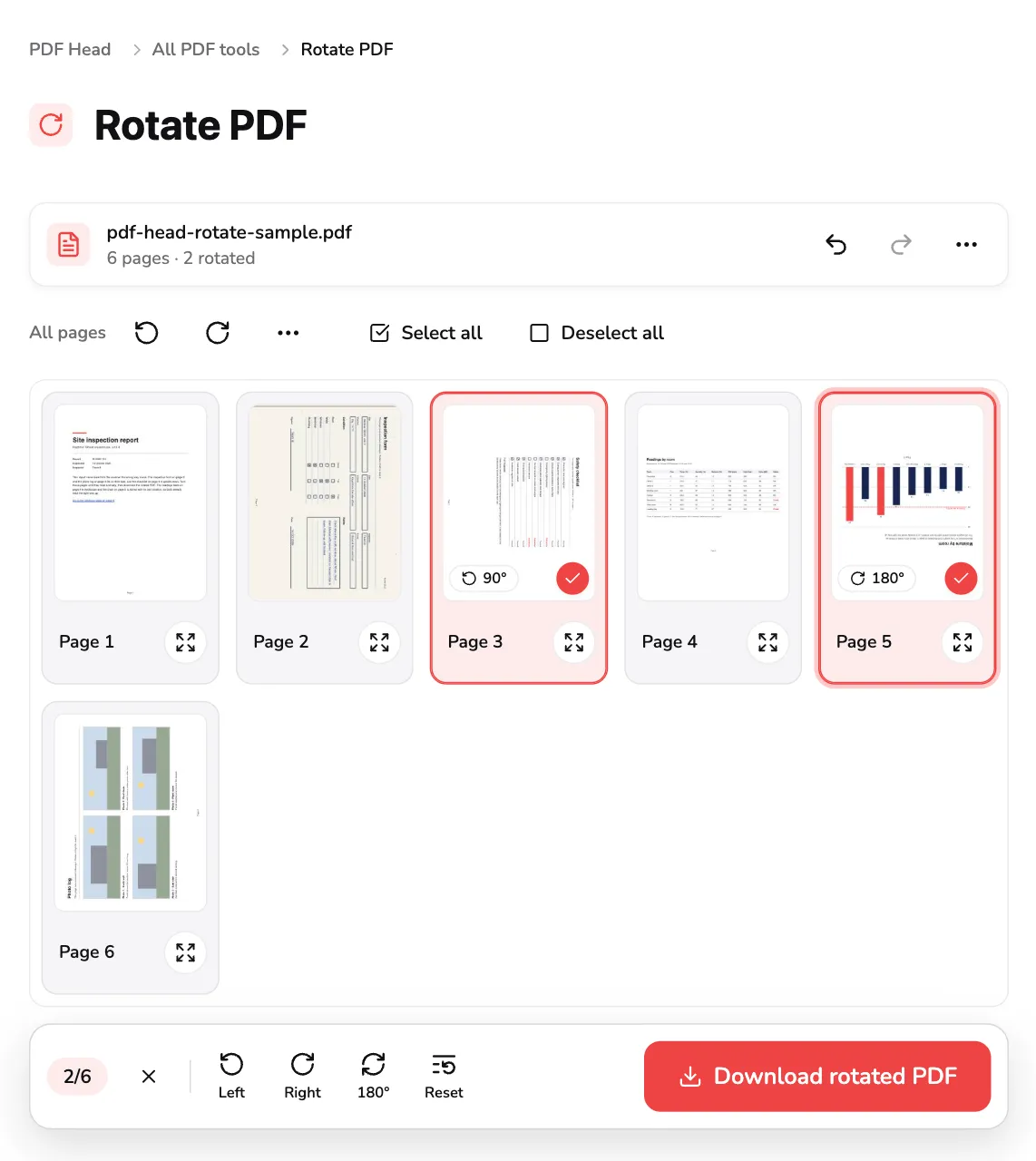
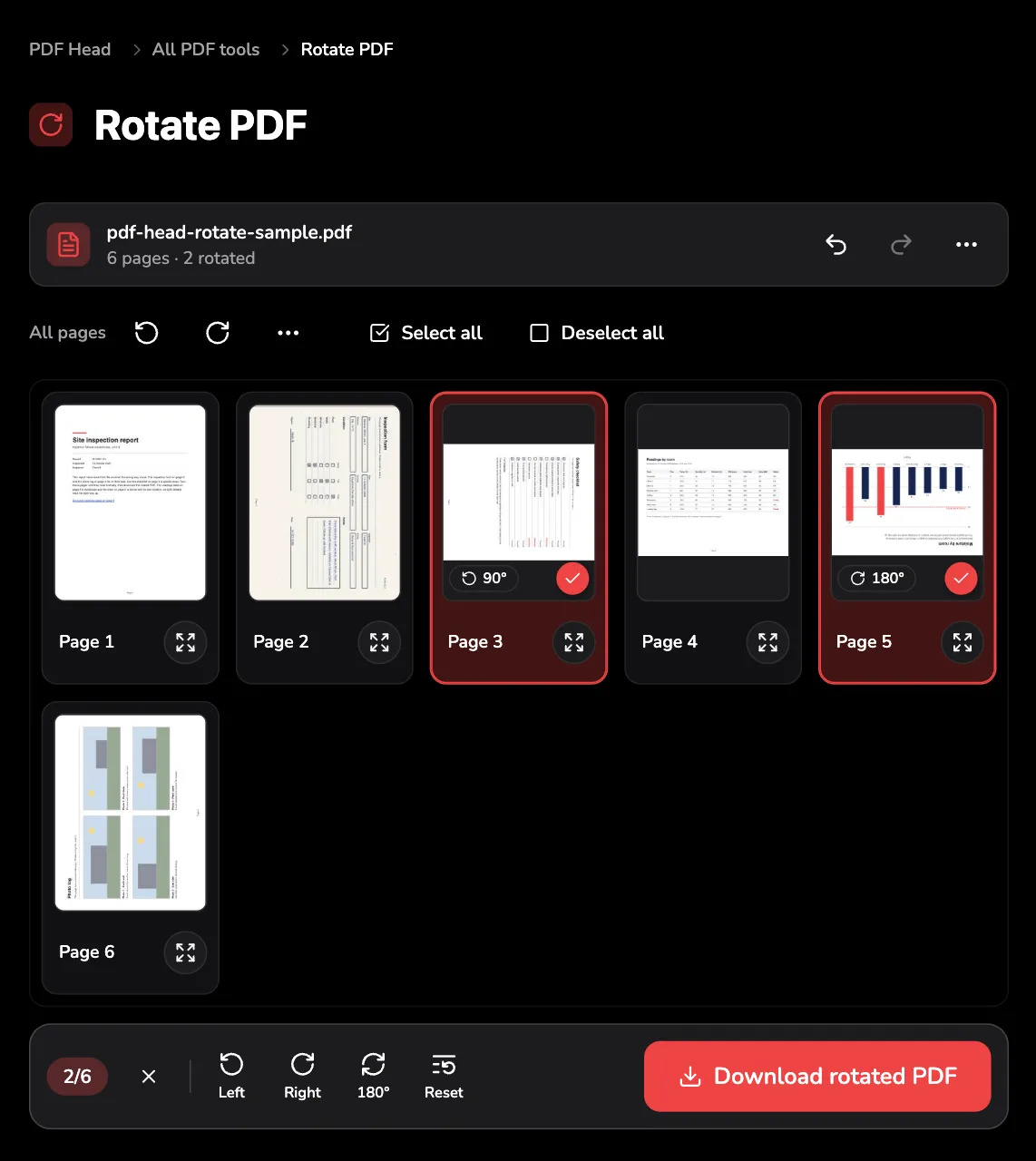
1. Open your PDF
Rotate PDF opens on a drop area. Drag a PDF onto it, or use Choose PDF at marker 1.
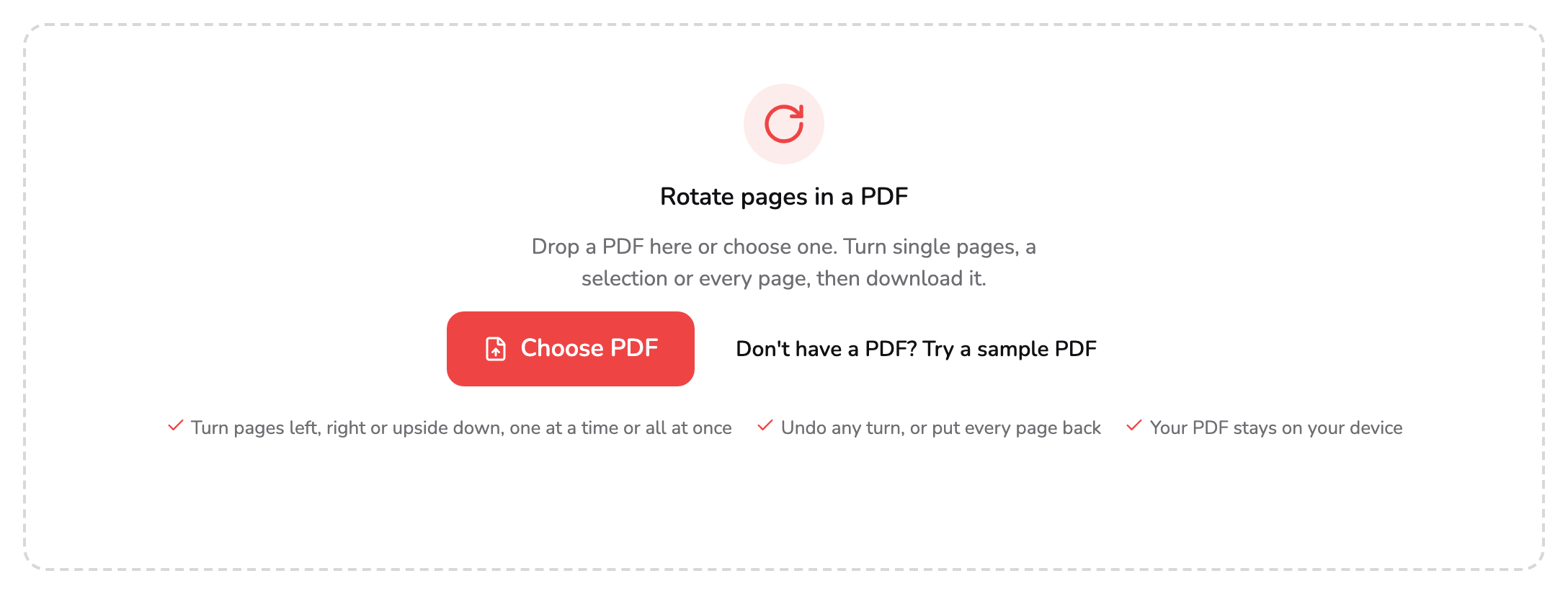
- Choose PDF. Pick one PDF from your device, or drop it anywhere on this panel. PDFs of up to 1,500 pages open here.
- Try a sample PDF. Loads the six-page PDF used in every screenshot here, three of its pages scanned the wrong way round, so you can follow along without a file of your own.
The tool works on one PDF at a time; if you drop several, it opens the first and says so. PDFs of up to 1,500 pages open here, a single page included; a longer one is turned away with a link to Split PDF, which can cut it into parts that fit. A PDF locked with a password, to open it or to change it, can’t be opened here: the message links to Unlock PDF, which removes the password when you know it.
Everything happens in the tab you already have open: the PDF never leaves your device. To follow along without a file of your own, Don’t have a PDF? Try a sample PDF at marker 2 loads the six-page inspection report used in every screenshot below. It came out of the scanner the wrong way round: the form on page 2 and the photo log on page 6 lie on their side, and the checklist on page 3 is upside down. Page 4, a landscape table, and page 5, a chart the PDF already stores turned, read the right way up and stay as they are.
Once the PDF is open, every page appears as a card in a grid, labelled with its page number and shown exactly as the PDF has it. The bar above the grid shows the file’s name and how many pages it has: 6 pages, for the sample. Download rotated PDF, under the grid, stays faded until you turn a page.
2. Turn one page
With a mouse, every card has its own buttons: Rotate left turns the page a quarter turn counter-clockwise, Rotate right a quarter turn clockwise, and Open shows it large (step 4).
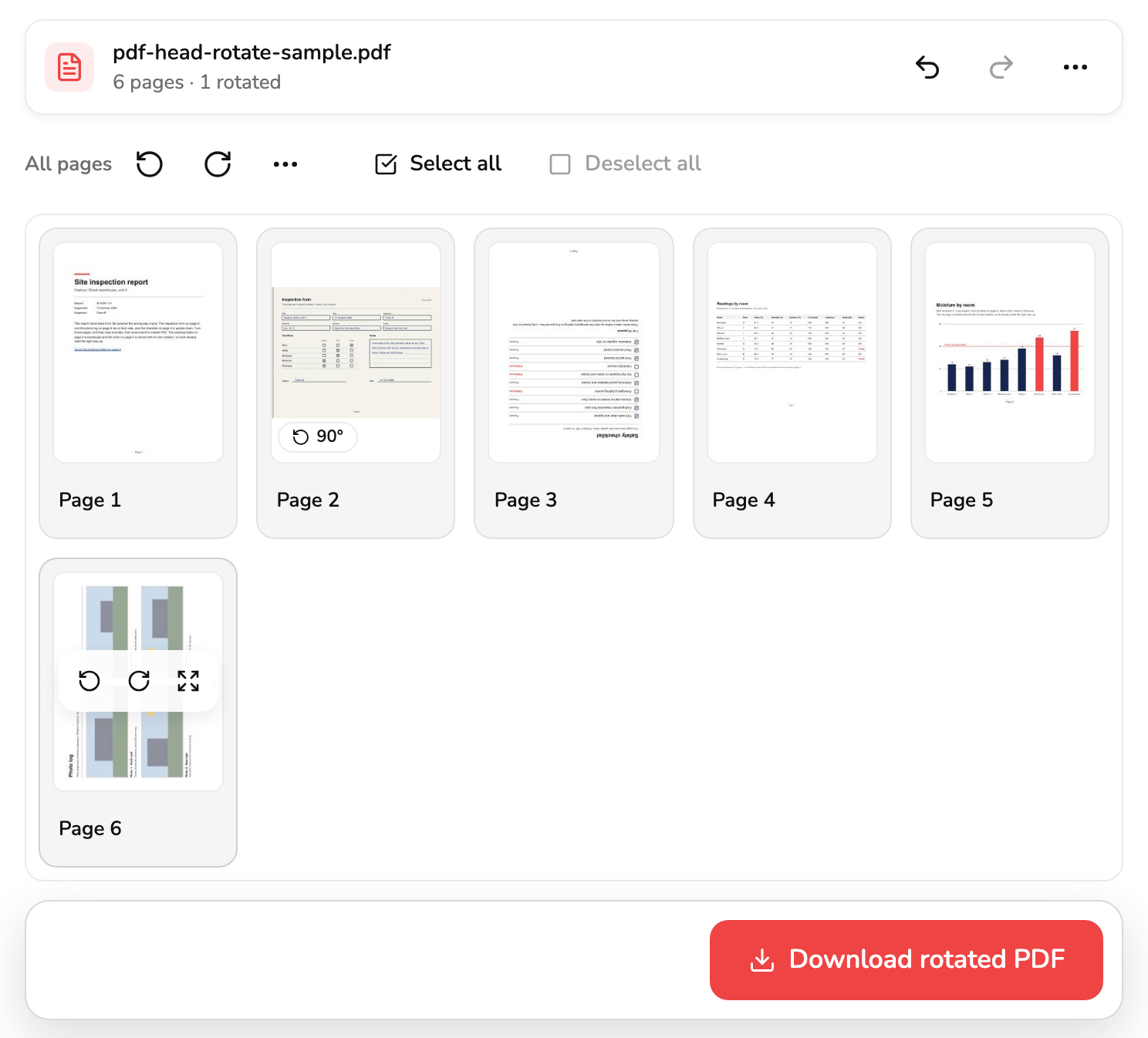
- Page buttons. Rotate left, Rotate right and Open, for this page only, shown when you point at the card with a mouse. On a touch screen a card carries Open alone.
- Turn chip. How far this page is turned from how your PDF has it: 90° with an arrow pointing the way it went, or 180°. It goes when the page is back where it started.
The three appear in a small toolbar over the page when you point at its card, as on page 6 at marker 1, or when the card has keyboard focus, and they only ever turn that page. On a touch screen a card carries Open alone, at the end of the row with its page number: there you turn a page by selecting it and pressing Left, Right or 180° in the bar that comes up at the bottom (step 3).
Page 2 lay on its side with its top to the right, so Rotate left stood it upright. Its card now carries a chip in the page’s lower corner, marker 2: 90°, with an arrow turning left. A half turn reads 180°. The bar counts the page too, 6 pages · 1 rotated, and Download rotated PDF comes alive. Page 6 leans the other way, its top to the left, so it takes Rotate right.
Turns add up and show on the thumbnail the moment you press; nothing is written to a file until you download. Four quarter turns, or a left after a right, bring a page back where it began: its chip goes, and the count drops it.
3. Turn several pages at once
To turn pages together, select them first. Click or tap a page to select it; with a mouse, click anywhere on the page but its buttons.
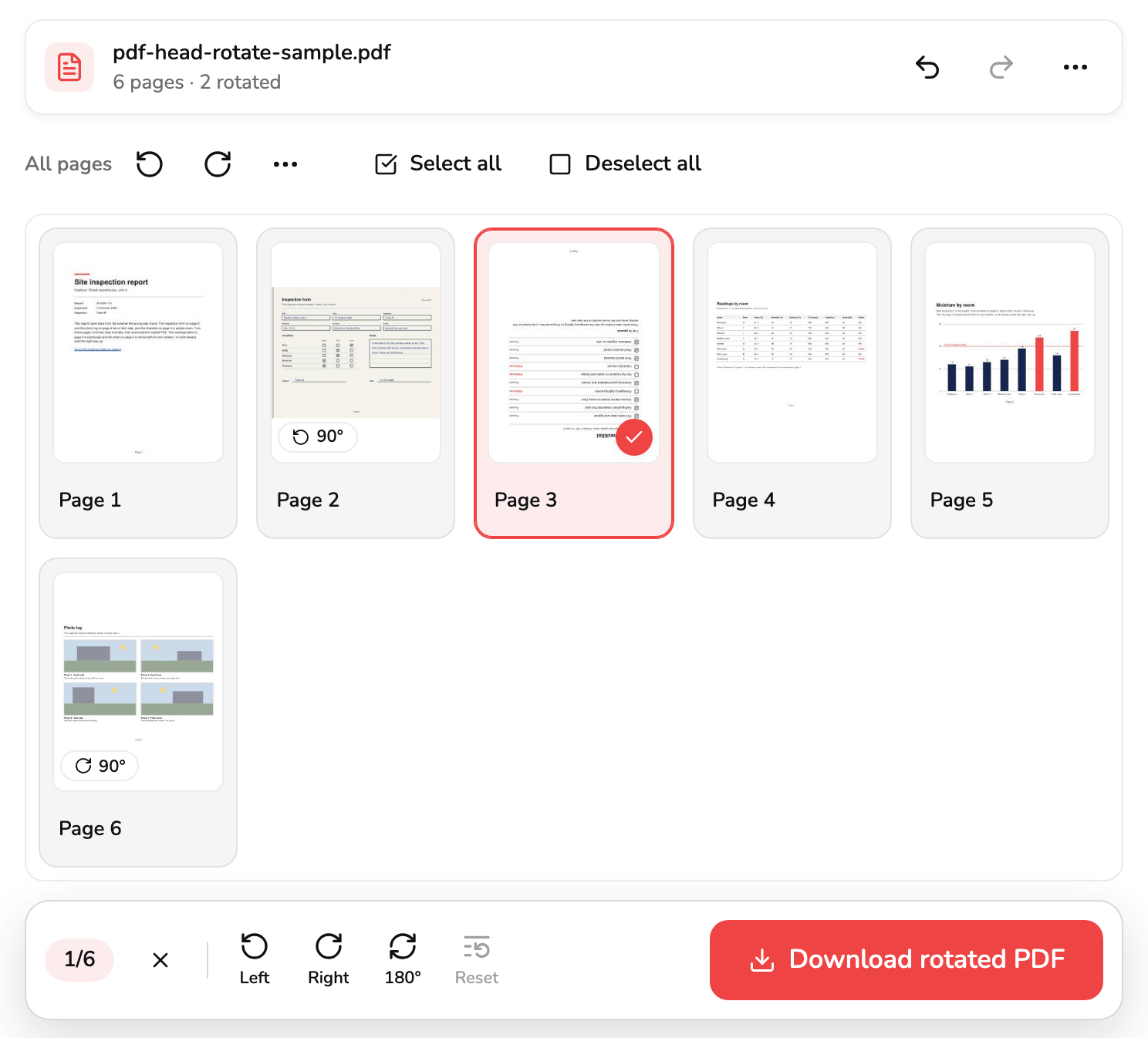
- Selected page. Click or tap a page to select it, and again to deselect it. A selected page has a check and a red border, and the bar at the bottom turns every selected page.
- 180°. Turns every selected page halfway round, which is what an upside-down page needs. Reset beside it puts the selected pages back as your PDF has them.
A selected page takes a check in its corner and a red border, as page 3 does at marker 1, and a second click deselects it. With a mouse, Shift-click selects every page from the last one you clicked to this one, or deselects them all when this page was already selected. The moment a page is selected, a bar comes up at the foot of the grid with the turns for the selected pages: its count, 1/6 here, then Left, Right, 180° at marker 2 and Reset, which puts the selected pages back as your PDF has them and is faded while none of them is turned. The × beside the count deselects them all and takes the bar away. Page 3 is upside down, so the half turn is the one it needs.
All pages, at the start of the toolbar, turns every page left or right at once, and its own menu (⋯) holds Rotate all 180° and Reset all rotations. Each page turns from where it already is, so a page you turned on its own keeps that extra turn. Select all and Deselect all sit at the end of the toolbar, each faded while it would change nothing; on a phone they lead More actions (⋯) in the top bar instead.
From the keyboard, Tab reaches the grid, the arrow keys move between pages and Space selects or deselects the page with focus. R turns that page right and Shift+R left, or every selected page when the page with focus is one of them. Ctrl+A (⌘+A on a Mac) selects every page and Escape deselects them. Keyboard shortcuts, under More actions (⋯) in the top bar, lists them all.
4. Check a page up close
Thumbnails are small. To read a page before you download, use Open on its card, or double-click it with a mouse.
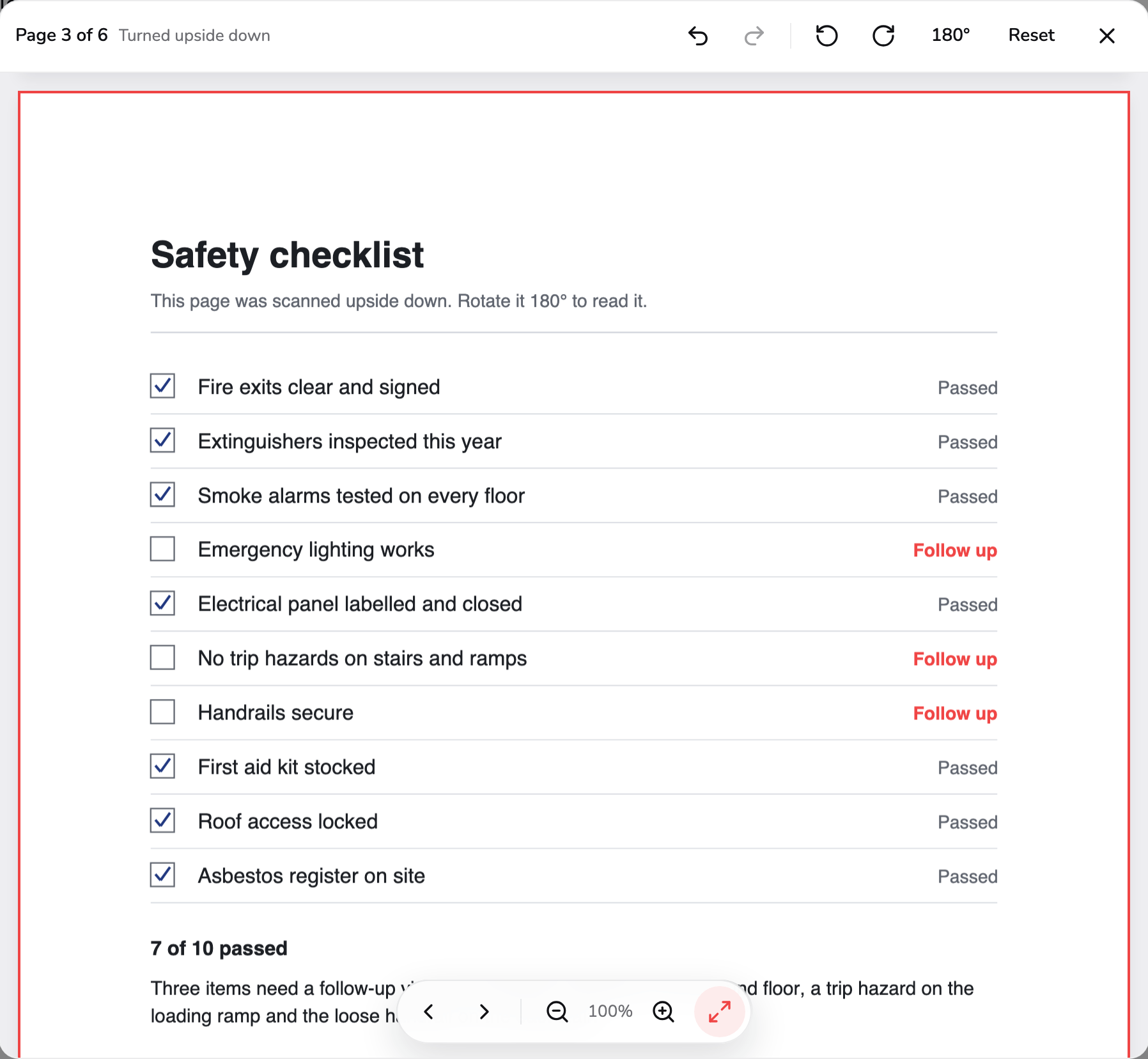
- Which page. The page's number out of the pages in your PDF, then how it is turned from how your PDF has it: Not rotated, Turned left, Turned right or Turned upside down.
- Page tools. Rotate left, Rotate right, 180° and Reset act on the page with the red ring; Reset is faded while that page isn't turned. Undo and Redo step through every change, as in the top bar, and show the page they change.
- Pages and zoom. Step to the previous or next page, zoom out or in, or fit the page to the width. The left and right arrow keys, + and − and 0 do the same.
The preview shows every page of your PDF, one under another, turned the way they will be saved. The heading at marker 1 gives the page’s number out of the pages you opened, Page 3 of 6, and how it is turned from how your PDF has it: Turned upside down for page 3, which now reads the right way up. The page the heading names has a red ring, and the turn tools at marker 2 act on it: Rotate left and Rotate right, 180° for a half turn, and Reset, which puts that page back as your PDF has it. Undo and Redo beside them step through every change, as the top bar’s do, and bring the page each one changes into view. The controls at marker 3 step to the previous or next page, zoom out and in, and fit the page to the width.
From the keyboard, the left and right arrows move between pages, R and Shift+R turn the page you’re reading, +, − and 0 zoom, and Escape closes the preview and takes you back to that page’s card.
5. Undo a turn, or put pages back
Every turn is a step you can take back, whether it came from a card, the toolbar, the bar at the bottom, a menu or a key.
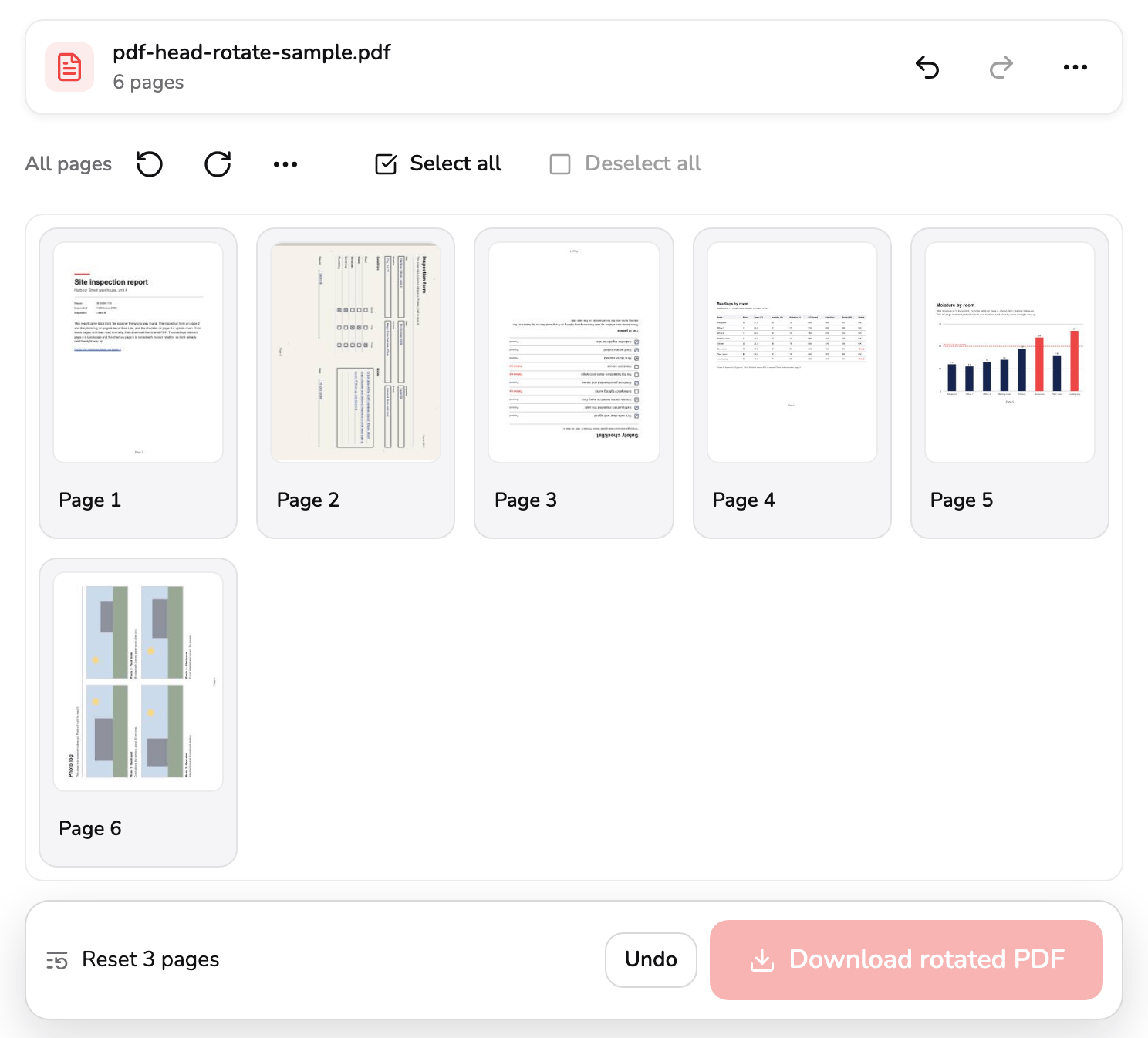
- Undo. Steps back one change at a time, up to your last 50; Redo beside it steps forward again. Ctrl+Z or ⌘+Z does the same.
- Undo in the message. Brings back every turn this reset took away. The message goes after about six seconds, but waits while you point at it.
- Download rotated PDF. Faded while no page is turned, because a copy would be the PDF you already have. Pressing it says so, and it comes alive with the first turn.
Undo in the top bar, at marker 1, steps back one change at a time, up to your last 50, and Redo beside it steps forward again. Ctrl+Z or ⌘+Z undoes, and Ctrl+Y or Shift+⌘+Z redoes. Quick turns of the same pages count as one step, so pressing Rotate right twice and then Undo takes both back.
To put pages back without stepping through every turn, use Reset all rotations in the All pages menu, Reset in the bar at the bottom for the selected pages, or Reset in the preview for the page you’re reading. A reset from the menu or the bar that puts back two pages or more also leaves a message at the foot of the grid, here Reset 3 pages, with its own Undo at marker 2. It goes after about six seconds, but waits while you point at it. Pressing it brings back exactly the turns the reset took away: pages 2, 3 and 6 stand upright again.
With nothing turned, Download rotated PDF at marker 3 is faded: a copy would be the PDF you already have. Pressing it says so in the bar under the grid, and it comes alive with the next turn.
6. Download the rotated PDF
Press Download rotated PDF. The button turns into a progress ring with Cancel beside it, and the grid waits until the file is ready; cancelling keeps every turn as it was. Then the file saves straight away, named after yours with -rotated added.
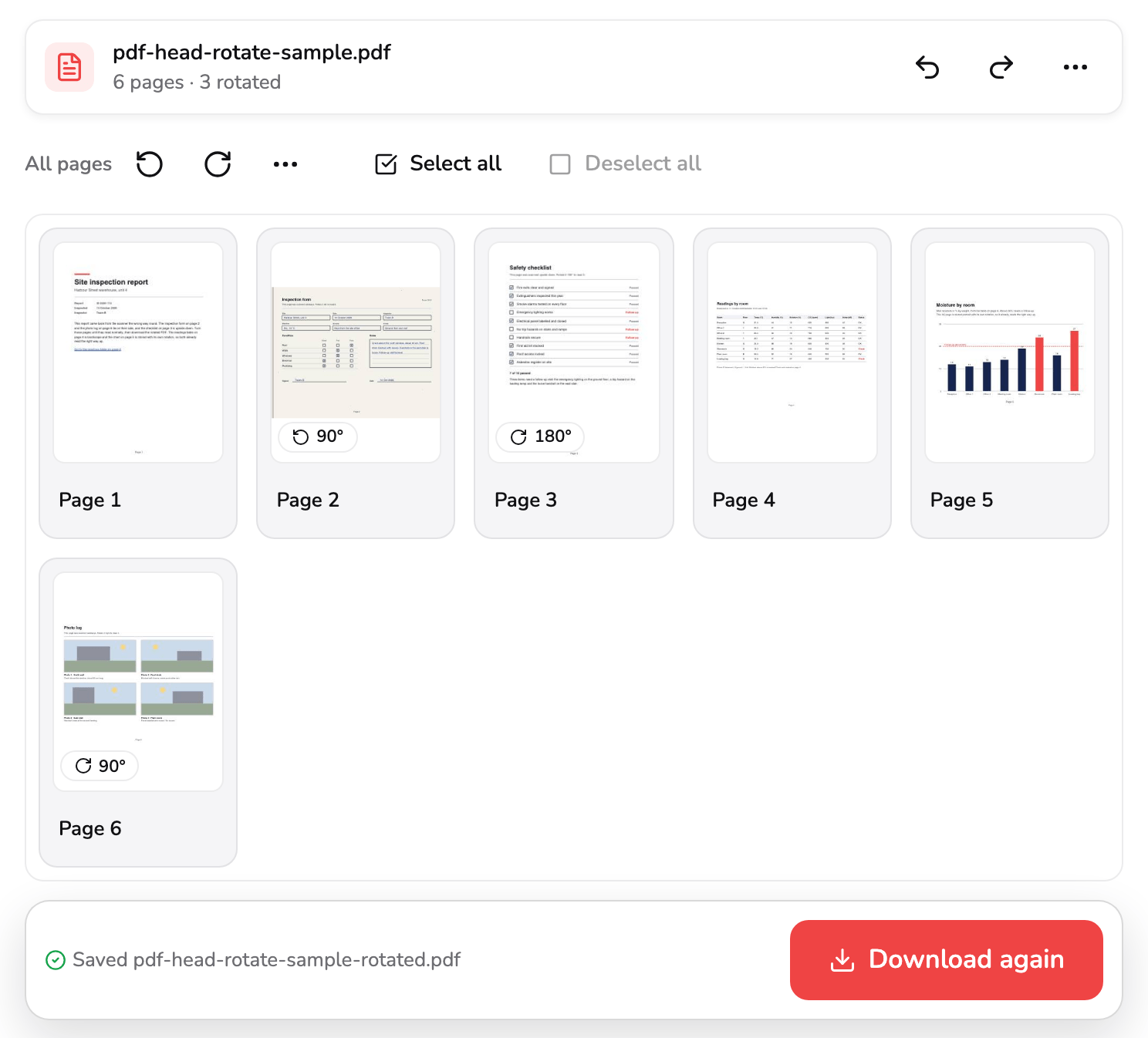
- Saved. The name the rotated PDF was saved under: your file's own name with -rotated added.
- Download again. Saves the same file once more, without building it twice, for as long as your turns stay as they were saved. Turn another page and it reads Download rotated PDF again.
The line at marker 1 says where it went: Saved pdf-head-rotate-sample-rotated.pdf, for the sample. Each page you turned is written with its new angle, so it opens the right way up in any viewer or printer, and nothing else in the file is rebuilt: the sample’s bookmarks and the link on its cover still work. The PDF you opened is never changed.
The button at marker 2 now reads Download again. As long as your turns stay as they were saved, it saves the same file once more without building it twice, which is the way to get the file back if your browser blocked or lost the download. Turn, undo or reset a page and it reads Download rotated PDF again. Start over, under More actions (⋯), closes the PDF, and Replace PDF opens another in its place; both ask first if your turns haven’t been downloaded.
Which button for which page
| Your page… | Do this |
|---|---|
| Lies on its side, its top to the right | Select it and press Left, or Rotate left on its card with a mouse |
| Lies on its side, its top to the left | Select it and press Right, or Rotate right on its card with a mouse |
| Is upside down | Select it and press 180°, or Open it and press 180° |
| Needs the same turn as several others | Select them all, then use the bar at the bottom |
| Needs the same turn as every other page | The All pages group |
| Was turned by mistake | Undo, or Reset in the preview |
Access and technical limits
You can try Rotate PDF with the bundled sample, all the way to the download. Pro ($9.99/month) is required for your own PDF and includes unlimited exports. Technical limits such as browser memory still apply, along with the 1,500-page limit above.
Which tool you want
- Turn pages and keep everything else in the PDF as it is → Rotate PDF, as above.
- Turn pages and also reorder, duplicate or delete them, or combine several PDFs → Organize PDF; How to organize a PDF walks through it.
- Trim the margins of pages once they read the right way up → Crop PDF; How to crop a PDF covers it.
- Remove pages you don’t need → Delete PDF Pages; How to delete pages from a PDF walks through it.
- Keep a few pages as a file of their own → Extract PDF Pages; How to extract pages from a PDF shows how.
Common questions
Why is Download rotated PDF faded when my PDF has just opened?
Because no page is turned yet, and a copy of the PDF exactly as it is would be the file you already have. Turn any page and the button comes alive. Pressing it while it is faded points to the reason in the bar under the grid. If it stays faded after a turn, that bar says the PDF can't be saved with new rotations here: something in the file stops it being rewritten, so try another copy of it.
Why did the turn chip disappear when I turned the page again?
Because the page is back where it started. Turns add up: two quarter turns the same way make 180°, and four bring the page all the way round, as does a left turn after a right one. A page that ends up unturned loses its chip and drops out of the rotated count in the bar, and once no page is turned, Download rotated PDF fades again.
Page 5 is landscape but the bar doesn't count it as rotated. Is that right?
Yes. Page 5 of the sample is stored with a turn of its own, so it already reads the right way up, and the grid shows every page as your PDF has it. The chips and the rotated count only show the turns you make here. Turn a page like that and your turn is added to the one it already has.
Why does the button say Download again after I've saved?
Because your turns haven't changed since that file was saved. Pressing it saves the same file again without building it twice, which helps if your browser blocked or lost the download. Turn, undo or reset a page and it reads Download rotated PDF again, and the next press builds a new file.
I reset every page by mistake. How do I get my turns back?
Press Undo in the top bar, or Ctrl+Z (⌘+Z on a Mac): Reset all rotations is one step like any turn, so every page comes back exactly as you had it. When the reset put back two pages or more, the message it leaves, Reset 3 pages here, has an Undo of its own too, for about six seconds.