How to Crop a PDF: Margins, Auto Crop and Paper Size
Cropping gives a page new edges: whatever falls outside the box is no longer shown or printed, and the page becomes the size of the box. Here is how to let Auto crop find the content, adjust the box by hand or to the millimetre, change only the pages that match, put cropped pages back on A4 or Letter, and check every page before you download.
Tools used in this guide
1. Open your PDF
Crop PDF opens on a drop area. Drag a PDF onto it, or use Choose PDF at marker 1.
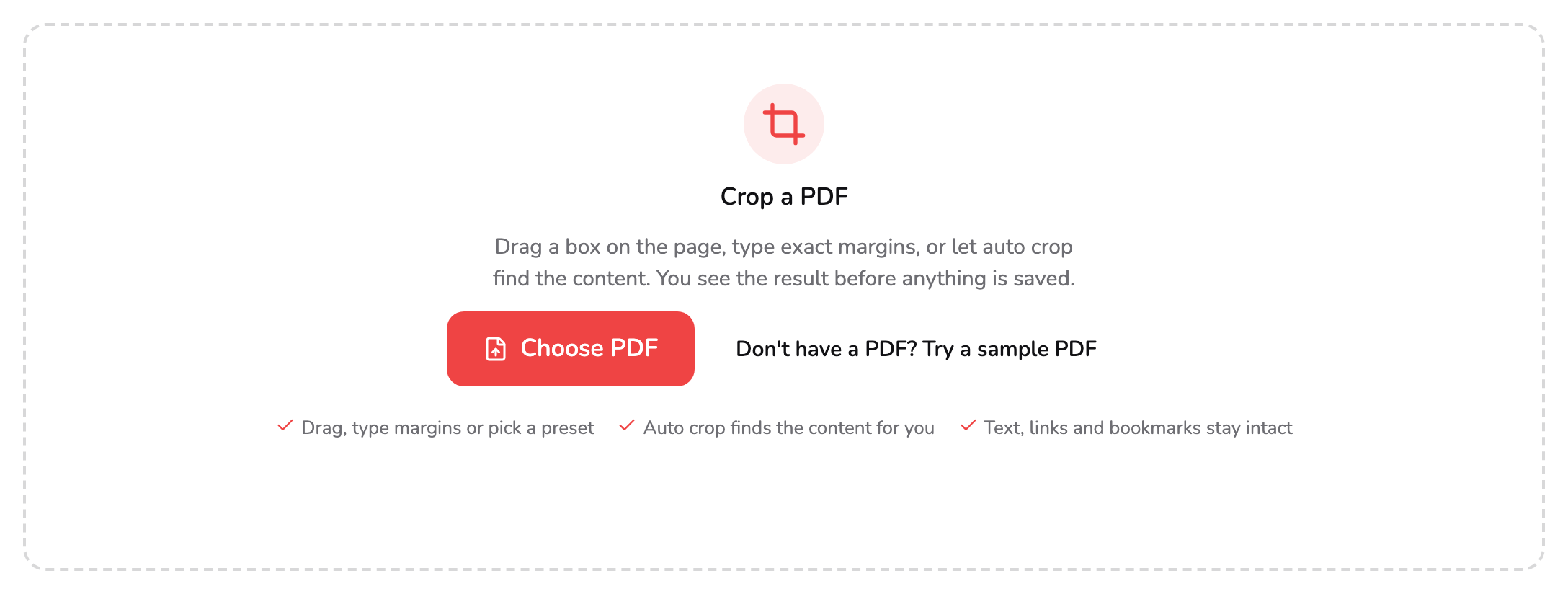
- Choose PDF. Pick one PDF from your device, or drop it anywhere on this panel. Files up to 100 MB and 1,500 pages open here.
- Try a sample PDF. Loads the seven-page PDF used in every screenshot here, so you can follow the steps without a file of your own.
The tool works on one PDF at a time; if you drop several, it opens the first and says so. A file of up to 100 MB and 1,500 pages opens here. A password-protected PDF cannot be cropped here: the message links to Unlock PDF, which removes the password when you know it, so you can crop the unlocked copy.
Everything happens in the tab you already have open: the PDF never leaves your device, and no account is needed to try it. To follow along without a file of your own, Try a sample PDF at marker 2 loads the seven-page PDF used in every screenshot below — a Letter cover with wide white margins, three A4 book pages, a landscape slide, a rotated insert and a scanned page.
Once the PDF is open, the editor takes the whole window, with page 1 on screen and nothing changed yet: the crop box sits on the edges of the page. On a laptop or a larger screen the settings run down the right-hand side and the page list down the left. On a phone or a tablet held upright, the settings sit under the page and the page list opens from More (⋯) in the top bar; on a phone the settings start folded, so the page keeps the screen. ← at the top left closes the PDF, and asks first if your crop has not been downloaded.
2. Let Auto crop find the content
Auto crop sits at the top of the settings, in the Crop tab. Press it, and the tool draws the page small, finds where the text and pictures begin and end, and suggests a box around them.
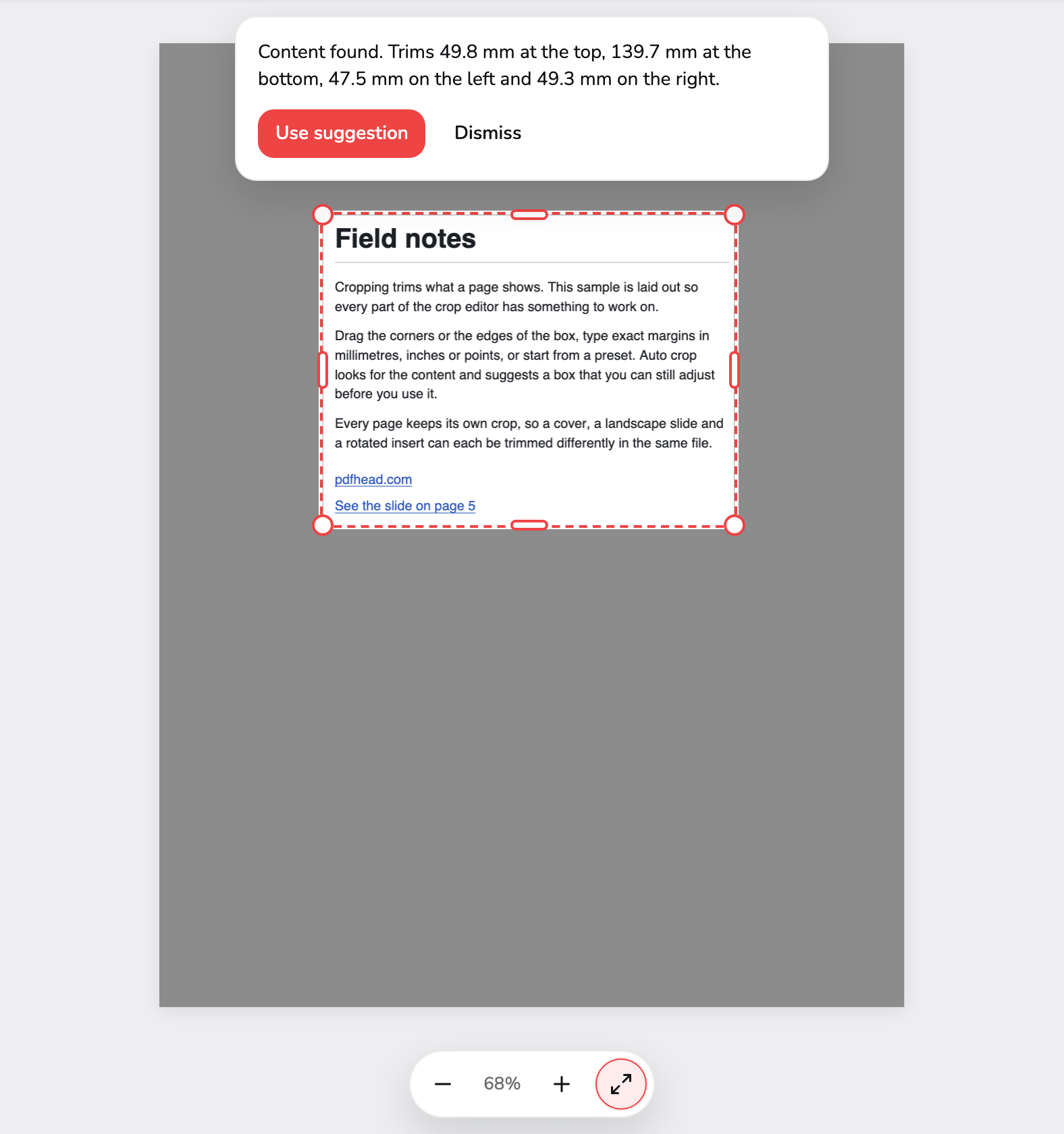
- Suggestion. Where Auto crop would cut, with a small margin kept around the content. Nothing has changed yet, and you can drag its edges before you use it.
- Use suggestion. Crops the page to the box. The outline turns solid, and the page's thumbnail in the page list is labelled Auto crop.
- Dismiss. Takes the suggestion away and leaves the page as it was. Escape, or the first press of Undo, does the same.
The suggestion is the dashed box at marker 1. It keeps a small margin around the content, ignores a dark scanner edge and stray specks of dust, and keeps a page number, which counts as content. The card above it says how much it would trim from each side — on the sample’s cover, almost 50 mm from the top and 140 mm from the bottom.
Nothing has changed yet. Drag the dashed box’s edges first if you want it larger or smaller, and the card’s numbers follow. Use suggestion at marker 2 crops the page to the box; Dismiss at marker 3, the Escape key, or the first press of Undo takes it away.
What Auto crop looks at follows Edit pages (step 5). With the starting choice, This page, it suggests a box for the page on screen. With several pages chosen, it makes one box per page size, big enough for the content of every page of that size, so the pages come out the same size and none of them loses anything; a blank page of that size takes the same box. After you use a suggestion on a single page, the tool checks the pages of the same size in the background, and if some look alike, the card comes back with Use on 3 similar pages, or however many it found. The sample’s cover is its only Letter page, so it makes no such offer here.
If a page has nothing to trim, or nothing on it at all, Auto crop says so and changes nothing. Remove margins in the Preset menu runs it too.
3. Drag the box
Every crop is a box with a handle on each corner and in the middle of each edge.
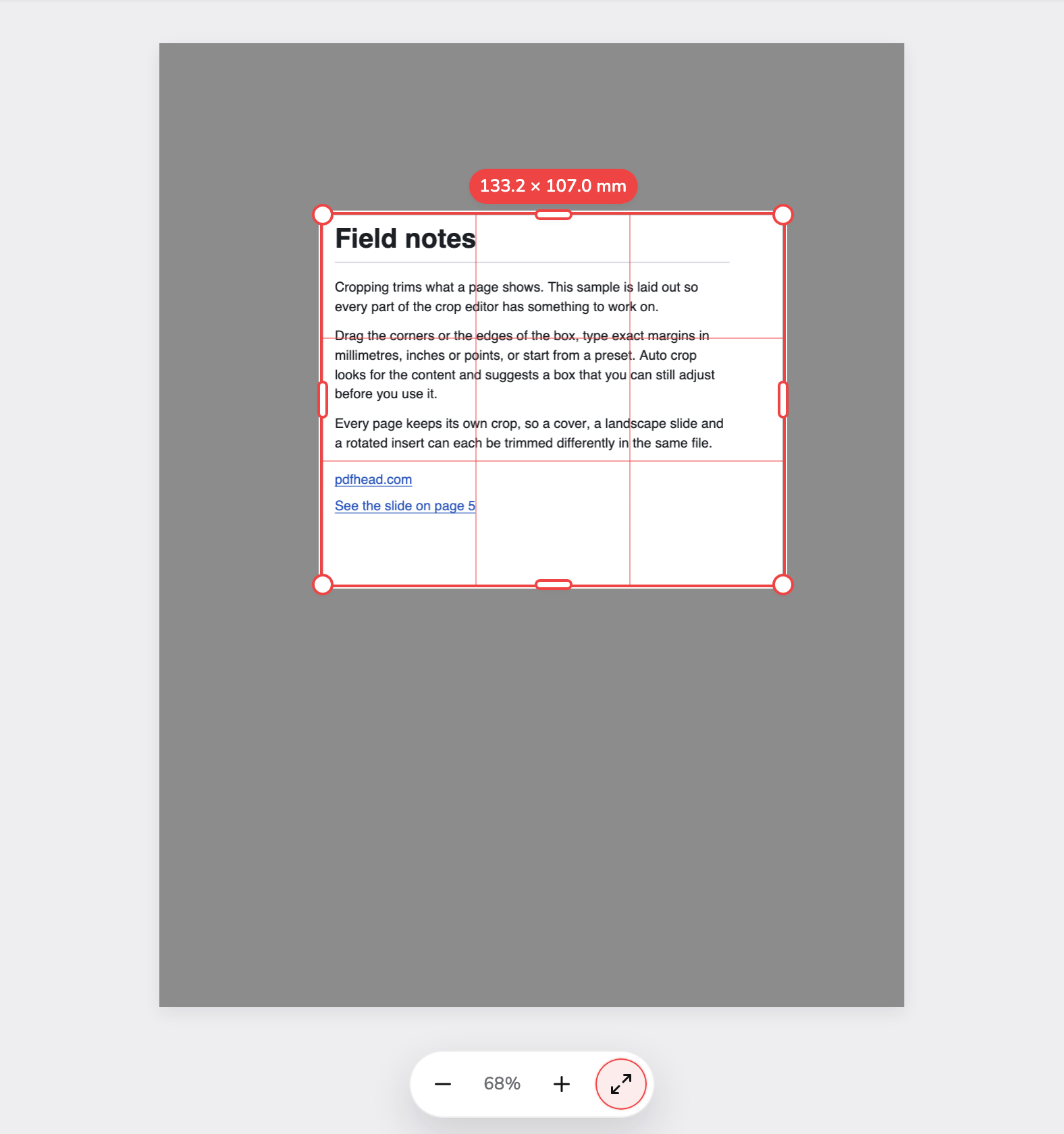
- Corner handle. Drag a corner to move two sides at once, or the handle in the middle of an edge to move one. Drag inside the box to move all of it.
- Crop size. The box's width and height while you drag. Lines of thirds cross the box, and its edges snap to the page's edges and centre, and to the content Auto crop found.
- Zoom. Zoom out or in, or back to the whole page. The + and − keys and 0 do the same; on a touch screen, pinch with two fingers.
Drag a corner to move two sides at once — marker 1 shows the bottom-right corner pulled outwards — or an edge handle to move one side. Drag anywhere inside the box to move all of it. With a mouse, dragging on the page outside the box draws a new one; on a touch screen, a finger inside the box moves it, a finger on a handle resizes it, a finger outside the box moves the page, and two fingers zoom.
While you drag, the pill at marker 2 shows the box’s size, lines of thirds cross it, and its edges snap to the edges and the centre of the page — and, once Auto crop has looked at the page, to the content. An = sign appears when two opposite margins are equal. Hold Alt (Option on a Mac) to drag without snapping, or press Escape to put the box back where the drag started.
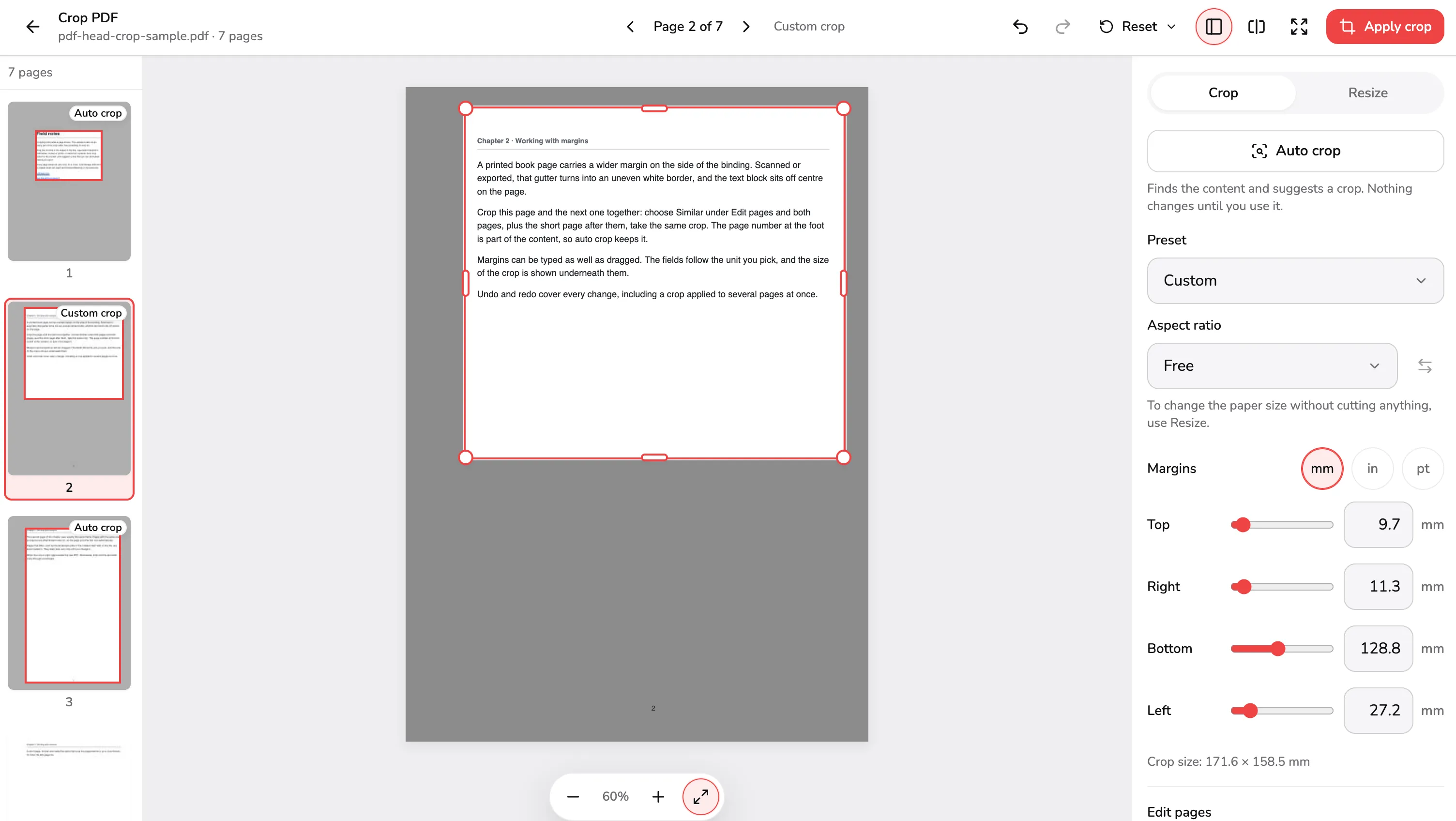
Aspect ratio starts on A4. Opening a PDF changes nothing, but a box you drag keeps the A4 shape — even one Auto crop drew in another shape, which jumps to A4 on the first drag. To move one side on its own, as above, set Aspect ratio to Free in the panel first; step 4 shows where.
The zoom controls at marker 3 zoom out and in and fit the whole page again; +, − and 0 do the same from the keyboard, and so do Ctrl or ⌘ with the mouse wheel. The arrows either side of the page number — in the top bar on a laptop, under the page on a phone or a tablet — or Page Up and Page Down move to the previous or next page. From the keyboard, Tab reaches a move grip in the middle of the box and then each handle, and the arrow keys move the one in focus by a point, about a third of a millimetre — ten points with Shift.
4. Type exact margins, or pick a preset
The Crop tab gives the same box in numbers, and some ready-made shapes.
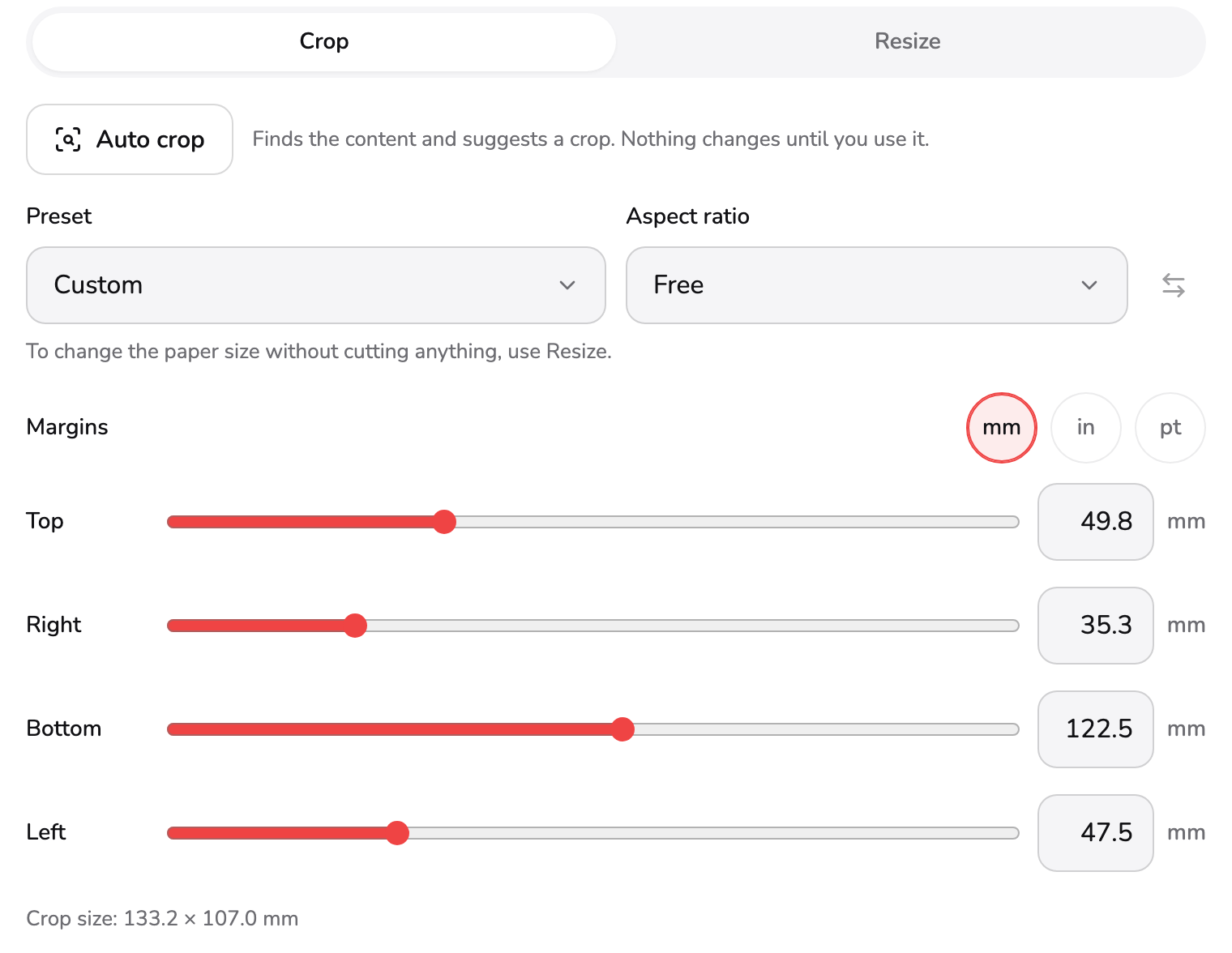
- Preset. Original, Remove margins, A4, A5, Letter, Legal, Square or 16:9. A paper preset cuts the page to that paper, centred, and never scales it. Custom shows when the box is your own.
- Aspect ratio. Holds the box to one shape: the page's own, 1:1, 4:3, 16:9, A4 or a ratio you type. It starts on A4. Free lets each side move on its own; the button beside it swaps width and height.
- Units. Millimetres, inches or points, for every field and the size line. Your choice is remembered on this device.
- Margin. How far this side of the box is from the page's edge, as a slider and a field. Type a number, or press ↑ or ↓ in the field to step it; with Shift, ten steps at a time.
- Crop size. The width and height of the box, which is the size the page comes out at unless Resize puts it on other paper.
Preset, at marker 1:
| Preset | What it does |
|---|---|
| Original | The page as it was opened |
| Remove margins | Runs Auto crop, as in step 2 |
| A4, A5, Letter, Legal | Cuts the page to that paper, centred: exactly that size where it fits, otherwise the largest box of that shape |
| Square, 16:9 | The largest centred square, or the largest centred 16:9 box — landscape even on a portrait page |
A preset never scales anything — that is Resize’s job (step 6). Custom shows whenever the box is your own, and Full page appears only on a page whose earlier crop hid part of it, to bring the rest back.
Aspect ratio, at marker 2, holds the box to a shape while you drag or type: Original (the page’s own), 1:1, 4:3, 16:9, A4 (1:√2), or Custom, which asks for a width and a height. Choosing one fits the box to it at once, as the largest box of that shape inside the old one. The button beside it swaps width and height, and swapping straight back gives you the box you had. Free lifts the lock; it was chosen above, before the corner was dragged.
The units at marker 3 set millimetres, inches or points for every field. The tool starts in millimetres, or in inches if your browser’s language is US English, and remembers your choice on this device.
Each side has a slider and a field, as at marker 4. Type a number, or press ↑ or ↓ in the field to step it by half a millimetre, a hundredth of an inch or a point — ten steps at a time with Shift. A margin too large for the page gets a red line under its field giving the range that fits, Apply waits until you fix it, and leaving the field puts back the last value that worked. With an aspect ratio locked, a typed margin keeps the shape too, so the sides next to it move with it.
The line at marker 5 gives the box’s size: here 133.2 × 107.0 mm, the cover’s text block with the room added in step 3.
5. Choose which pages change
On a PDF with more than one page, Edit pages sits under the margins and decides where your next change goes.
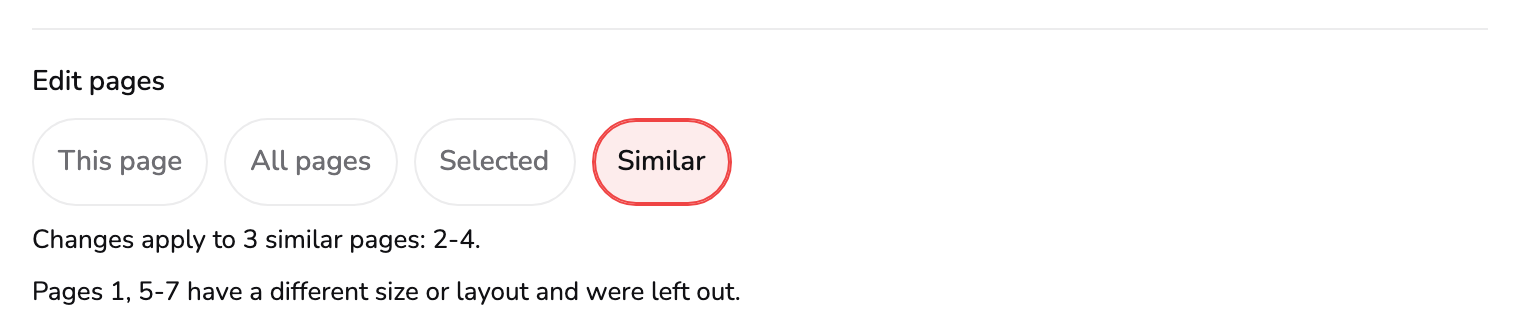
- Edit pages. Which pages your next change reaches: This page, All pages, Selected (tick them in the page list or type a range) or Similar (pages laid out like this one).
- Which pages. Spells out the pages the next change will reach. Under it, Similar names every page it left out for a different size or layout.
The four choices at marker 1:
- This page — where every PDF starts. A change reaches the page on screen only.
- All pages — every page. A box drawn on one page is copied to pages of the same size and scaled to fit on pages of another size, and a note names those.
- Selected — opens the page list with a box to tick on each page. Tick the pages you want, Shift-click to tick a run, use Select all or Clear, or type a range such as
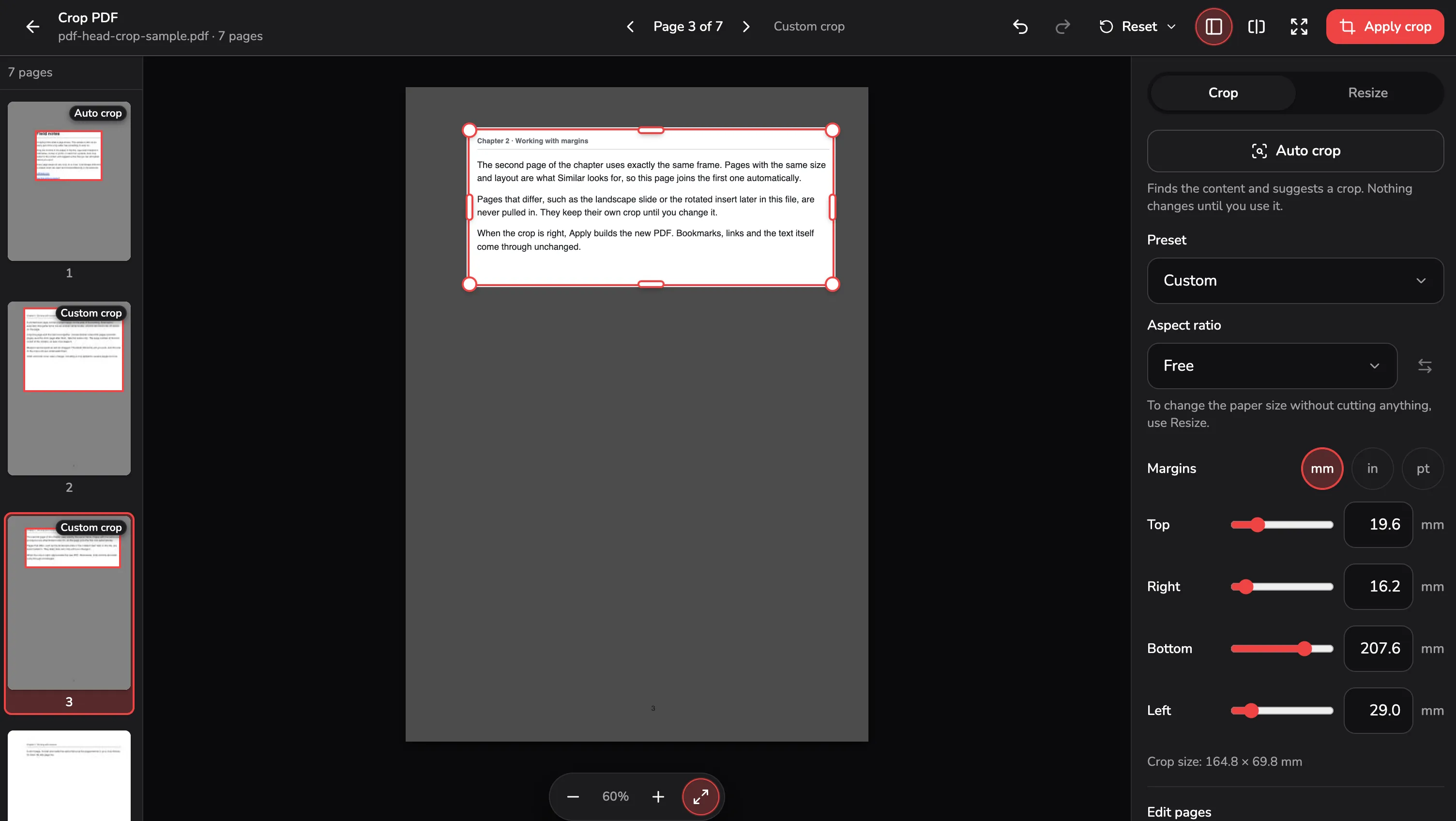
1-3, 8in the Pages field. The page on screen is always included. - Similar — checks every page of the same size and orientation and keeps the ones laid out like the page on screen. On the sample’s page 2 it finds the other two book pages.
The line at marker 2 always says which pages the next change reaches — Changes apply to 3 similar pages: 2-4. above — and under it, Similar names the pages it left out. With Selected or Similar chosen, the page arrows step through those pages only.
Choosing a scope changes nothing by itself: it decides where the next drag, typed margin, preset or Auto crop goes. With Similar chosen on page 2, Auto crop made one suggestion for pages 2 to 4, and Use suggestion cropped all three at once. Every thumbnail in the page list shows its page’s crop, with a label such as Auto crop, Custom crop or A4 page, so you can see what was done where.
6. Put pages on A4 or Letter with Resize
A cropped page is exactly the size of its box. That is right for reading on a screen, but it no longer prints on a whole sheet of A4 or Letter. The Resize tab puts pages on the paper you choose, without cutting anything more.
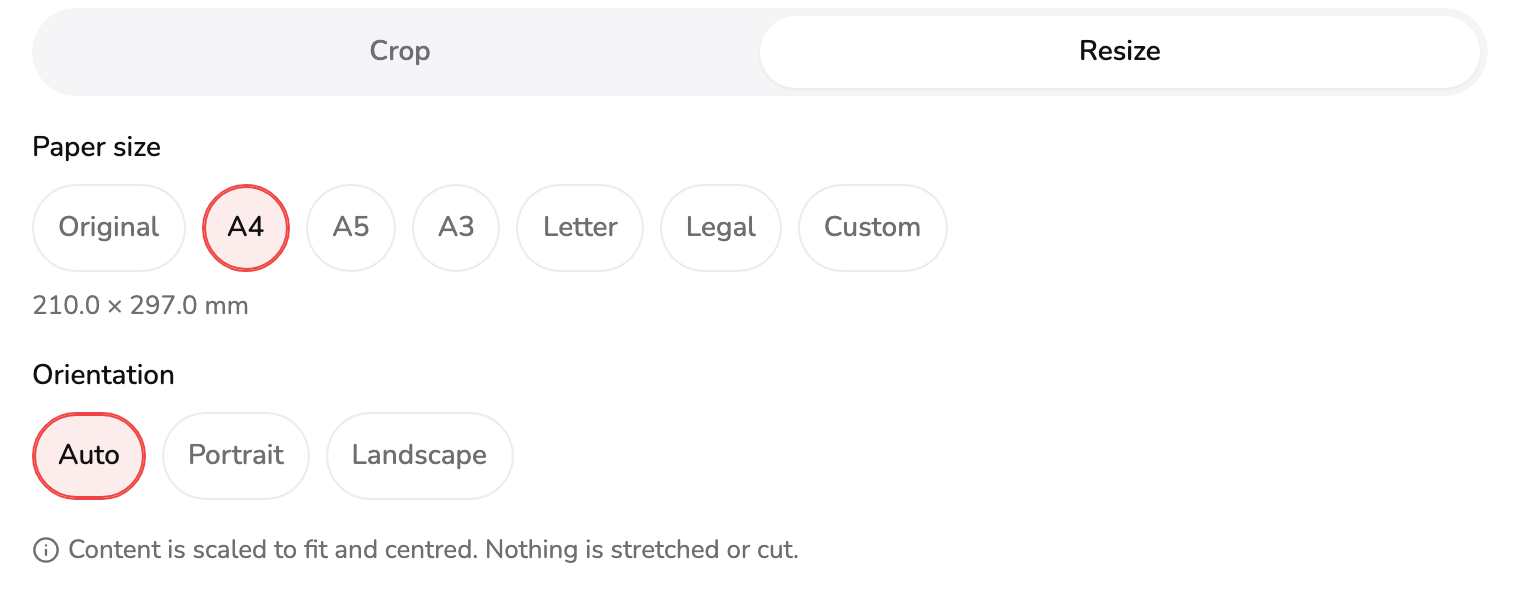
- Paper size. The paper each page is saved on. Original keeps the size of the crop; A4, A5, A3, Letter and Legal are fixed sizes; Custom takes a width and height you type.
- Orientation. Auto turns the paper to match each page's crop, so a wide crop gets landscape paper. Portrait or Landscape turns it the same way for every page in the change.
- Scaling. The cropped content is scaled to fit the paper and centred on it. Nothing is stretched, and nothing more is cut.
Paper size, at marker 1, offers Original — pages keep the size of their crop — then A4, A5, A3, Letter, Legal and Custom, which asks for a width and a height and starts at the crop’s own size. The line under the choices gives the size in your unit. Orientation, at marker 2, appears for the fixed sizes: Auto turns the paper to match each page’s crop, so a wide crop gets landscape paper, while Portrait and Landscape turn it the same way for every page.
As the note at marker 3 says, the cropped content is scaled to fit the paper and centred on it, never stretched and never cut. A book page trimmed of its margins and put back on A4 therefore comes out with its text larger, as large as the sheet allows. While Resize is open, the page on screen shows the paper as it will be saved.
Edit pages applies here too. Above, All pages was chosen first, then A4, so every page of the sample will come out on A4 — the cover, the cropped book pages, the slide on landscape paper.
7. Check your pages
The top bar has what you need before you build the file. On a laptop each control has its own button; on a phone or a tablet, Undo and Redo stay in the bar and the rest are under More (⋯).
- Undo and Redo step through every change in the document, on any page. Each says which page its next step will change — Undo on page 1 — and an undo that changes another page takes you to it. Ctrl+Z or ⌘+Z undoes, and Ctrl+Y or Shift+⌘+Z redoes.
- Reset puts this page, or every page, back as it was opened. Resetting all pages asks first when more than one page has changed, and Undo brings them back.
- Pages shows or hides the page list.
- Compare with the original shows the page as it came in, with an Original badge on it; press it again to return to your crop. Holding the \ key gives the same view for as long as you hold it.
- Preview all pages opens every page full screen.
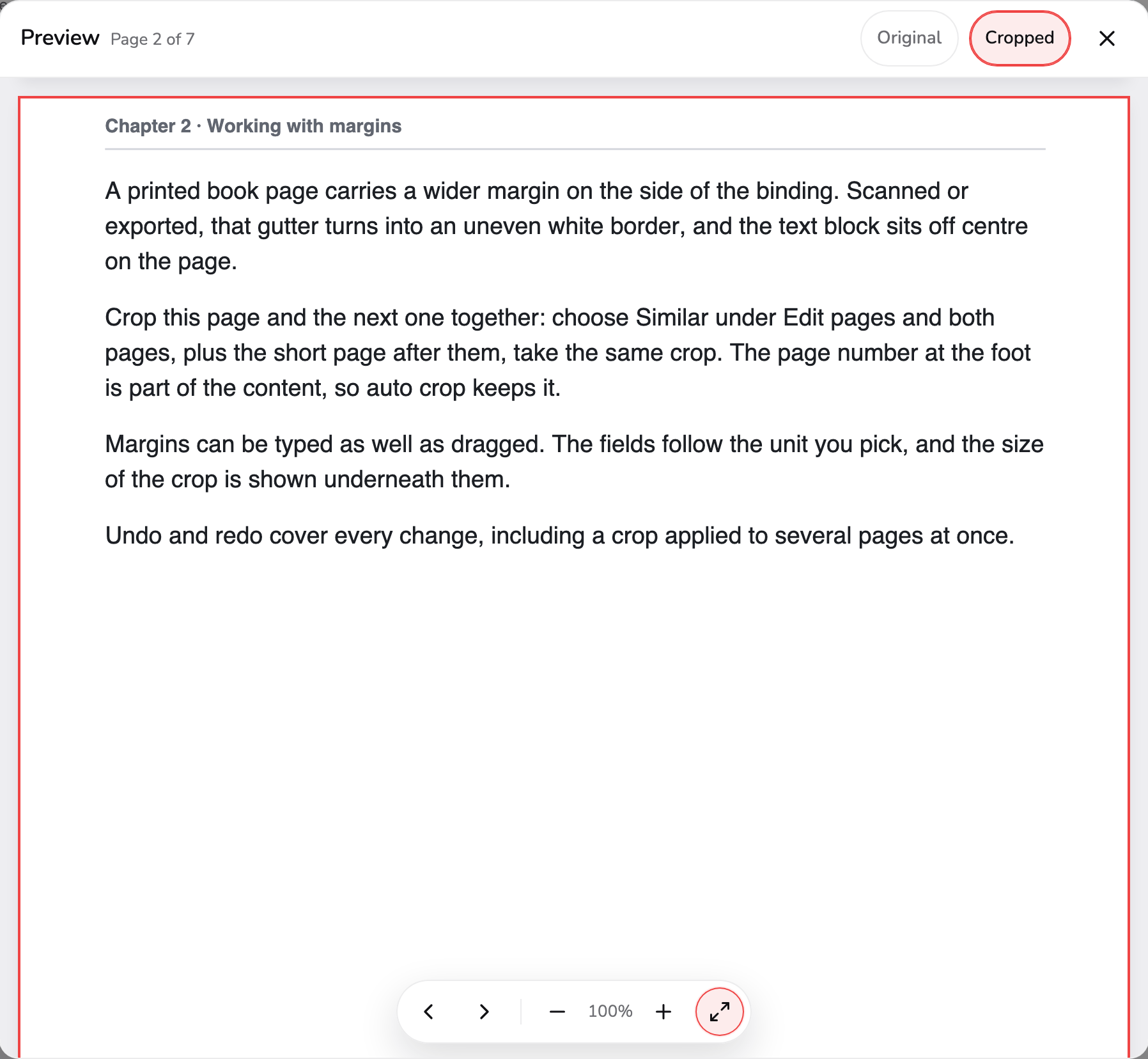
- Original or Cropped. Cropped shows every page exactly as it will be saved, on its new paper where you resized it. Original shows the pages as they are now.
- Close. Back to the editor, on the page you were looking at. Escape does the same.
- Pages and zoom. Step to the previous or next page, and zoom out or in. The left and right arrow keys move between pages too, and + and − zoom.
In the preview, pages run one under another, each exactly as it will be saved — page 2 here is the cropped book page enlarged onto A4. The switch at marker 1 flips between Cropped and Original, the way every page looks now. Close at marker 2, or Escape, returns to the editor on the page you were looking at. The controls at marker 3 step between pages and zoom, as do the left and right arrow keys and + and −.
8. Apply the crop and download
Apply crop sits at the top right on a laptop, and at the foot of the settings on a phone or a tablet. It is faded until something has changed; pressing it then only says what is missing, such as a crop or a field that needs fixing.
Pressing it builds the cropped PDF inside this tab. The button turns into a progress ring with Cancel beside it, and the editor is locked until the file is ready; cancelling keeps every crop you made.
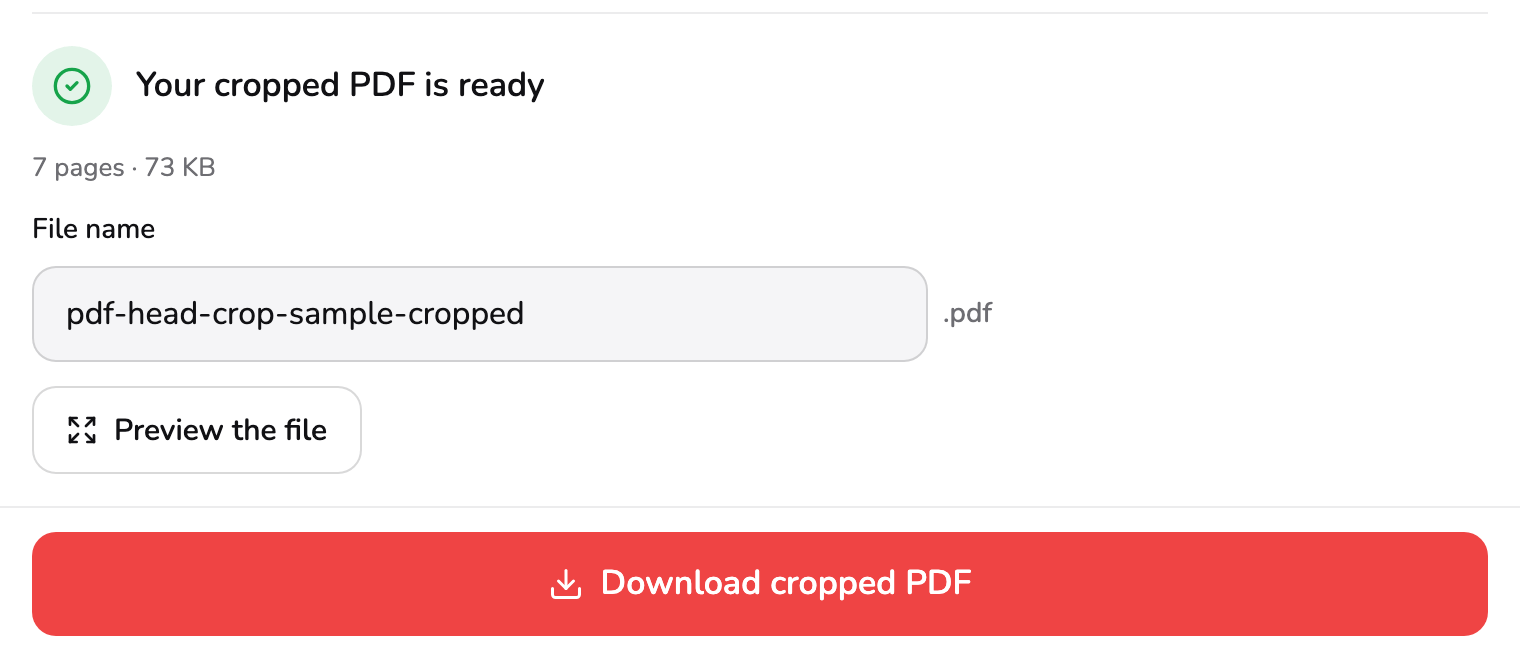
- Ready. The cropped PDF has been built in this tab. The line under the heading gives the page count and the file's real size.
- File name. Starts as the PDF's own name with -cropped added. Type another before you download; the .pdf is added for you.
- Download cropped PDF. Saves the file to your device. Change anything after this and the button goes back to Apply crop, so the file always matches what you see.
The heading at marker 1 confirms the file is built, and the line under it gives the page count and the real size — 7 pages · 73 KB for the sample. The name at marker 2 starts as the PDF’s own name with -cropped added, here pdf-head-crop-sample-cropped; change it before you download if you like. Download cropped PDF at marker 3 saves the file, and a Saved to your device line appears once it has. Preview the file, below the name, opens the built file itself in the full-screen preview.
Change anything after this and the editor returns to Apply crop, with a note that the file is out of date, so what you download always matches what you see. Text stays selectable, pictures are not compressed a second time, and links and bookmarks keep working. Keep in mind that a crop only hides: anything outside the box is still inside the file, so it is not a way to get rid of something confidential.
Which setting for which job
| You want to… | Do this |
|---|---|
| Trim the white margins off every page | All pages, then Auto crop and Use suggestion |
| Crop a scanned book’s pages the same way | Open one page, choose Similar, then Auto crop or drag |
| Remove a dark scanner edge | Auto crop — it ignores the scanner bed and dust |
| Cut a page to exactly A4 or Letter | Preset A4 or Letter: a centred cut, nothing scaled |
| Print cropped pages on a full sheet | Resize to A4 or Letter, with Orientation Auto |
| Give every page the same paper size without cutting | Resize only, with All pages chosen |
| Keep a slide’s 16:9 shape while you crop | Aspect ratio 16:9, then drag |
| Move each side on its own | Aspect ratio Free |
Access and technical limits
You can try Crop PDF with the bundled sample, all the way to the download. Pro ($9.99/month) is required for your own PDF and includes unlimited exports. Technical limits such as browser memory still apply, along with the 100 MB and 1,500-page limits above.
Which tool you want
- Trim margins, cut a page to a size, or put pages on new paper → Crop PDF, as above.
- A scanned spread with two pages side by side → Split PDF cuts each page in half; How to split a PDF walks through it.
- A page that is sideways or upside down → Rotate PDF, then crop; How to rotate a PDF walks through it.
- Part of a page as a picture → crop it here, then PDF to Images; How to convert a PDF to images covers the settings.
- A file that is too large to send → Compress PDF. Cropping keeps everything outside the box in the file, so it barely changes the size; How to compress a PDF explains what does.
Common questions
I dragged a corner and the box jumped to a different shape. Why?
Because Aspect ratio starts on A4. Opening a PDF changes nothing, but the first box you drag or type takes the A4 shape — even one Auto crop drew in another shape. Set Aspect ratio to Free in the Crop tab, then drag again: each side moves on its own from then on. Choosing a ratio again fits the box to that shape at once.
I cropped one page and the others stayed as they were. How do I crop them too?
Edit pages starts on This page, so every change reaches the page on screen only. Choose All pages, Selected or Similar first, then make the change: drag the box again, type a margin, or press Auto crop. Choosing a scope moves nothing on its own — it decides where the next change goes. After you use Auto crop on one page, the card may also offer the same crop for similar pages.
Why is the saved page smaller than A4 now?
A cropped page is exactly the size of its box, so trimming 30 mm from each side of an A4 page leaves a page 150 mm wide. To print it on A4 again, open the Resize tab and choose A4: the content is enlarged to fit the paper, centred, and nothing is stretched. Choose All pages under Edit pages first to do every page.
Auto crop kept the page number. How do I trim it off?
A page number counts as content, so Auto crop keeps it inside the box on purpose. Drag the bottom edge up past it, or raise the Bottom margin in the Crop tab. To do that on every book page at once, choose Similar or All pages under Edit pages before you change the margin.
Similar left out a page that looks the same to me. What decides it?
Similar only considers pages of the same size and orientation, then keeps the ones that are blank, laid out like the page on screen, or whose content fits inside its crop. A page a few millimetres larger, or with its text in another place, is left out and named under the summary. Choose Selected and tick it in the page list to include it anyway; on a page of another size, the crop is scaled to fit.
I changed something after Apply crop. Do I have to start again?
No. The built file stays tied to the crop it was made from, so any change takes you back to Apply crop with a note saying so, and every other crop you made is kept. Press Apply crop again to rebuild it. If you undo back to exactly the crop you applied, the result comes back without being built a second time.