How to Convert a PDF to Images: Pages, Format and Resolution
Every page you pick becomes its own image file, drawn in your browser at the resolution you choose. Here is how to leave pages out, which format and resolution suit screen or print, what each advanced setting changes, and what to check on the result screen before you download.
Tools used in this guide
1. Open your PDF
PDF to Images opens on a drop area. Drag a PDF onto it, or use Choose PDF at marker 1.
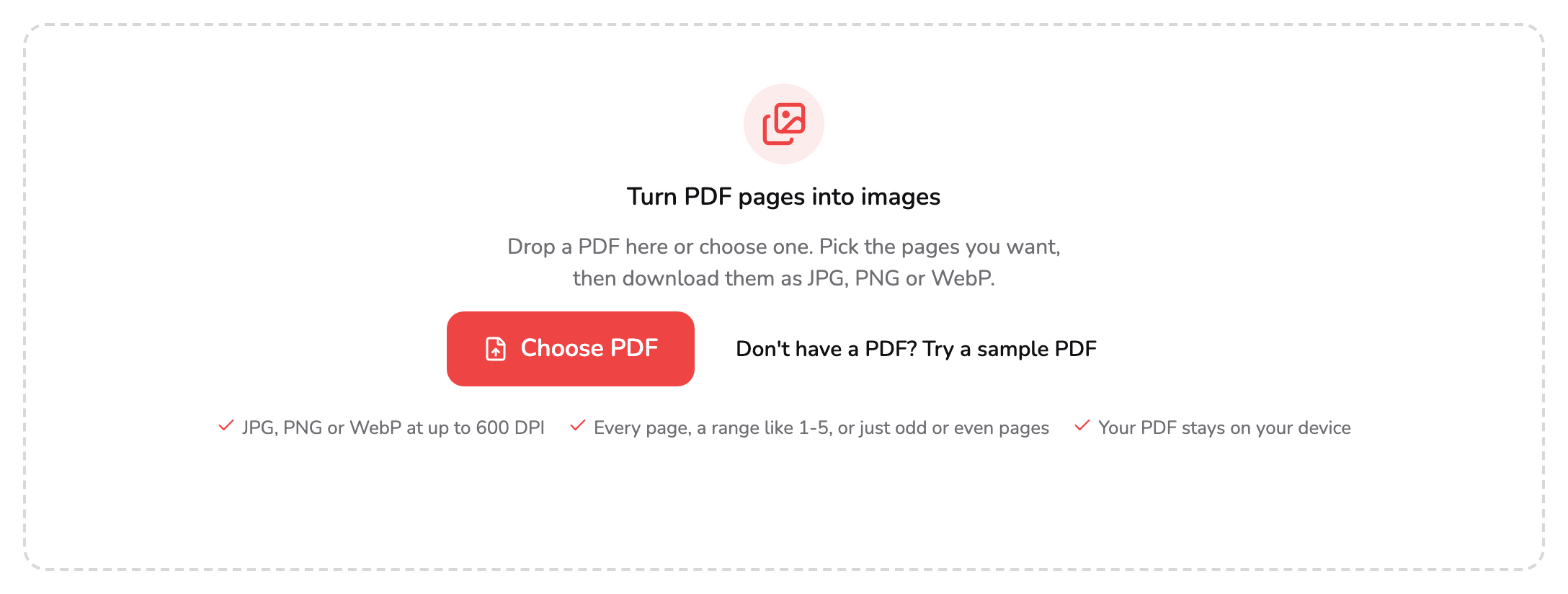
- Choose PDF. Pick one PDF from your device, or drop it anywhere on this panel. Files up to 200 MB and 1,500 pages open here.
- Try a sample PDF. Loads the seven-page PDF used in every screenshot here, so you can follow the steps without a file of your own.
The tool works on one PDF at a time. If you drop several, it opens the first and says so. A file of up to 200 MB and 1,500 pages opens here; a bigger one gets a link to Split PDF, so you can convert it in parts. A password-protected PDF asks for its password right on this panel — the password is not stored and the file is not changed.
The pages are drawn in the tab you already have open, so the PDF never leaves your device, no account is needed and no watermark is added. To follow along without a file of your own, Try a sample PDF at marker 2 loads the seven-page PDF used in every screenshot below.
2. Choose the pages
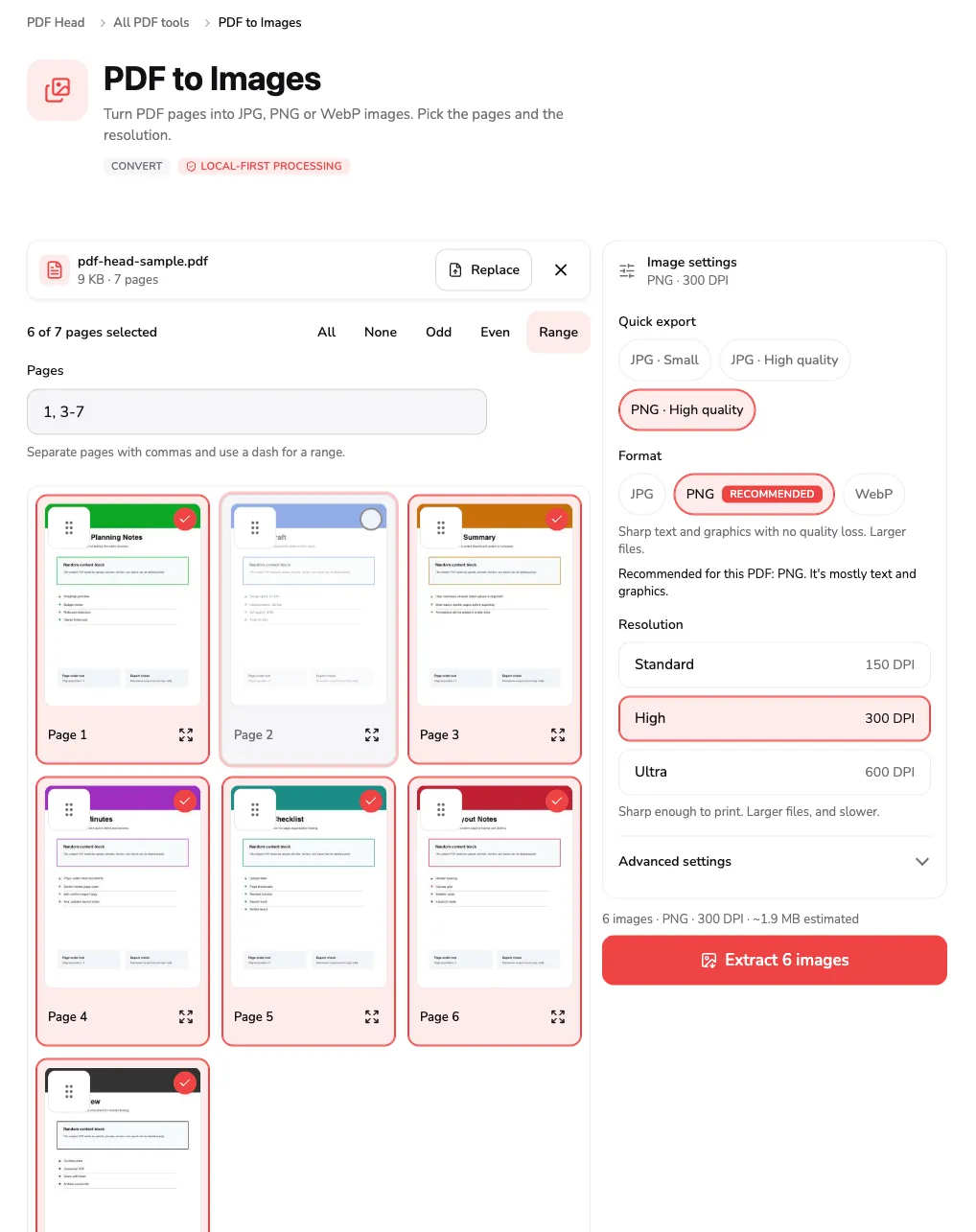
Every page appears as a card, and every page starts selected. A page with a red tick becomes an image; a page without one does not.
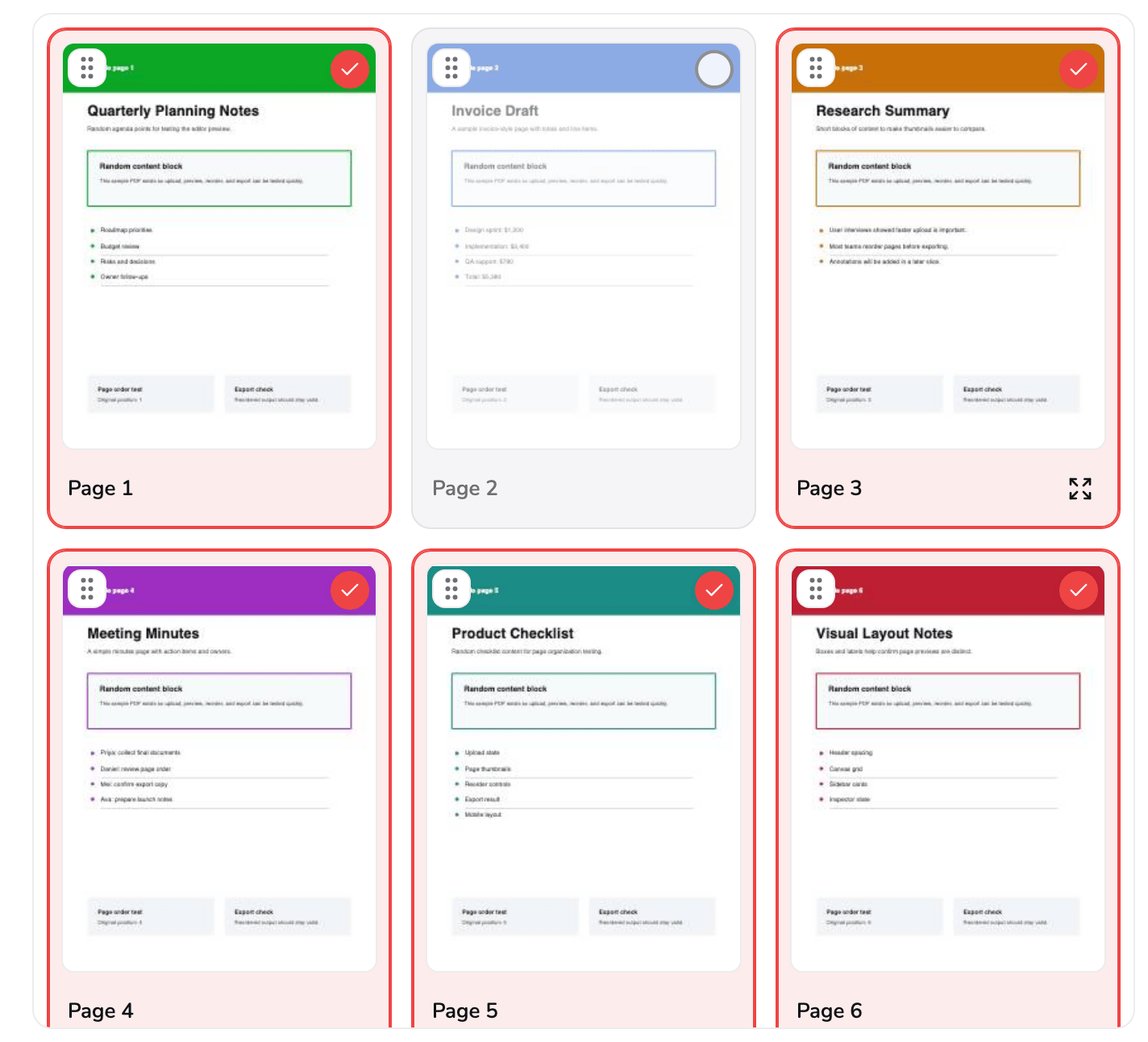
- Left out. Page 2 has lost its tick and is dimmed, so it will not become an image. Click or tap anywhere on a page to leave it out or bring it back.
- Grip. Drag a page by this to change the export order. With the grip focused, the arrow keys move the page one place, and Home or End send it to the start or the end.
- Preview. Opens the selected pages full screen, drawn with the current settings. With a mouse it appears when you point at the card; on a touch screen it is always there.
Click or tap anywhere on a page to leave it out, and again to bring it back. Page 2 of the sample is a draft, so it is left out above: marker 1 shows its empty circle and dimmed card. With a mouse, Shift-click another page to give every page between the two the same state in one go. From the keyboard, the arrow keys move between pages and Space selects or clears the one in focus.
The grip at marker 2 changes the order the images are saved in. Drag a page by it; on a touch screen, put a finger on the grip and drag — a swipe anywhere else on the card scrolls instead. With the grip focused, the arrow keys move the page one place, and Home or End send it to the start or the end. Once anything has moved, Reset order appears above the grid, and the file names start with the new position so they sort the way you arranged them.
Preview at marker 3 opens the selected pages full screen, one under another, drawn exactly as they will be saved — with the format, resolution, size and background you choose in steps 3 and 4. With a mouse the button appears when you point at a card, and double-clicking a page opens it too. Inside, the left and right arrow keys move between pages, + and − zoom, and Include in export leaves the page you are looking at in or out.
Above the grid, the selection bar does the same job in fewer taps:
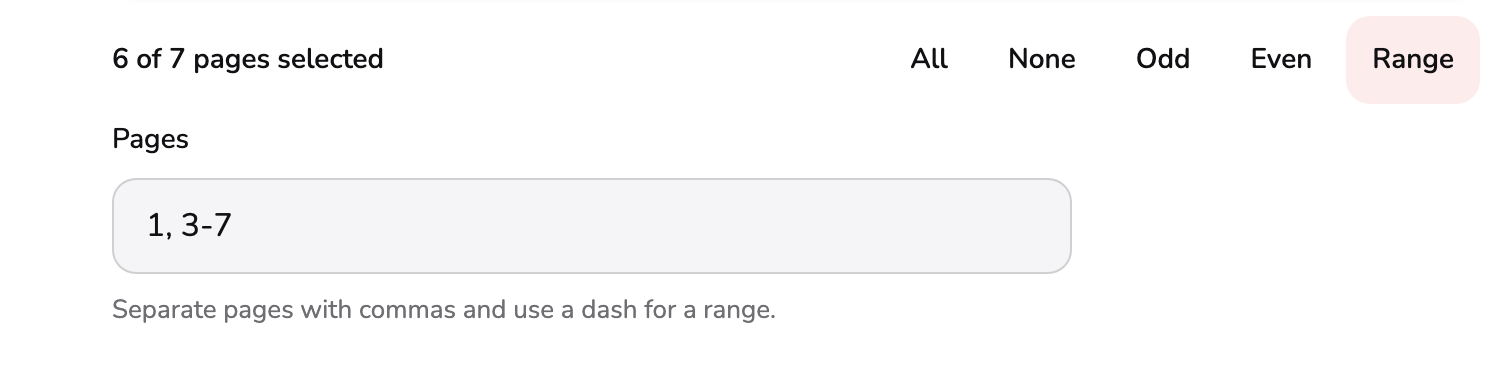
- Pages selected. How many pages will become images. It changes with every tap on the grid and every range you type.
- Quick selection. All, None, Odd or Even selects that set of pages in one tap. Range opens the Pages field below.
- Pages. Type pages and ranges such as 1-5, 8, 12-15. It opened by itself here: 1, 3-7 is none of the quick sets, so the field shows the selection as text.
The count at marker 1 always says how many images the export will make. The buttons at marker 2 select All, None, the Odd pages (1, 3, 5…) or the Even ones (2, 4, 6…) in one tap. Range opens the Pages field at marker 3, where you type what you want:
| You type | You get |
|---|---|
4 | Page 4 |
1-5, 8 | Pages 1 to 5, and page 8 |
12- | Page 12 to the last page |
-3 | The first three pages |
The field applies what you type as soon as you pause, and checks it when you press Enter or leave the field: a page the PDF does not have is named in red under it, and nothing changes until you fix it. The field also opens by itself whenever the selection is none of the quick sets — leaving page 2 out wrote 1, 3-7 into it above.
3. Choose the format and resolution
The settings sit beside the grid on a laptop or a larger screen. On a tablet they open above the grid once a PDF is loaded, and can be folded away; on a phone they start folded, and you open Image settings to change them.
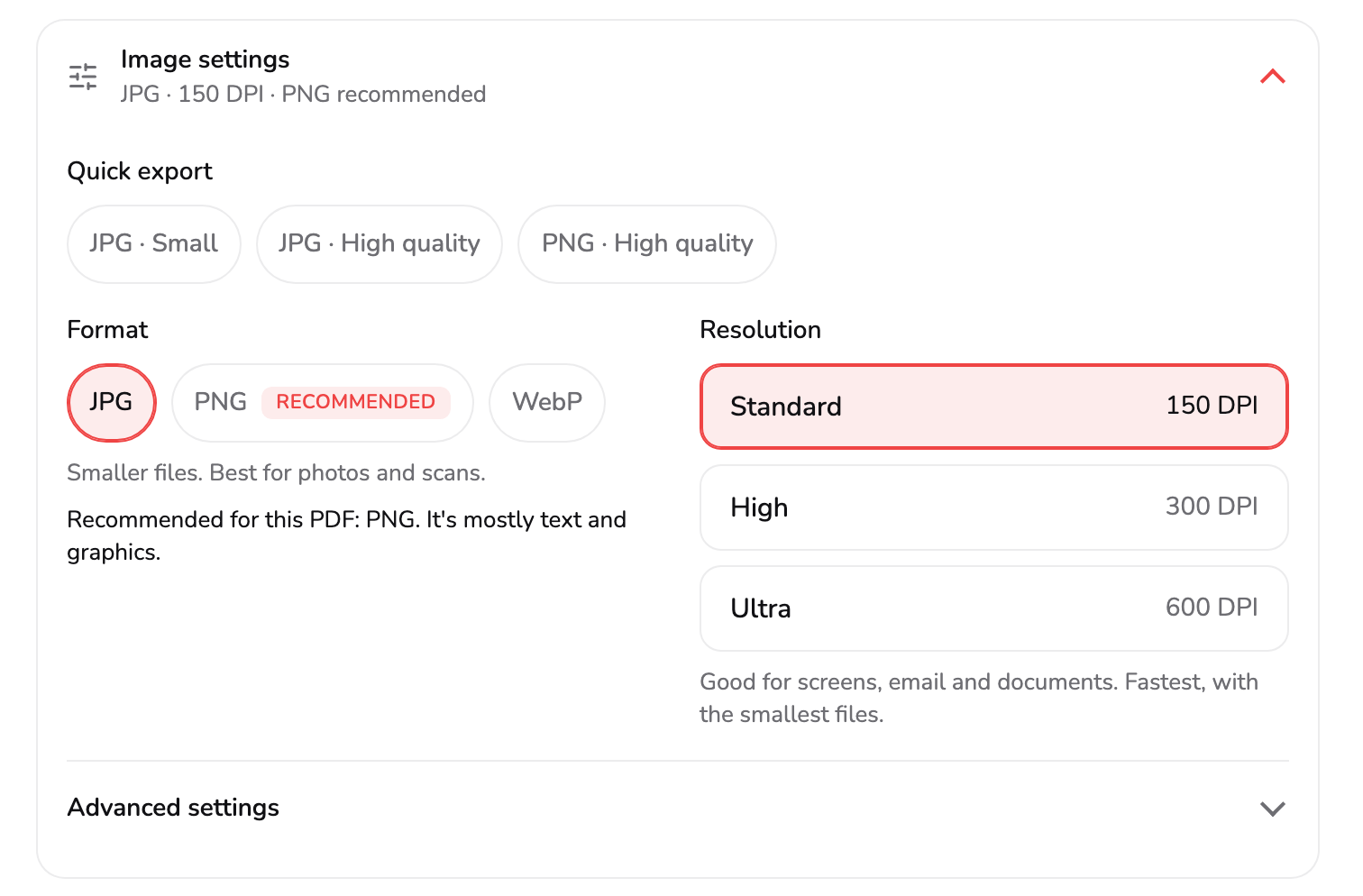
- Summary. The format and resolution in one line, plus the format the tool recommends whenever it is not the one chosen. On a phone the card is folded and this line is all you see.
- Quick export. One tap to a common mix: JPG · Small (150 DPI, 70% quality), JPG · High quality (300 DPI, 90%) or PNG · High quality (300 DPI). The one that matches stays lit.
- Format. JPG, PNG or WebP, for every image in the export. Recommended marks the format that suits this PDF; the tool never switches it for you.
- Resolution. Standard (150 DPI), High (300 DPI) or Ultra (600 DPI). The line under the choices says what each one is for.
- Advanced settings. Image quality, any DPI you like, the image size, the background and the file names. Closed until you open it.
The summary at marker 1 always says what is set. The default is JPG · 150 DPI, and when the tool would suggest a different format, the summary says so — here, PNG recommended.
Quick export, at marker 2, sets a common combination in one tap:
| Preset | Resolution | Quality |
|---|---|---|
| JPG · Small | 150 DPI | 70% |
| JPG · High quality | 300 DPI | 90% |
| PNG · High quality | 300 DPI | lossless |
The preset stays lit while your settings match it, and goes out as soon as you change one of them.
Format, at marker 3, applies to every image in the export:
- JPG — the smallest files for photos and scanned pages. It is lossy, so sharp text on white can pick up faint smudges around the letters, more so at lower quality.
- PNG — lossless. Text, lines and flat colour stay crisp, and pages that are mostly text are often small. A page full of photographs makes a large PNG.
- WebP — smaller than JPG at the same look, but some older apps and editors cannot open it. If your browser cannot save WebP, the chip is greyed out and a line under it says so.
The chip marked Recommended is worked out from the first pages of your PDF: mostly photos or scans gets JPG, mostly text and graphics gets PNG, and a mix gets JPG. It never changes your choice. The sample is text and diagrams, so it recommends PNG — tap it to follow along.
Resolution, at marker 4, decides how many pixels each page becomes: Standard (150 DPI) for screens, email and documents, High (300 DPI) for printing, and Ultra (600 DPI) for fine detail you will zoom into. The section below this walkthrough turns those numbers into pixel sizes.
4. Fine-tune in Advanced settings
Most exports never need this. Open Advanced settings (marker 5 above) when you want a resolution that is not on the list, a fixed image size, a transparent background or different file names.
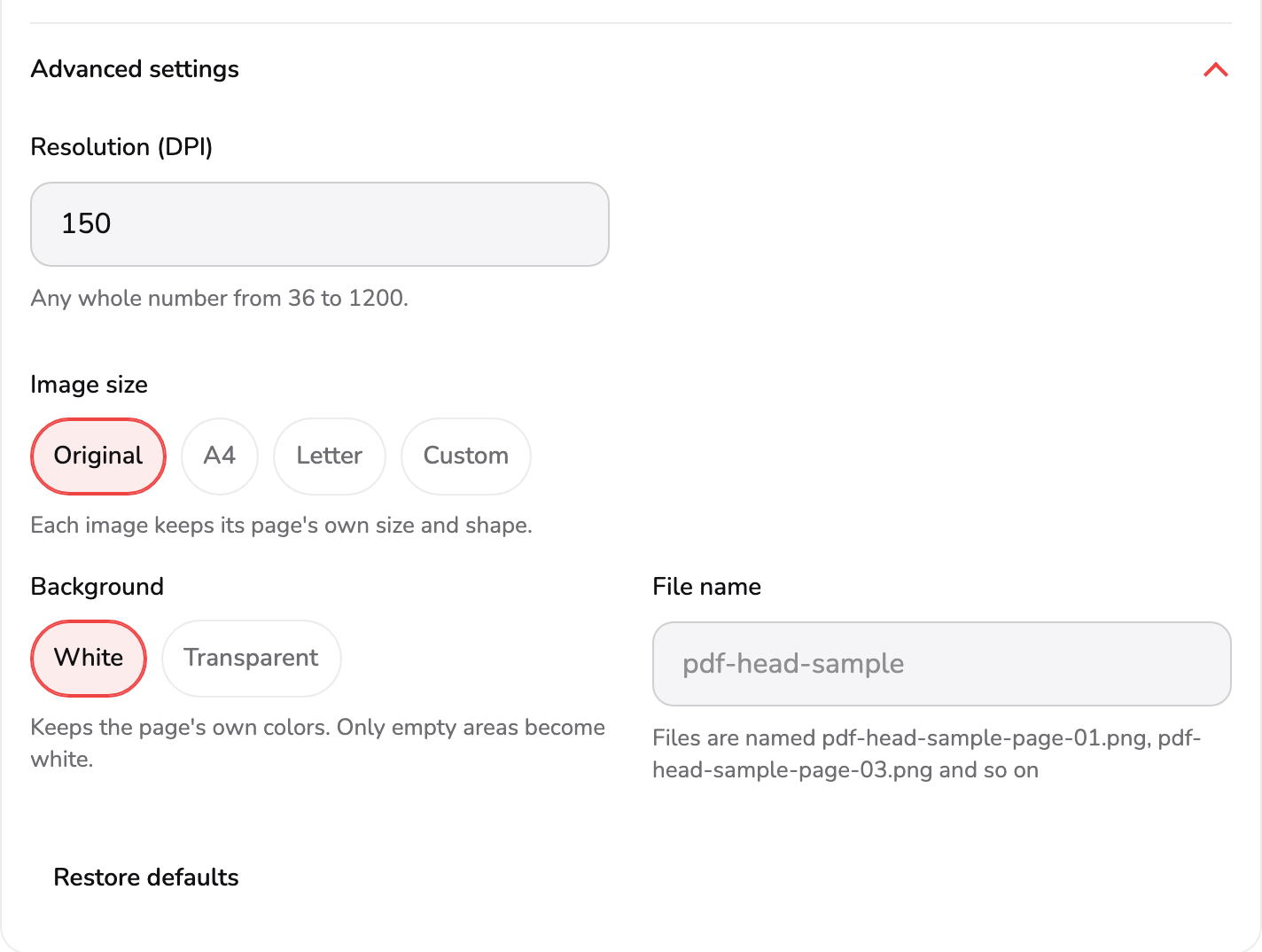
- Resolution (DPI). Any whole number from 36 to 1200, for when none of the three choices fits. A value other than 150, 300 or 600 leaves all three unlit.
- Image size. Original keeps each page's own size and shape. A4 and Letter centre the page on that sheet. Custom sets the exact pixels, fitted or stretched.
- Background. White or Transparent. Transparent leaves the empty parts of each page see-through. JPG cannot store that, so this row hides while JPG is chosen.
- File name. Starts as the PDF's own name. Type another to use it instead; the line under the field shows the names the files will get.
- Restore defaults. Back to JPG at 150 DPI, 100% quality, Original size and a white background. A file name you typed is kept.
- Image quality comes first, for JPG and WebP only: a slider from 10% to 100%, which is where it starts. Lower means smaller files and softer detail. It hides for PNG, which is lossless — which is why it is not in the screenshot above, taken with PNG chosen.
- Resolution (DPI), at marker 1, takes any whole number from 36 to 1200. Type 200, and none of the three choices above stays lit, and the note under them reads
Custom resolution: 200 DPI. - Image size, at marker 2. Original keeps each page’s own size and shape at the chosen DPI. A4 and Letter put every page on that sheet at the chosen DPI, centred, with a landscape page on a landscape sheet and the rest of the sheet filled with the background. Custom asks for a width and a height in pixels, filled in from the first selected page to start you off; with Keep proportions on, each page is fitted inside that box, and with it off, stretched to exactly that size. The Resolution choices hide while Custom is chosen, because the pixels are set directly.
- Background, at marker 3, appears for PNG and WebP. White keeps the page’s own colours and fills only the empty parts with white. Transparent leaves those empty parts see-through, which is what you want for a logo or a diagram you will lay over something else; a page that paints its own background stays opaque either way.
- File name, at marker 4, starts as the PDF’s own name. The line under it shows exactly what the files will be called —
pdf-head-sample-page-01.png,pdf-head-sample-page-03.pngand so on for the sample. Numbers are padded, so the files sort in page order in any file manager. A name needs at least one letter or number. - Restore defaults, at marker 5, puts everything back to JPG at 150 DPI, 100% quality, Original size and a white background, and keeps any file name you typed.
5. Extract the images
The action bar sits under the settings on a laptop. On a phone or a tablet it stays pinned to the bottom of the screen as you scroll the grid.
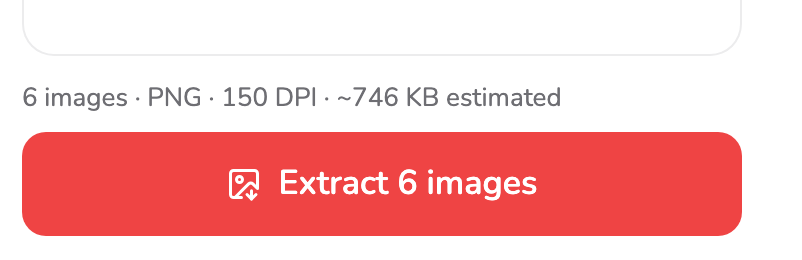
- Extract images. Draws each selected page and saves it as an image, inside this tab. While it works the button shows the progress, and Cancel appears beside it.
- Estimate. How many images, in which format and resolution, and roughly how big the download will be. It gives way to the reason whenever Extract cannot run.
The button at marker 1 carries the count: Extract 6 images for the sample with page 2 left out, Extract image for a single page. The line at marker 2 is the estimate: how many images, in which format and resolution, and roughly how big the download will be — the ZIP for two or more images, the file itself for one. It is worked out from a few sample pages, so the real size can land a little either side.
Whenever Extract cannot run, that line gives the reason instead — no page selected, or a setting that needs fixing — and pressing the faded button points you at it. A very large export is flagged before it starts, and one too big for a single ZIP is refused; select fewer pages or a lower resolution.
While the images are made, the button turns into a progress ring and Cancel appears beside it. The grid and the settings are locked until it finishes, so nothing changes under the run, and cancelling returns you to the grid exactly as you left it. If you switch to another tab, the work pauses until you come back, and the tool says so.
6. Check the result and download
When the run finishes, the grid gives way to the result.
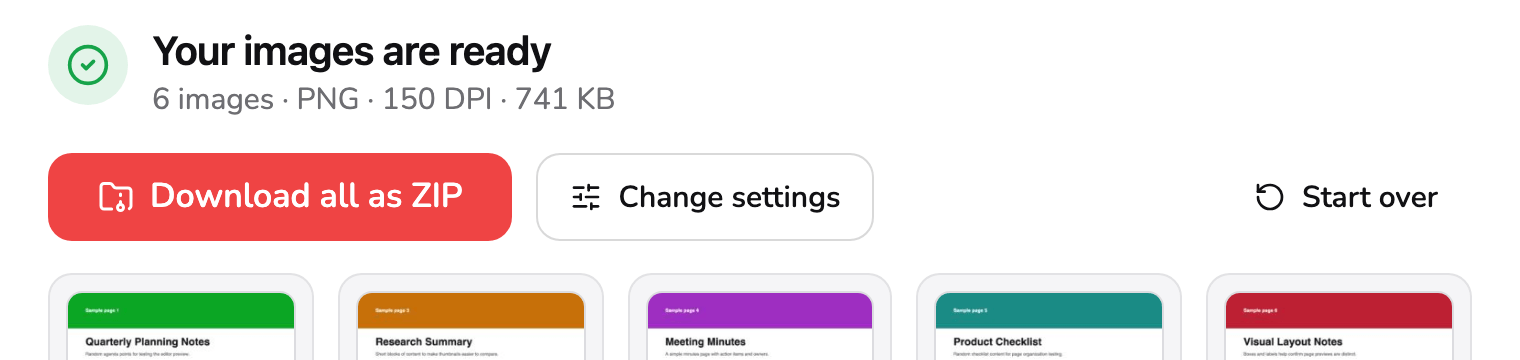
- Your images are ready. Every selected page has been saved as an image. The line under the heading gives the count, the format, the resolution and their real total size.
- Download all as ZIP. Saves every image in one ZIP file. With a single page selected the button reads Download image and saves that one file instead.
- Change settings. Back to the pages and settings as you left them. These images are let go when you leave, so download what you need first.
- Start over. Clears this PDF and its images and returns to the drop area. If nothing has been downloaded yet, it asks first.
The heading at marker 1 confirms the images were made, and the line under it gives the count, the format, the resolution and their real total size — 6 images · PNG · 150 DPI · 741 KB for the sample, a few kilobytes under the estimate.
Download all as ZIP at marker 2 saves every image in one archive, named after the PDF — pdf-head-sample-images.zip here. The images inside are the same files, not squeezed a second time. With a single page selected, the button reads Download image and saves that one file instead. You can download as often as you like.
Change settings at marker 3 goes back to the grid with your selection, order and settings as you left them, ready to change something and extract again. It asks no question, so download first: the images on this screen are let go as you leave it. Start over at marker 4 clears the PDF and the images, and asks first if you have not downloaded anything.
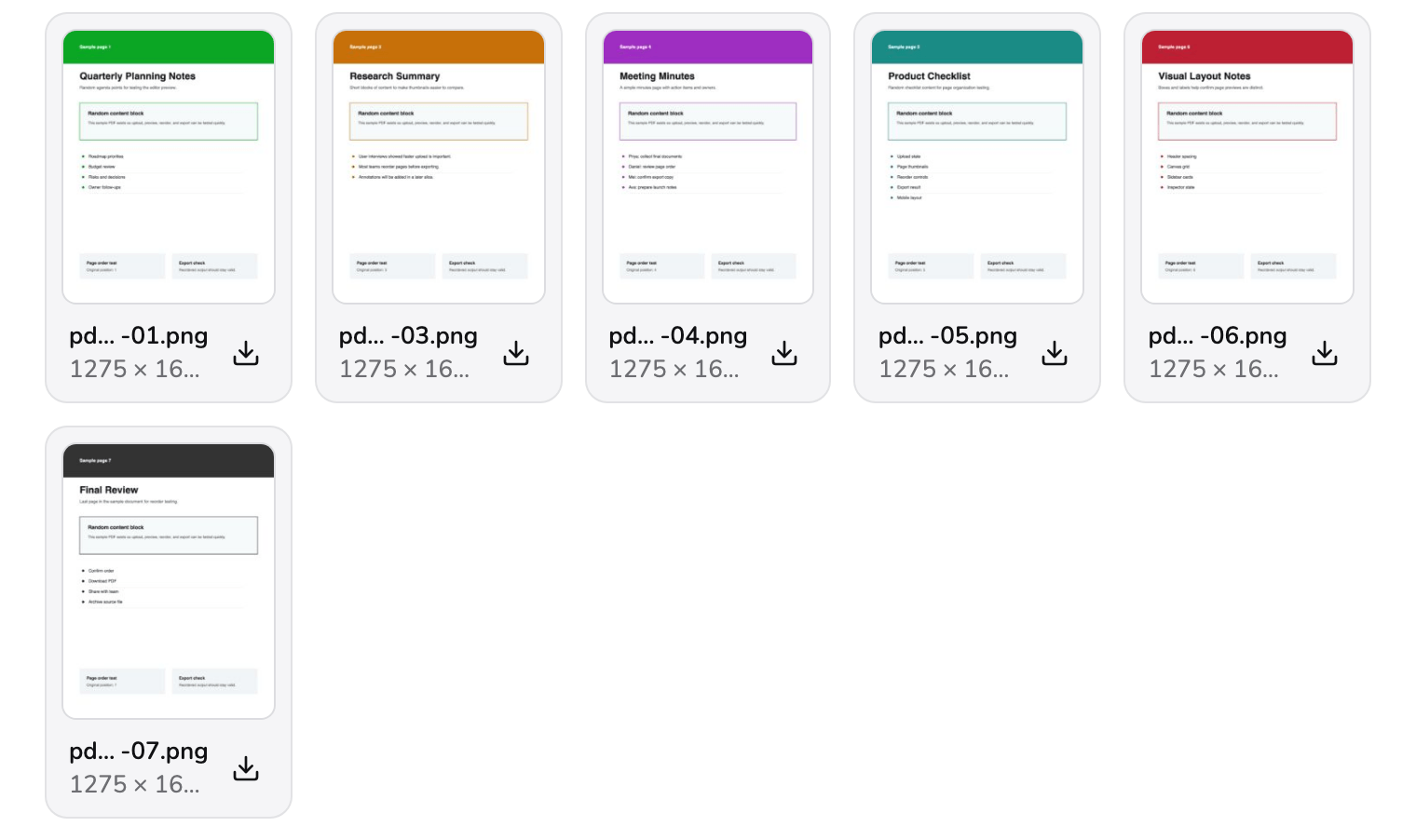
- File name. The name this image is saved under. A long one is shortened in the middle so the page number and extension stay visible; point at it to read it whole.
- Download this image. Saves just this one image. Handy when you need two or three pages rather than the whole ZIP.
Below the buttons, every image has its own card, in export order. The name at marker 5 is the file you will get; a long one is shortened in the middle, so the page number and the extension stay in view, and pointing at it shows it whole. Under the name is the image’s size in pixels. The button at marker 6 saves that one image, which is quicker than a ZIP when you need two or three pages.
If a page could not be converted, the others are still here, and a note above them names the page, with Select failed pages to go back and try just those.
Which format for which job
| You want to… | Choose |
|---|---|
| Put a slide or a page into a presentation or a document | PNG, Standard or High |
| Post a page on a website, or send it in a chat | JPG at Standard, or WebP for your own site |
| Print a page, or send it to a print shop | High; PNG for text, JPG for photos |
| Keep a scanned or photographed page | JPG, Standard or High |
| Zoom into a drawing, a plan or small print | PNG, Ultra |
| Lay a logo or a diagram over something else | PNG, High, background Transparent |
When in doubt, follow the Recommended chip, then look at the estimate before you extract: if it is far larger than you expected, try JPG or a lower resolution.
How big the images come out
DPI means dots per inch of the page, so the pixel size depends on the page’s own size. For the two common paper sizes:
| Resolution | Letter page | A4 page |
|---|---|---|
| Standard, 150 DPI | 1,275 × 1,650 px | 1,240 × 1,754 px |
| High, 300 DPI | 2,550 × 3,300 px | 2,480 × 3,508 px |
| Ultra, 600 DPI | 5,100 × 6,600 px | 4,961 × 7,016 px |
Doubling the DPI makes four times as many pixels, and roughly two to four times the file size. 150 DPI is plenty for anything read on a screen, and 300 DPI is the usual print standard; 600 DPI is only worth it for detail you will zoom into. The JPG and PNG files record the DPI they were made at, so they print at the page’s real size.
Phones and tablets stop at 4,096 pixels on an image’s longest side. At Ultra, that brings an A4 or Letter page down to roughly 350 to 370 DPI there, and the tool says so under Resolution before you extract, with the DPI it will use. A desktop browser usually draws 600 DPI in full.
Access and technical limits
You can try PDF to Images with the bundled sample. Pro ($9.99/month) is required for your own PDF and includes unlimited exports. Technical limits such as browser memory and the maximum ZIP size still apply.
Which tool you want
- One page as a picture, or every page as a set of images → PDF to Images, as above.
- A shorter PDF rather than pictures → Split PDF; How to split a PDF walks through it.
- The words on the pages, to copy or search → Extract PDF Text. An image is pixels, so the text in it can no longer be selected.
- Images back into one PDF → Image to PDF; How to convert images to a PDF covers the settings.
- A PDF that is simply too heavy to send → Compress PDF keeps it a PDF and makes it smaller.
Common questions
I left one page out and a Pages field appeared. Did I do something wrong?
No. The field opens by itself whenever the selection is not one of the four quick sets, so you can see it written as text — leaving page 2 out of seven shows 1, 3-7. You can edit it there or keep tapping pages; either one updates the other. It folds away again as soon as the selection is All, None, Odd or Even.
Why do my file names start with a number, like pdf-head-sample-01-page-03.png?
Because you changed the order. Once any page has been dragged, the names start with the position in your new order, so file managers sort them the way you arranged them, and keep the page number so each file still says where it came from. Press Reset order above the grid to go back to the PDF's own order and the plain names.
The tool recommends PNG but JPG is still selected. Which should I use?
The recommendation comes from how much of the first pages is covered by pictures. Mostly text and drawings gets PNG, which keeps letters sharp with no blur around them; mostly photos or scans gets JPG, which is far smaller for those. It is advice only, and JPG stays the default until you tap another format. For a page of text, a PNG is often smaller than the same page as a JPG at full quality.
Extract looks faded and nothing happens when I press it. What is wrong?
Something is blocking the run, and pressing the faded button says what. With no page selected, the line above the button asks you to select one. With a setting that cannot work, such as a DPI of 2000, the Advanced settings open on that field with the problem written under it. An export too large for one ZIP is refused with a line saying so; select fewer pages or a lower resolution.
I went back with Change settings. Does extracting again rebuild the images?
Yes. Going back with Change settings lets you adjust the document and run extraction again. Downloading the same result again does not rebuild it.
A note says some pages will be saved at a lower DPI than I chose. Why?
Phones and tablets can only draw an image up to 4,096 pixels on its longest side, so a large page at a high resolution is scaled to fit and saved at the highest DPI the device can manage — the note under Resolution gives that number before you extract. An A4 or Letter page at Ultra comes out at roughly 350 to 370 DPI there. A desktop browser usually draws 600 DPI in full.