How to Organize a PDF: Combine, Reorder, Rotate and Delete Pages
Organize opens up to 30 PDFs you drop in as one grid, then lets you reorder, rotate, duplicate or delete any page before writing a new file. Here is what each control does, and how selecting pages changes what the two export buttons produce.
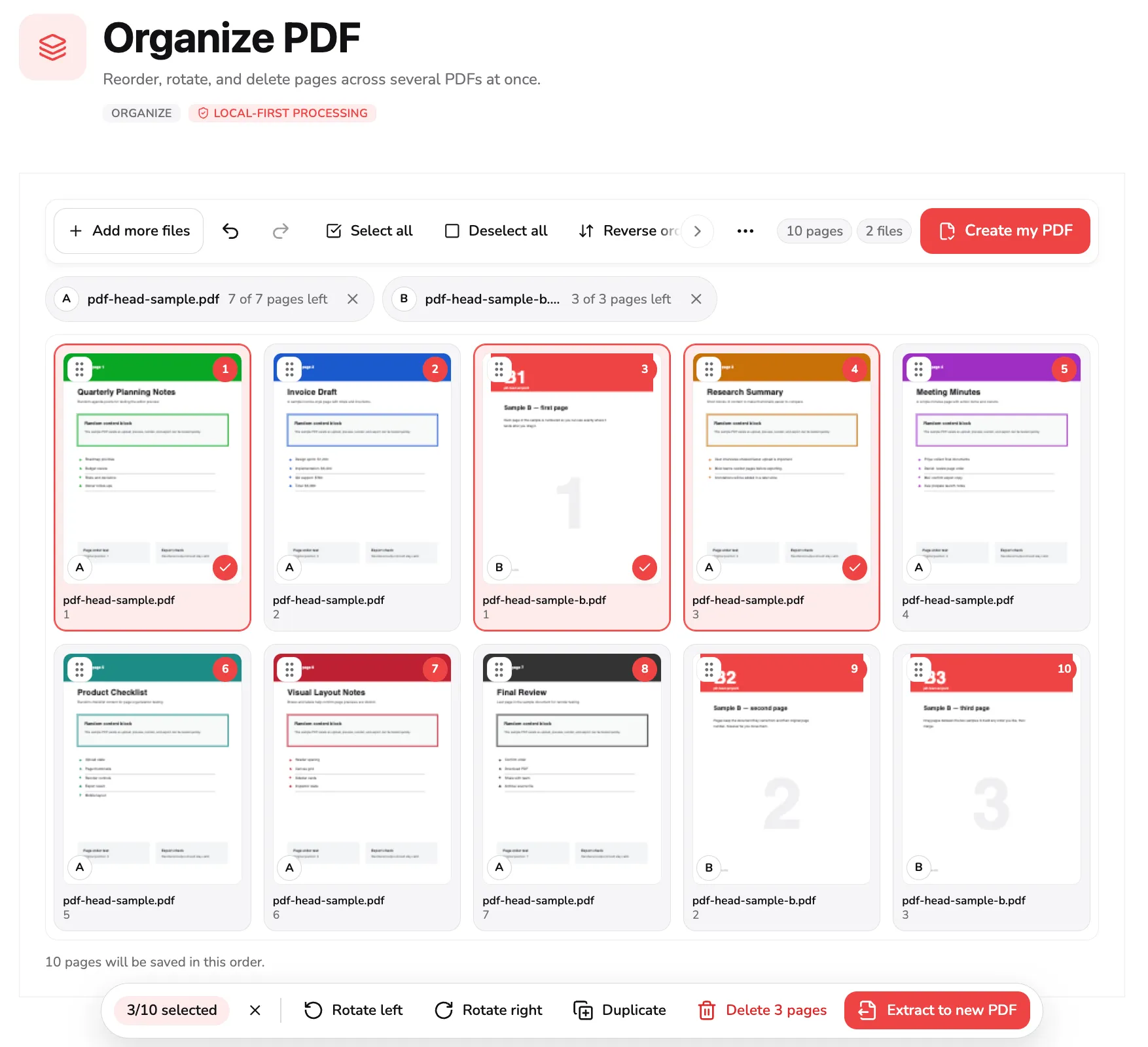
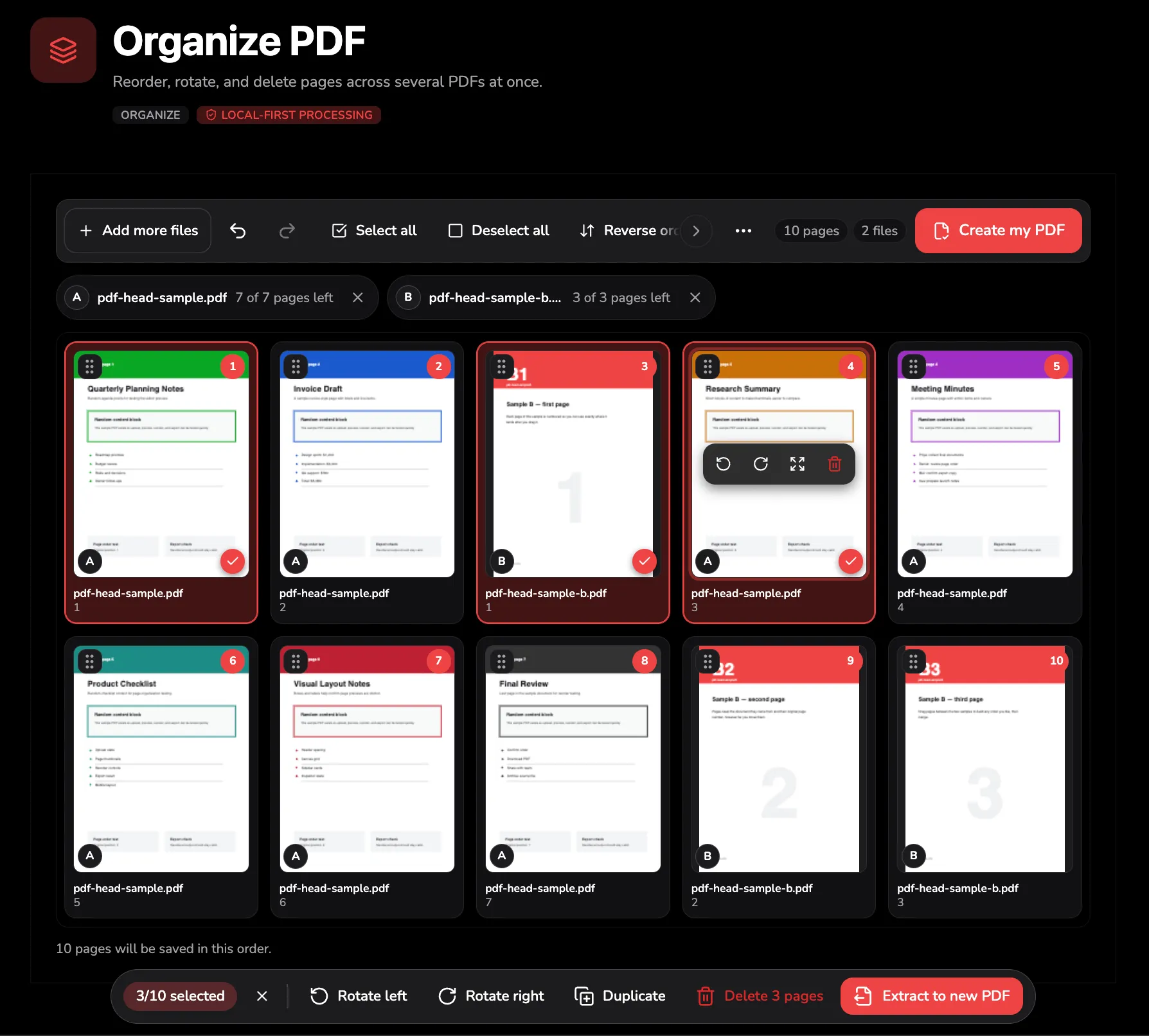
Tools used in this guide
1. Open your files
Organize PDF opens on a drop area that takes more than one file at a time. Drag PDFs onto it, or use Choose PDFs at marker 1.
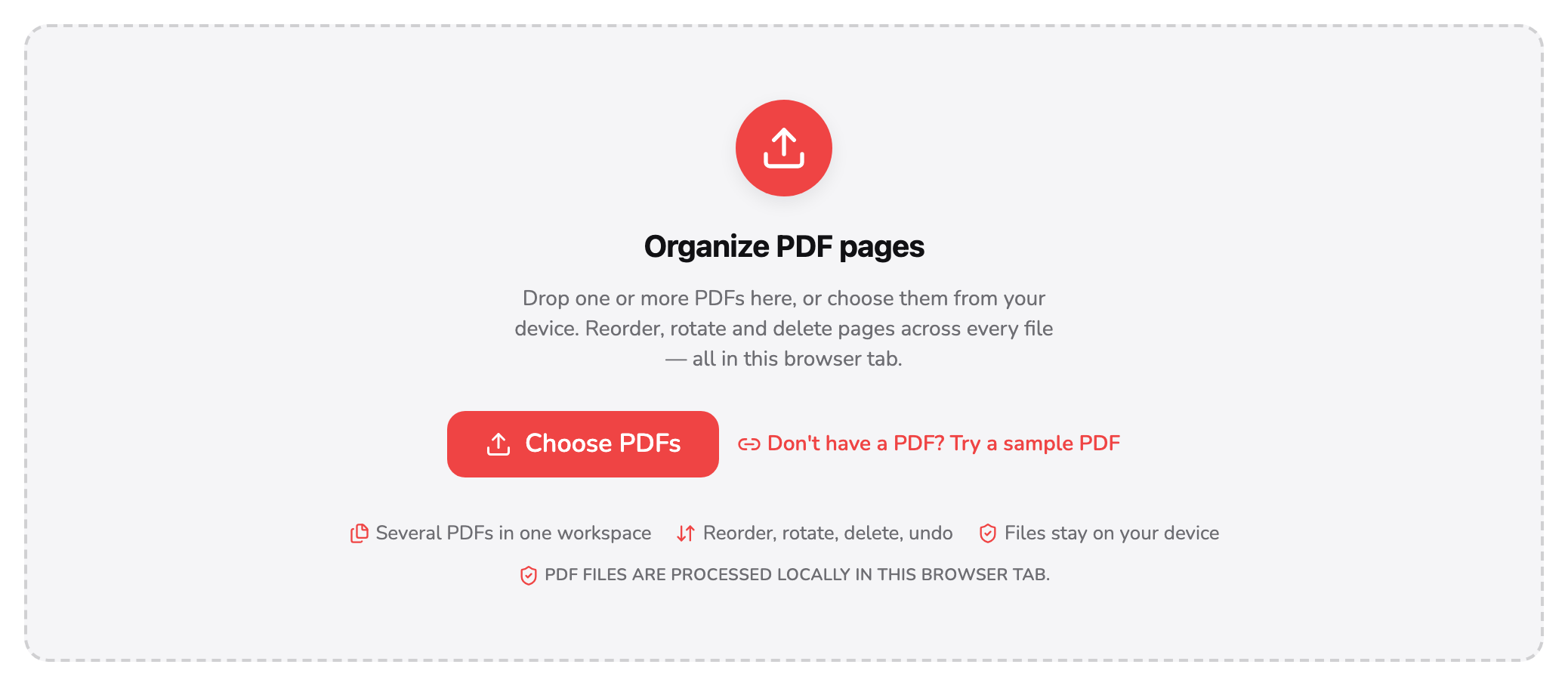
- Choose PDFs. Pick one or more PDFs from your device, or drag them straight onto the panel. Nothing is uploaded — the files are read in this tab.
- Try a sample PDF. Loads the two files used in every screenshot here — a seven-page document and a three-page one — so you can follow along without files of your own.
Every file is read in the tab you already have open — there is no upload path in the product at all. To follow along without files of your own, Don’t have a PDF? Try a sample PDF at marker 2 loads the two files used in every screenshot below: a seven-page document and a three-page one, combined into one ten-page grid the moment they finish loading.
2. Where each page comes from
As soon as a file is open, the source rail above the grid lists it, and every file you add gets a chip of its own.

- File letter. A, B, C — one per file, in the order you added them. The same letter appears on every tile that page came from, so a shuffled grid still says which document each page belongs to.
- Remove file. Drops every page from this one file out of the grid. With only one file left, this becomes Start over instead, since there would be nothing left to organize.
The letter at marker 1 is assigned in upload order — A for the first file, B for the second — and it travels with every page that file contributed, however far you drag it from the others. The chip also counts how many of that file’s pages are still in the grid, which drops as you delete them and disappears once none are left. Remove at marker 2 drops the whole file’s pages from the grid in one action, after asking you to confirm; with only one file remaining, removing it becomes the same thing as starting over.
3. The page grid
Every page from every file lands in one grid, in the order the files were added.
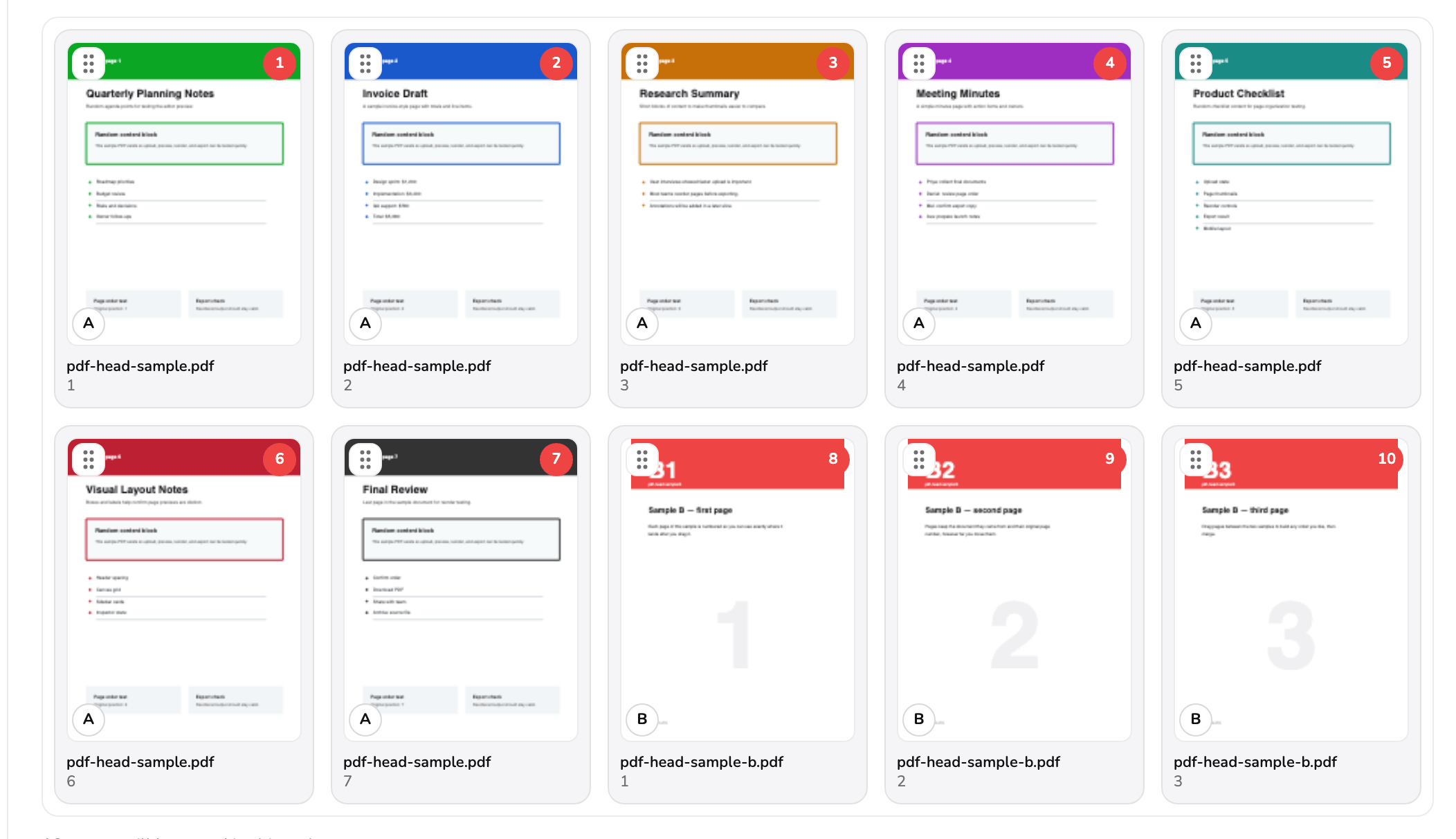
- Drag handle. Press and drag to move this page anywhere in the grid, including across the boundary between files. The arrow keys do the same job from the keyboard.
- Position number. Where this page sits in the file you are about to write, recounted the moment anything moves. It has nothing to do with the page's original number.
- Source letter. Which file this page was read from. Two pages can carry the same original page number and still be told apart by this letter.
Three things ride along with each page. The grip at marker 1 is what you drag — press it and move the page anywhere in the grid, including past the boundary into where another file’s pages sit; the arrow keys move the currently focused page the same way without a pointer at all. The number at marker 2 is the page’s position in the file you are about to write, and it recounts itself the instant anything moves — it has no relationship to the page’s original number. The letter at marker 3 is the source badge from the previous step, repeated on every tile so a page never loses track of which file it came from.
4. Turning a single page
Hovering — or focusing — any one page reveals a small toolbar over it.
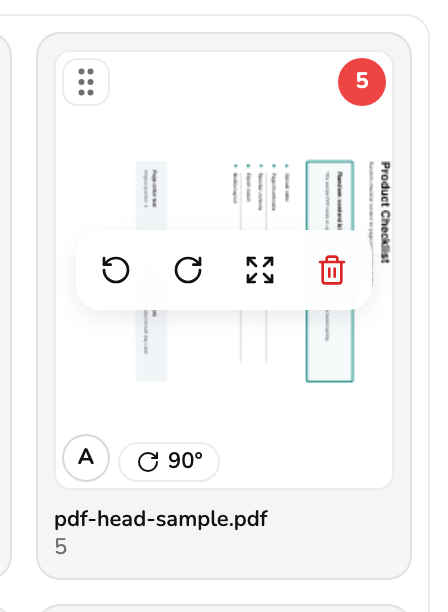
- Page toolbar. Hover or focus a card to reveal it: turn left, turn right, open it large, or delete just this one page. Nothing here touches any other page.
- 90°. Shows only once a page has been turned, and by how much. A page rotated a full 360° back to its start hides the badge again rather than reading 360°.
The toolbar at marker 1 holds four actions that touch only this page: turn it left, turn it right, open it large enough to read properly, or delete it outright. Rotating shows a badge in the page’s corner, marker 2, giving the exact angle — 90°, 180° or 270° — and the badge itself disappears once a page is turned back to its starting angle, rather than sitting there reading “0°“.
5. Selecting pages for bulk actions
Click any page’s thumbnail and a floating bar appears at the foot of the grid.
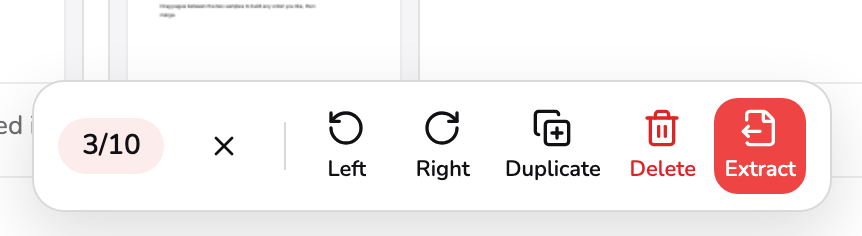
- Selection count. How many of the total are selected right now, with a button beside it to clear the selection without touching the arrangement.
- Duplicate. Copies every selected page, in their current order, right after the last one — and switches your selection to the new copies so you can act on them next.
- Delete. Removes every selected page. Counts down as you go, and refuses to take the very last page in the grid.
- Extract. Writes a brand-new PDF containing only the selected pages, in the order they currently sit — the rest of the grid is left exactly as it was.
A plain click toggles a page in or out of the selection, on every pointer type — this is a set of checkboxes, not a file list, so a second click never silently drops your first choice the way it would in a file manager. Shift-click selects every page from the last one you plain-clicked to the one you just clicked, and replaces whatever else was selected — so take a long run with Shift-click first, then plain-click to add stray pages.
The bar itself, read left to right: the count at marker 1 says how many are selected, with a button beside it to clear the selection outright. Duplicate at marker 2 copies every selected page, in grid order, right after whichever selected page sits furthest down the grid, and hands you a fresh selection over the new copies. Delete at marker 3 removes everything selected, though never the very last page standing — a document cannot have zero pages. Extract at marker 4 is the one export button that reads the selection: it writes a new PDF from just the selected pages, in the order they currently sit, and leaves the grid you were working in untouched.
6. The command bar
Above the grid, one bar holds everything that is not about a single page.

- Add files, undo, redo. Add more files opens the same picker as the empty screen did. Undo and redo step back through your recent changes, not just the last one; adding or removing a file starts that history over.
- Whole-grid tools. Select all, deselect all, reverse the order, put every page back where it started, or turn every page 90° at once — none of them need a selection first.
- Page and file counts. How many pages are in the grid right now and how many files they came from, both recalculated the moment anything changes.
- Create my PDF. Writes every page in the grid into one new file, in the order shown — whatever is or is not selected has no effect on this button.
Marker 1 is Add more files — the same picker the empty screen opened — beside undo and redo, which step back through your recent changes, not only the most recent one. Adding or removing a file starts that history over, so page edits made before it can no longer be undone. Marker 2 groups five actions that need no selection at all: Select all, Deselect all, Reverse order, Restore original order (puts the pages back in upload order, file by file and page by page, but keeps your rotations, deletions and duplicates; Start over in the More actions menu undoes those too, after asking — with only one file open, it goes back to the drop area), and Rotate all, which turns every page in the grid 90° in one press. Marker 3 is the running total of pages and files, recalculated the moment anything changes. Marker 4, Create my PDF, is the button worth reading carefully next.
7. Save your file
Create my PDF writes the entire grid, top to bottom, into one new file — selection has no say in it at all. That is the key difference from the selection bar’s own Extract: press Create my PDF with three pages selected and you still get all ten; press Extract and you get exactly those three.
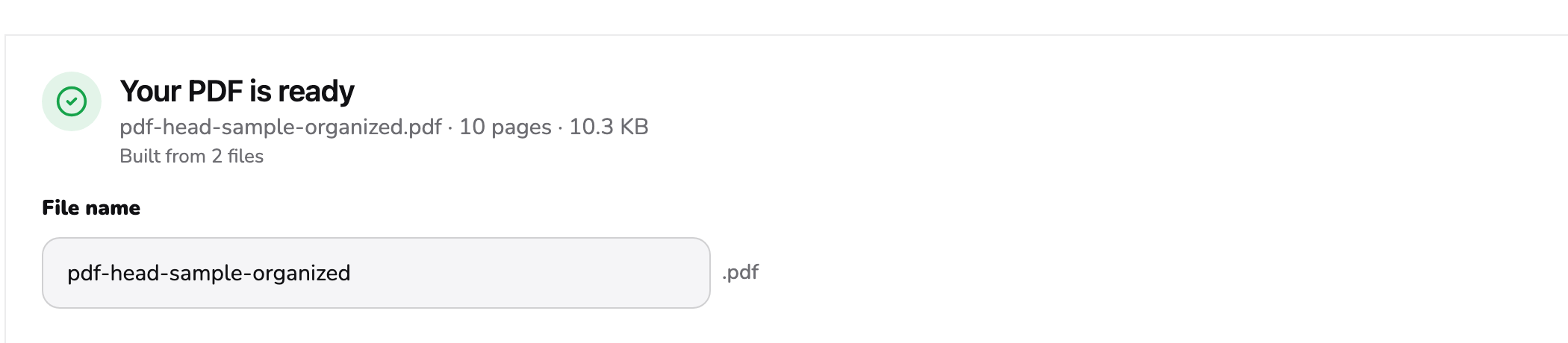
- What was written. How many pages the new file holds, its real size on disk, and how many source files went into it.
- File name. Edit it before you download. Leaving it blank falls back to a name built from your first file, so a save can never fail for having no name at all.
Once it finishes, marker 1 reports what was written — the page count, the real size on disk, and how many files it was built from — and marker 2 is a plain text field for the file’s name, prefilled from your first file and editable before you save.

- Back to editing. Returns to the exact arrangement you built — every reorder, rotation and deletion intact — so a second attempt is an adjustment rather than a rebuild.
- Download PDF. Saves the file shown above. It stays on this screen afterward, so pressing it again saves the same file rather than losing your place.
Back to editing at marker 3 returns to the grid exactly as you left it, reorders, rotations and all, so a second export is an adjustment rather than a rebuild. Download PDF at marker 4 saves the file shown above the buttons, and stays on this screen afterward so a second press saves the same file again rather than starting over.
Organize, merge, split, extract, delete
Several tools touch “which pages end up where,” and it is worth being clear about which one actually does what you want:
| What you want | What you end up with | Tool |
|---|---|---|
| Files combined, reordered, rotated and trimmed in one pass | One new file, exactly as arranged | Organize PDF |
| Several whole files joined, every page kept, order adjustable | One new file, pages in the order you set | Merge PDF |
| One file cut into several | Two or more new files | Split PDF |
| A handful of pages pulled out as their own short file | One new file, just those pages | Extract PDF Pages |
| The document kept whole, minus a few pages | One new file, shorter than the original | Delete PDF Pages |
Organize is the widest of the five: Merge PDF is a special case of it that can reorder pages across files but has no rotating or per-page deleting, and Extract PDF Pages is what Organize’s own Extract button does on its own, without the rest of the grid along for the ride. Reach for Organize first whenever the job needs more than one of these at once — combine two reports and drop the cover pages, say — and reach for the narrower tool when the job really is that one thing, since it asks fewer questions to get there.
What happens to your file
Organize runs entirely inside your browser tab. Nothing is uploaded — there is no upload path in the product at all — so every PDF you load stays on your own device from start to finish. In practice:
- No watermark is ever stamped on an export.
- Up to 30 files and 1,500 pages can be open at once. Any file past either limit is left out, and a notice names it. Within those limits, file size is bounded only by your device’s memory; a handful of large scans on an older machine simply takes longer to render.
- No account is needed to try the tool with its bundled sample. Pro ($9.99/month) is required for your own files and includes unlimited exports.
- Because everything runs locally, closing the tab mid-arrangement loses the work in progress — nothing is saved server-side to come back to.
Details worth checking before you export
- Open the result before you delete your originals. Editing again is free while the source files are still where you left them.
- A source file’s own removal button is not the same as deleting its pages one at a time. Removing a file drops every page it contributed in one action, after a confirmation; deleting pages one by one lets you keep some and lose others from the same file.
- Duplicate, then rearrange the copies rather than the originals, if you want two similar sections that diverge from there — the duplicate’s rotation and position start identical to the source, but nothing keeps them linked afterward.
Which tool to open now
- Combine, reorder, rotate and trim in one pass → Organize PDF.
- Joining whole files, every page kept (reordering included) → Merge PDF.
- One file into several → Split PDF.
- A few pages pulled out on their own → Extract PDF Pages.
- The same document, minus a few pages → Delete PDF Pages.
- The same document, its sideways or upside-down pages turned upright → Rotate PDF.
Common questions
Why does a page show a letter like A or B on it?
The letter says which file the page was read from, assigned in the order you added the files — the first is A, the second B, and so on. It stays on the page wherever you drag it, which is the only way to tell two files' pages apart once they are mixed into one grid.
Does Create my PDF only save the pages I selected?
No — Create my PDF always writes every page in the grid, in the order shown, whether or not anything is selected. A selection only changes what Extract and Delete do: Extract writes just the selected pages as a new file, and Delete removes them from the grid. If you want a file of only your selected pages, use Extract, not Create my PDF.
If I duplicate a page, does the copy keep its rotation?
Yes. Duplicate copies a page exactly as it stands, rotation included, and inserts the copies right after the last page you had selected rather than scattering them through the grid. Your selection then switches to the new copies, so the very next action — rotate, move, delete — applies to them rather than to the originals.
I removed one of my files partway through arranging pages. What happens to the pages from it I had already selected?
They simply drop out of the selection along with the pages themselves — removing a file asks you to confirm first, and once you do, only that file's pages leave the grid. Anything you had selected from your other files stays selected, and their order is untouched.
Does Extract keep my new page order, or the file's original order?
Your new order. Extract writes the pages you selected in the sequence they currently sit in the grid, so reorder pages before you extract them if the sequence matters — extracting does not consult where a page started out.