How to Extract Pages from a PDF into One New File
Extracting here starts from nothing: no page is selected when your PDF opens, you pick the ones you want on the grid or by typing their numbers, and Extract saves just those as one new PDF, in their original order. Here is how to pick pages both ways, bring back a selection you cleared by mistake, check a page up close and download the new file.
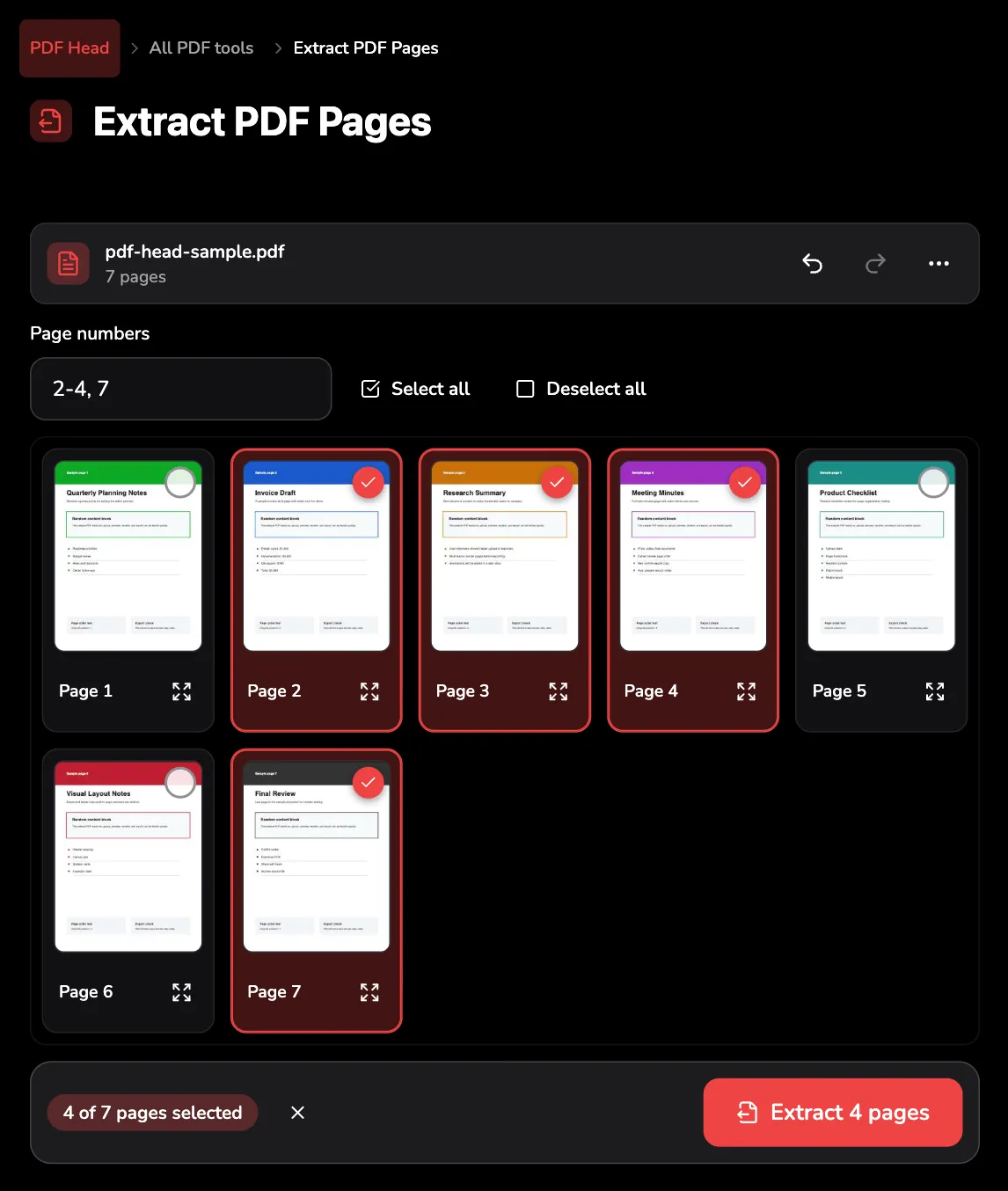
Tools used in this guide
1. Open your PDF
Extract PDF Pages opens on a drop area. Drag a PDF onto it, or use Choose PDF at marker 1.
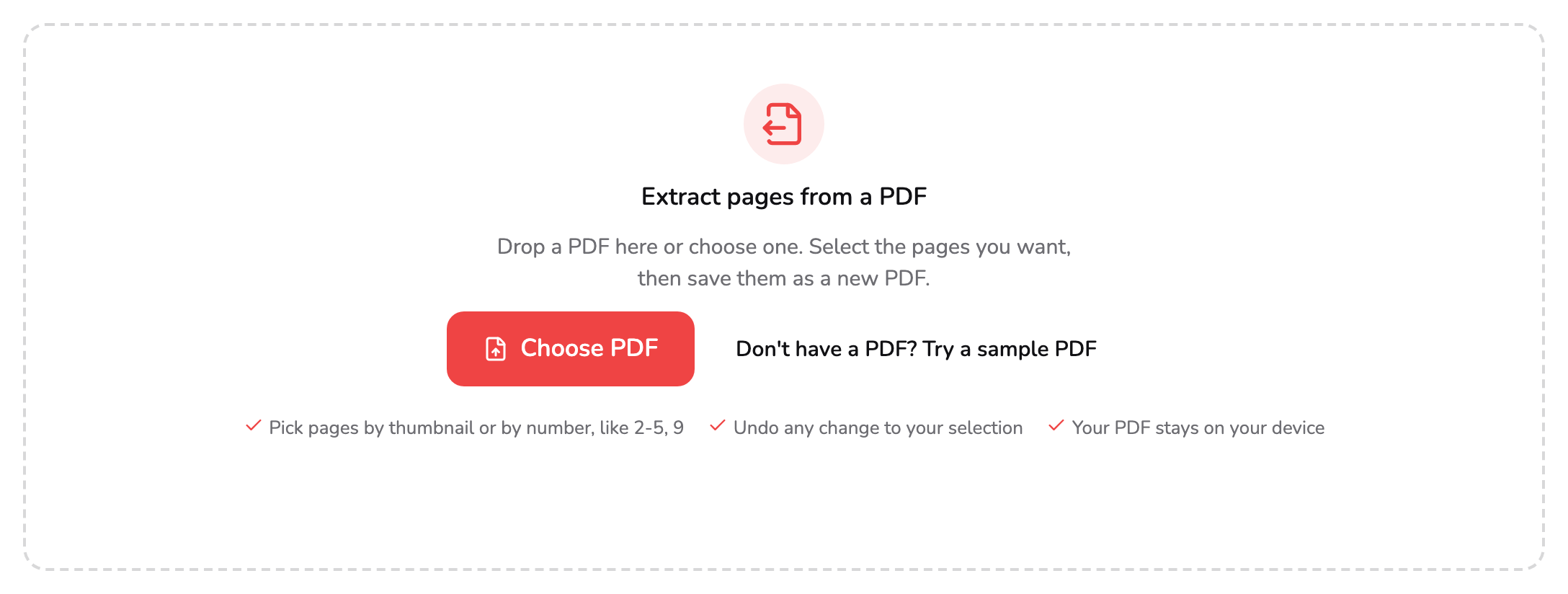
- Choose PDF. Pick one PDF from your device, or drop it anywhere on this panel. PDFs of up to 1,500 pages open here.
- Try a sample PDF. Loads the seven-page PDF used in every screenshot here, so you can follow the steps without a file of your own.
The tool works on one PDF at a time; if you drop several, it opens the first and says so. PDFs of up to 1,500 pages open here; a longer one is turned away with a link to Split PDF, which can cut it into parts that fit. A PDF with a single page is turned away too, since there is nothing to extract from it. A password-protected PDF can’t be opened here: the message links to Unlock PDF, which removes the password when you know it.
Everything happens in the tab you already have open: the PDF never leaves your device. To follow along without a file of your own, Don’t have a PDF? Try a sample PDF at marker 2 loads the seven-page PDF used in every screenshot below. Pages 2 to 4 are an invoice draft, a research summary and a set of meeting minutes, and page 7 is a final review: the four pages this walkthrough sends on as a file of their own.
Once the PDF is open, every page appears as a card in a grid, labelled with its page number, and nothing is selected yet. The bar above the grid shows the file’s name and how many pages it has: 7 pages, for the sample.
2. Select pages on the grid
Click or tap a page’s thumbnail to select it.
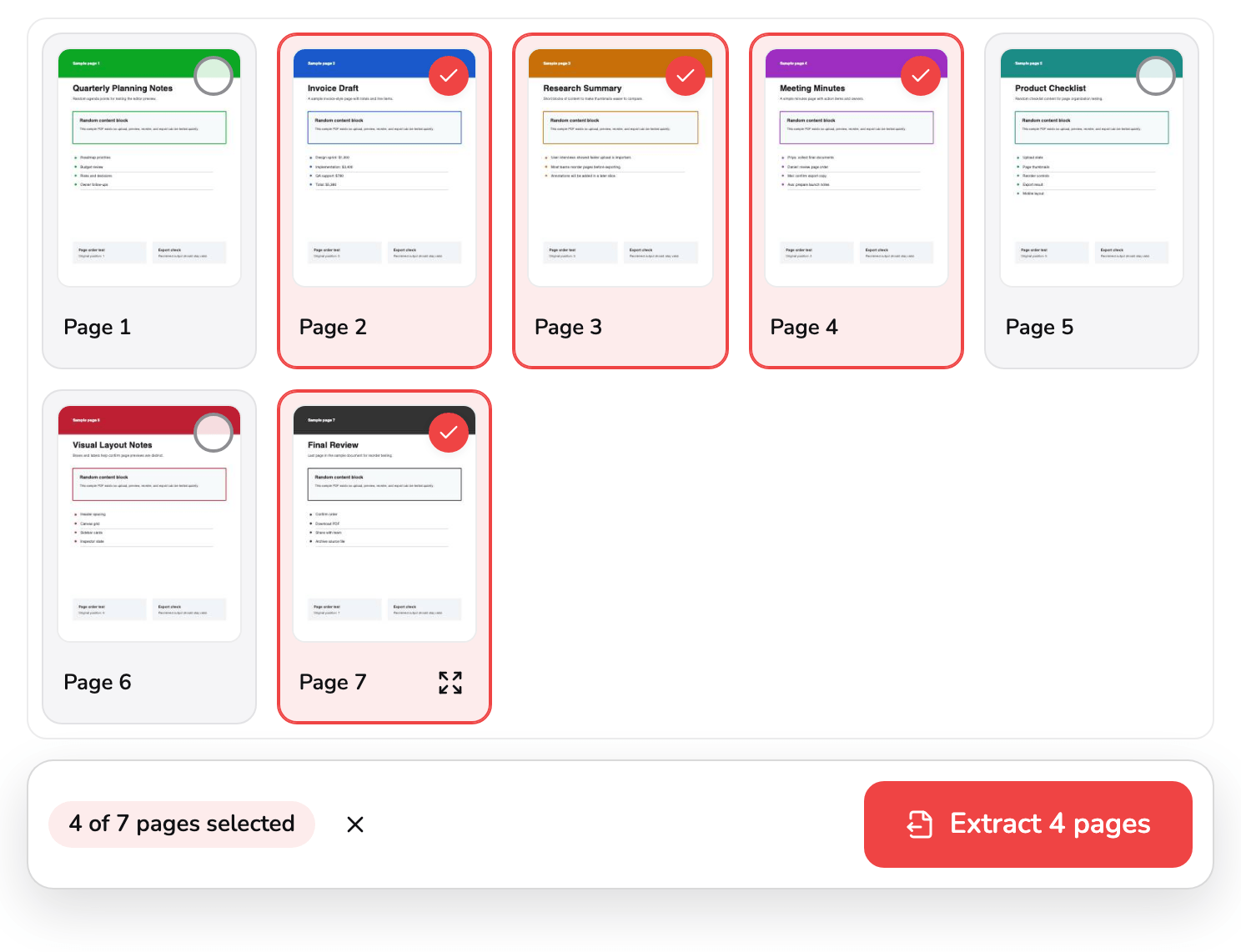
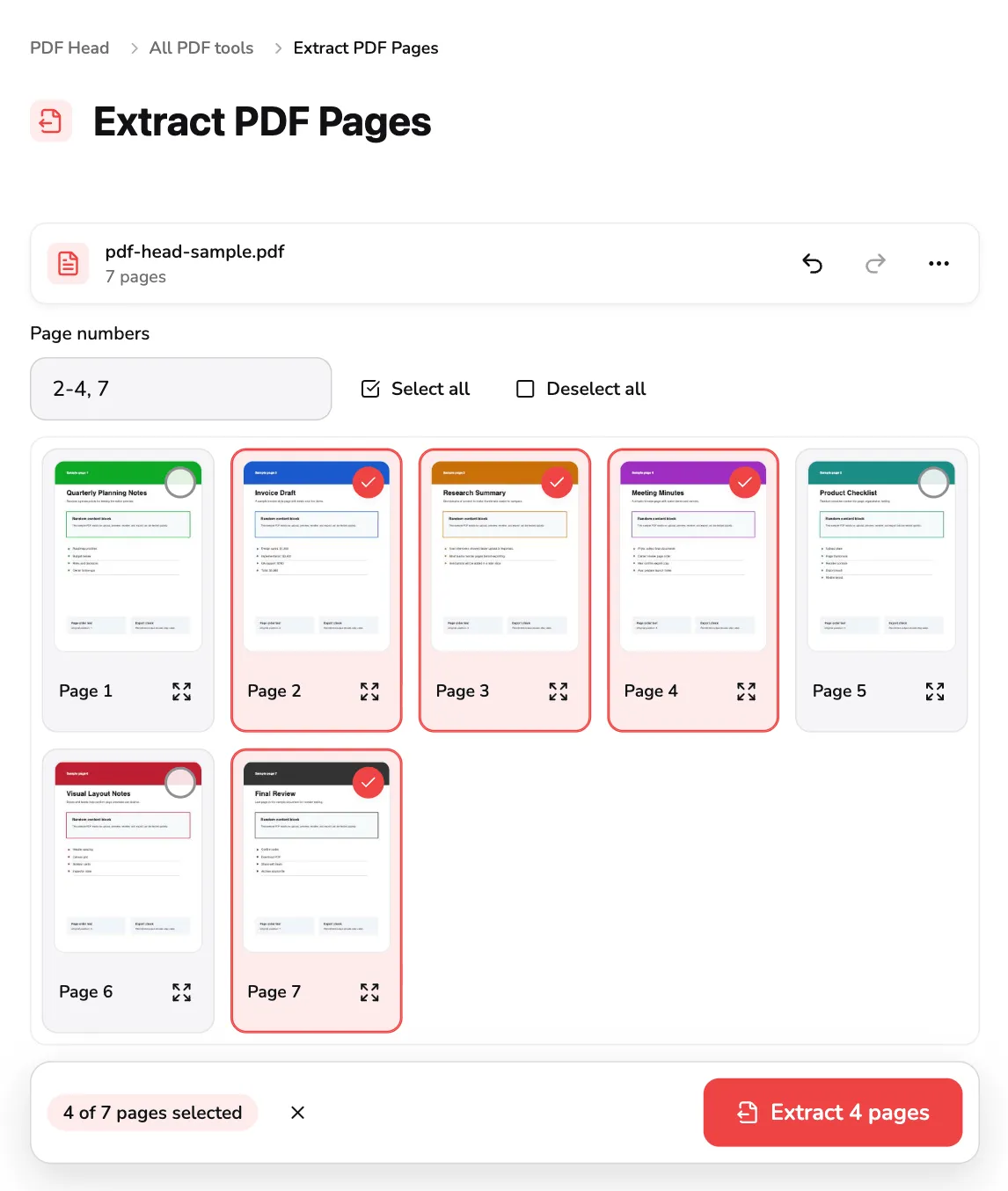
- Selected page. Click or tap a page's thumbnail to select it, and again to deselect it. A selected page has a filled check and a red border; an empty ring means it stays out.
- Open. Shows the page large, where you can read it, step through the others and select the one on screen. With a mouse, it appears when you point at the card.
- Selection count. How many of the PDF's pages are selected. The × beside it deselects them all, and Undo can bring them back.
- Extract. Builds the new PDF from the selected pages. It names what it will make, such as Extract 4 pages, and stays faded until a page is selected.
The thumbnail is a checkbox: a selected page takes a filled check in its corner and a red border, as page 2 does at marker 1, and a second click deselects it. A page with an empty ring stays out of the new file. Here pages 2, 3, 4 and 7 are selected. With a mouse, Shift-click selects every page from the last one you clicked to this one — or deselects them all, when this page was already selected — so clicking page 2 and then Shift-clicking page 4 selects pages 2 to 4 in one go.
Pointing at a page with a mouse shows Open on its card, at marker 2, as on page 7. It shows the page large (step 5), and so does a double-click on the thumbnail. On a touch screen, Open is always there.
Under the grid, a bar keeps count. 4 of 7 pages selected at marker 3 counts the pages going into the new file (on a phone it reads 4/7), and the × beside it deselects them all. Extract 4 pages at marker 4 builds the new PDF, which is step 6. It names what it will make as you go: Extract page 4 for a single page, and a faded Extract pages while nothing is selected.
From the keyboard, Tab reaches the grid, the arrow keys move between pages, Space selects or deselects the page with focus, Ctrl+A (⌘+A on a Mac) selects every page, and Escape deselects them. Keyboard shortcuts, under More actions (⋯), lists them all.
3. Or type their page numbers
When you know the numbers, typing them is quicker than finding the pages.
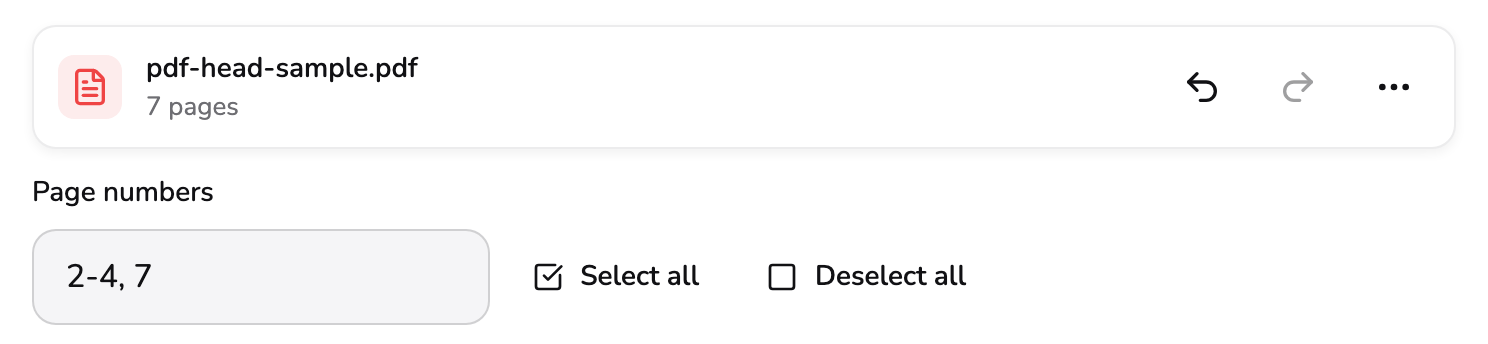
- Page numbers. Type pages and ranges, such as 2-4, 7, to select them; Enter or a short pause applies them. Select all and Deselect all beside it act on every page.
Type the pages into Page numbers, at marker 1: single pages and ranges, separated by commas, such as 2-4, 7 or 1, 5-9. A range can stay open at one end: 12- or 12-end runs to the last page, and -3 starts from page 1. Order and repeats don’t matter. The pages are selected after a short pause, or as soon as you press Enter or leave the field — an open range such as 12- waits for one of those. What you type replaces the selection, and the cards show it at once.
The field works the other way round too: while you are not typing in it, it shows the pages selected on the grid, so clicking pages 2, 3, 4 and 7 writes 2-4, 7 there. The numbers are always the ones under the thumbnails, the page numbers of the PDF you opened.
Anything the field can’t read — a word, or a page the PDF doesn’t have — is explained under it when you press Enter or leave it, and the selection stays as it was. Enter then highlights the part to fix, and Escape puts back the pages selected now. Enter only ever selects; it never extracts. However many times the field applies what you type, one Undo takes the whole visit back (step 4).
Select all and Deselect all beside the field act on every page, and each is faded while it would change nothing. Selecting every page is allowed; the new file then has every page, but not the original’s bookmarks.
4. Undo a change to your selection
A careful selection is the whole of the work here, so every change to it can be taken back: a click, a Shift-click run, a typed range, Select all, Deselect all.
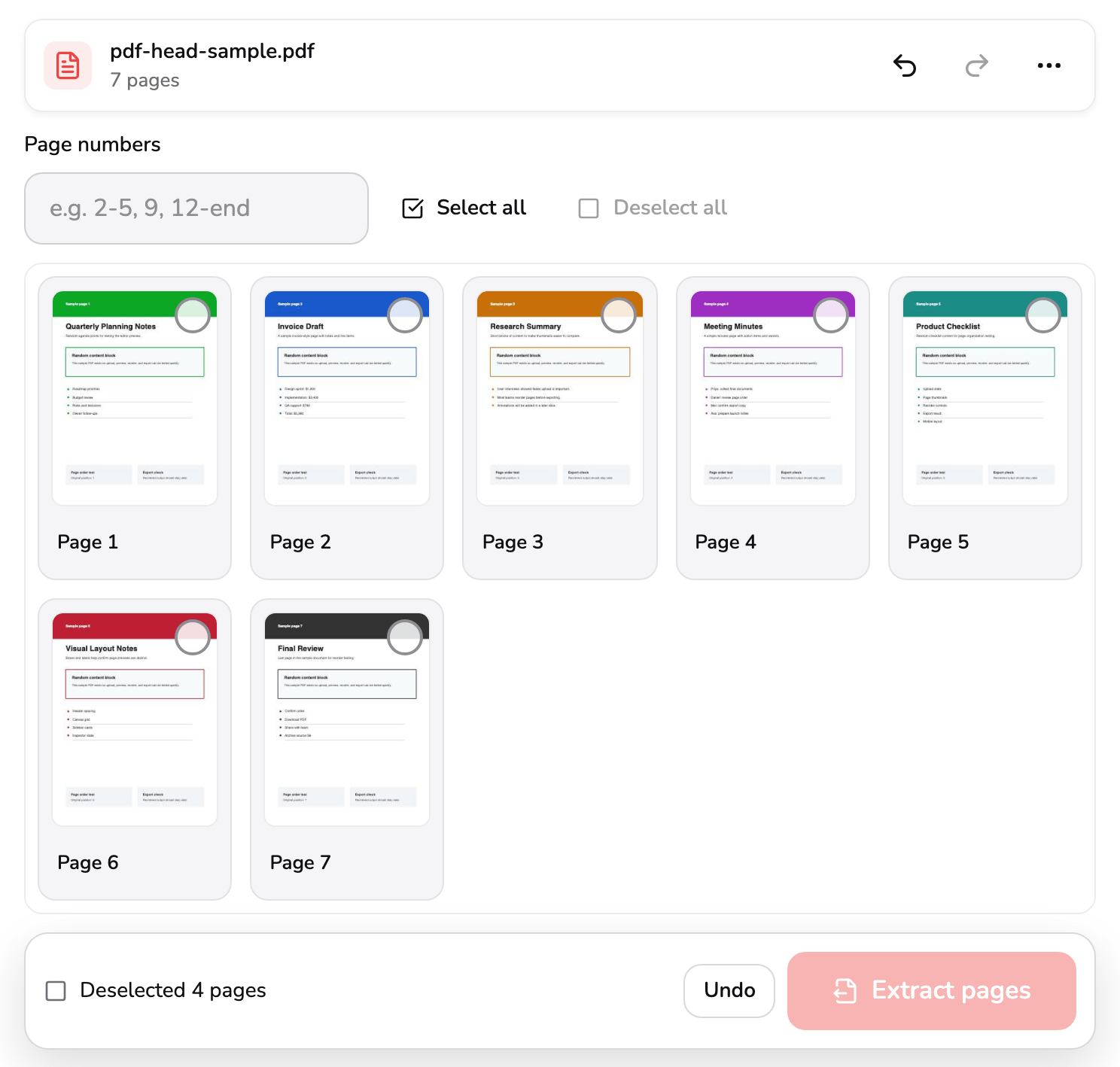
- Undo. Steps back one change to your selection at a time, up to your last 50; Redo beside it steps forward again. Ctrl+Z or ⌘+Z does the same.
- Undo in the message. Brings back the pages this Deselect all cleared. The message goes after about six seconds, but waits while you point at it.
- Extract pages. Faded while no page is selected, because there is nothing to save yet. Pressing it says so, and it comes alive with the first page you select.
Undo in the top bar, at marker 1, steps back one change at a time, up to your last 50, and Redo beside it steps forward again. Ctrl+Z or ⌘+Z undoes, and Ctrl+Y or Shift+⌘+Z redoes. The cards and the page-number field follow each step.
Clearing two or more pages at once — with Deselect all beside the field, the × under the grid, or Escape — also leaves a message at the foot of the grid, here Deselected 4 pages, with its own Undo at marker 2. It goes after about six seconds, but waits while you point at it. Pressing it brings back exactly the pages that were cleared, as here: pages 2, 3, 4 and 7 return, ready to extract.
With nothing selected, Extract pages at marker 3 is faded: there is nothing to save yet. Pressing it says so in the bar under the grid, and it comes alive with the first page you select.
5. Check a page up close
Thumbnails are small. To read a page before you decide, use Open on its card, or double-click it with a mouse.
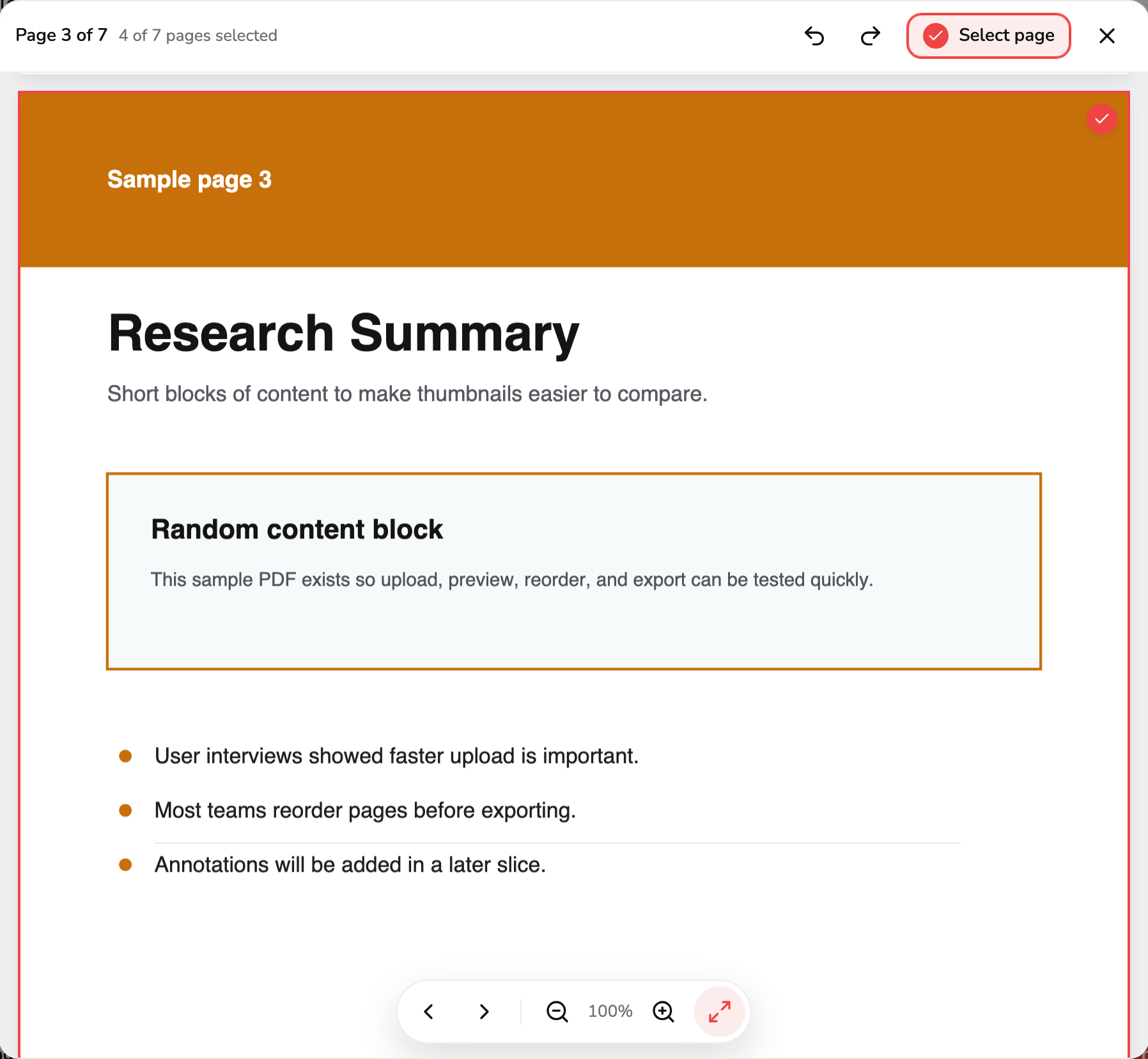
- Which page. The page's number out of the pages in your PDF, then how many of them are selected.
- Select page. A checkbox for the page on screen, filled while that page is selected. Press it to add the page to your new PDF or to take it out.
- Pages and zoom. Step to the previous or next page, zoom out or in, or fit the page to the width. The arrow keys, + and − and 0 do the same.
The preview shows every page of your PDF, one under another. The heading at marker 1 gives the page’s number out of the pages you opened, Page 3 of 7, and how many are selected. Select page at marker 2 is a checkbox for the page on screen: it is filled while that page is in your selection, and pressing it adds the page or takes it out. Undo and Redo sit beside it, and selected pages carry a check in their corner here too. The controls at marker 3 step to the previous or next page, zoom out and in, and fit the page to the width.
From the keyboard, the left and right arrows move between pages, Enter selects or deselects the page on screen, +, − and 0 zoom, and Escape closes the preview and takes you back to that page’s card.
6. Extract the pages and download them
Press Extract 4 pages. The button turns into a progress ring with Cancel beside it, and the grid waits until the file is ready; cancelling keeps your selection as it was.
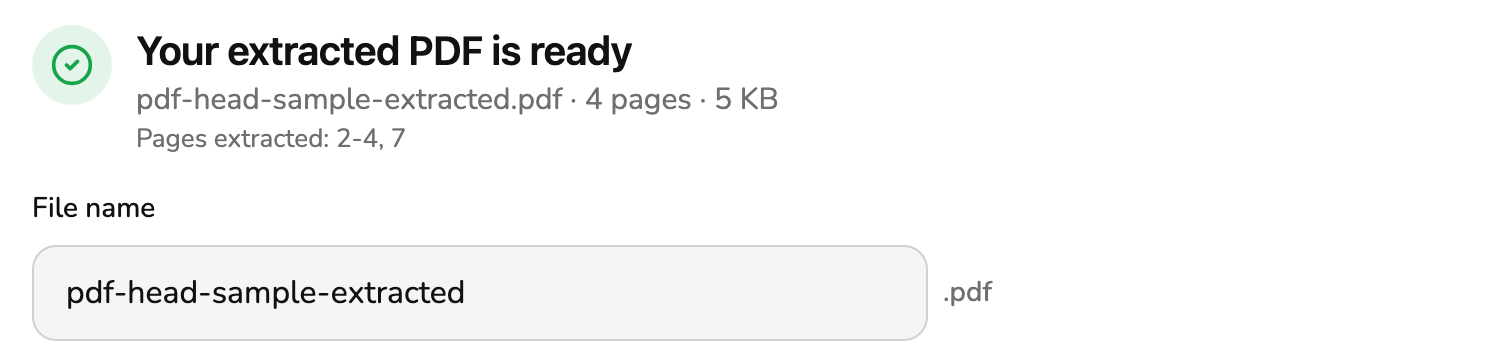
- Summary. The new PDF's name as it will be saved, its page count and its real size.
- Pages extracted. The pages in the new PDF, by the numbers they had in the PDF you opened.
- File name. Starts as the PDF's own name with -extracted added. Type another before you download; the .pdf is added for you.
The summary at marker 1 gives the new file’s name, its page count and its real size — pdf-head-sample-extracted.pdf · 4 pages · 5 KB for the sample — and the line at marker 2 lists the pages it holds by their original numbers, 2-4, 7. The name at marker 3 starts as the PDF’s own name with -extracted added; change it before you download if you like, and the .pdf is added for you.
Under the name, the preview shows every page of the new PDF, in their original order and numbered as they now are: scrolled to the end, as below, the last page reads 4, though it was page 7 of the PDF you opened. Zoom with −, + and the fit button above it, with Ctrl or ⌘ and the mouse wheel, or with a pinch on a trackpad or touch screen.
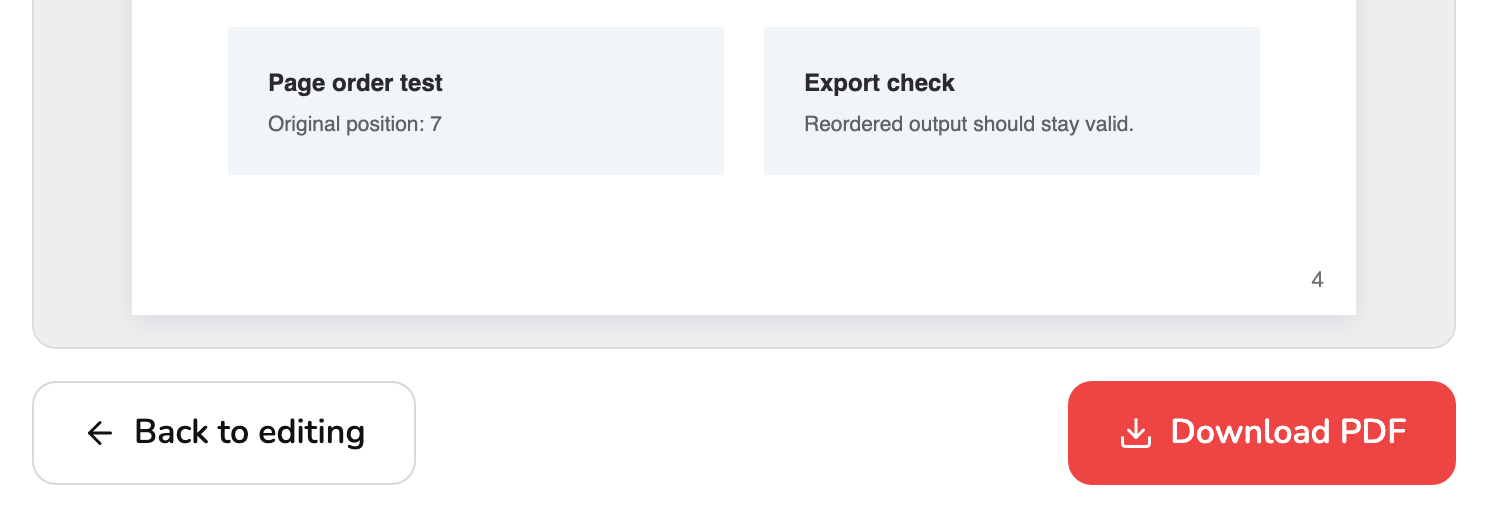
- Back to editing. Returns to the grid with your selection exactly as you left it, and Undo still works. Nothing is lost.
- Download PDF. Saves the new PDF to your device. The PDF you opened is never changed.
Download PDF at marker 5 saves the file, and a Saved to your device line appears once it has. The pages you picked are copied as they are, and the ones you didn’t are left out of the file rather than hidden in it. The PDF you opened is never changed.
Back to editing at marker 4, or your browser’s Back button, returns to the grid with your selection as you left it, and Undo still works. If you then change nothing, Extract opens the same file again without building it twice; change the selection and it builds a new one. Start over, under More actions (⋯), closes the PDF, and asks first if the pages you selected haven’t been downloaded.
Which way to pick pages
| You want to extract… | Do this |
|---|---|
| A few pages here and there | Click each thumbnail, or type them: 2, 4, 9 |
| A run of pages | Type 5-12, or click the first and Shift-click the last |
| Everything from one page to the end | Type 12- and press Enter |
| Most of the pages | Select all, then click the pages to leave out so they drop out |
| A page you need to read first | Open it, then Select page in the preview |
| A fresh start | Deselect all, and Undo if that was a mistake |
Access and technical limits
You can try Extract PDF Pages with the bundled sample, all the way to the download. Pro ($9.99/month) is required for your own PDF and includes unlimited exports. Technical limits such as browser memory still apply, along with the 1,500-page limit above.
Which tool you want
- Keep a few pages as a file of their own → Extract PDF Pages, as above.
- Remove a few pages and keep the rest → Delete PDF Pages: you pick what goes instead of what stays; How to delete pages from a PDF walks through it.
- Cut one PDF into several files, such as one per page or per range → Split PDF; How to split a PDF covers the options.
- Put pages in another order, or combine several PDFs → Organize PDF; How to organize a PDF walks through it.
- Turn pages that are sideways or upside down → Rotate PDF; How to rotate a PDF walks through it.
- Save pages as JPG, PNG or WebP images instead of a PDF → PDF to Images.
Common questions
Why is Extract faded when my PDF has just opened?
Because no page is selected yet. Nothing is when a PDF opens, so the new file only ever holds pages you chose. Click a thumbnail or type a page number and the button comes alive, naming what it will make, such as Extract 4 pages. Pressing it while it is faded points to the reason in the bar under the grid.
I pressed Deselect all by mistake. How do I get my pages back?
Press Undo in the message that appears, Deselected 4 pages, or Undo in the top bar, or Ctrl+Z (⌘+Z on a Mac). Every change to the selection is one step you can take back, up to your last 50, so the pages return exactly as they were. The message goes after about six seconds; the other two keep working after it has gone.
Why are my pages numbered 1 to 4 in the new PDF?
Because they make up a new document now. The grid and the page-number field use the numbers of the PDF you opened, so you pick page 7 as 7, but the extracted file counts its own pages from 1: page 7 of the sample becomes page 4 of the new PDF. The Pages extracted line on the result screen still lists them by their old numbers.
The page-number field says there's no page 9. What went wrong?
You typed a page the PDF doesn't have. Typed numbers are the ones under the thumbnails, so a seven-page PDF accepts 1 to 7. Your selection stays as it was until the field reads correctly: Enter highlights the part to fix, and Escape puts the field back to the pages selected now.
How do I take the same pages out of another PDF?
On the grid, open More actions (⋯), choose Replace PDF and pick the next file, or drop it onto the grid. It opens in place of the first one with nothing selected and an undo history of its own, so type the same numbers again, such as 2-4, 7. If the pages you picked in the first PDF haven't been downloaded yet, you're asked before they're cleared.