How to Sign a PDF: Draw, Photograph or Type Your Signature
Signing here puts a picture of your signature on the page, and nothing leaves your device. Here is how to make one three ways, put it on the signature line, add your name and the date, initial every page at once, fill in the form's fields and save the signed copy.
Tools used in this guide
1. Open your PDF
Sign PDF opens on a drop area. Drag a PDF onto it, or use Choose PDF at marker 1.
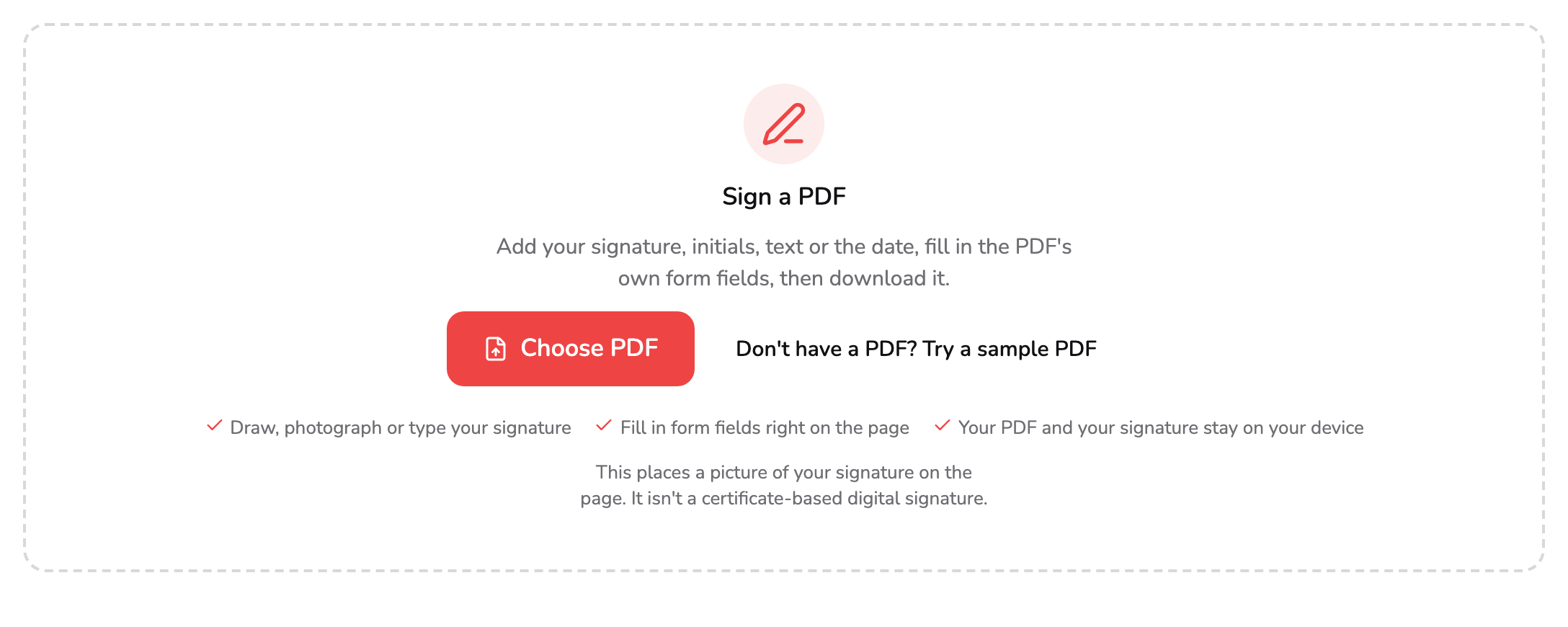
- Choose PDF. Pick one PDF from your device, or drop it anywhere on this panel. PDFs of up to 1,500 pages open here.
- Try a sample PDF. Loads the four-page services agreement used in every screenshot here, with a form on page 2 and the signature page last, so you can follow along without a file of your own.
- What it places. A picture of your signature on the page. It isn't a certificate-based digital signature, so check what the other side requires before you rely on it.
The tool works on one PDF at a time; if you drop several, it opens the first and says so. PDFs of up to 1,500 pages open here, a single page included; a longer one is turned away with a link to Split PDF, which can cut it into parts that fit. A PDF locked with a password, to open it or to change it, can’t be signed here: the message links to Unlock PDF, which removes the password when you know it. A dynamic Adobe XFA form can’t be signed here either, and a PDF that already carries a digital signature opens with a warning and asks you to confirm when you sign, because your copy is a changed file in which that signature stops validating. The PDF you opened is never changed.
Everything happens in the tab you already have open: your PDF and your signatures never leave your device, and no account is needed to try it. To follow along without a file of your own, Don’t have a PDF? Try a sample PDF at marker 2 loads the four-page services agreement used in every screenshot below: the agreement on page 1, a form on page 2, a rates table on page 3 and the signature page on page 4, with an Initials box at the foot of the first three pages.
The line at marker 3 says what you are about to place: a picture of your signature, not a certificate-based digital signature. It is the on-screen version of signing a printout.
Once the PDF is open, the editor takes the whole window. The pages run down the middle in one scrolling column. The bar at the top holds the file’s name and page count, the page number, Undo, Redo and More actions (⋯), and, from a tablet width up, the zoom controls; on a phone the zoom is in More actions. ← at its left closes the PDF, asking first if you have added something you haven’t downloaded. The bar at the bottom holds Signature, Initials, Text and Date, with Sign PDF at the end. On a narrow screen, or in a language with longer words, it may wrap onto two rows.
On a laptop the whole page is on screen to start with; in a narrower window the pages open fitted to the width. The zoom buttons in the bar (in More actions on a phone), + and − on the keyboard, or two fingers on a touch screen change it. 0 fits the pages to the width, and the button beside the zoom switches between Fit to width and Fit whole page. Page Up and Page Down, or the arrows beside the page number on a laptop, move between pages.
2. Make your signature
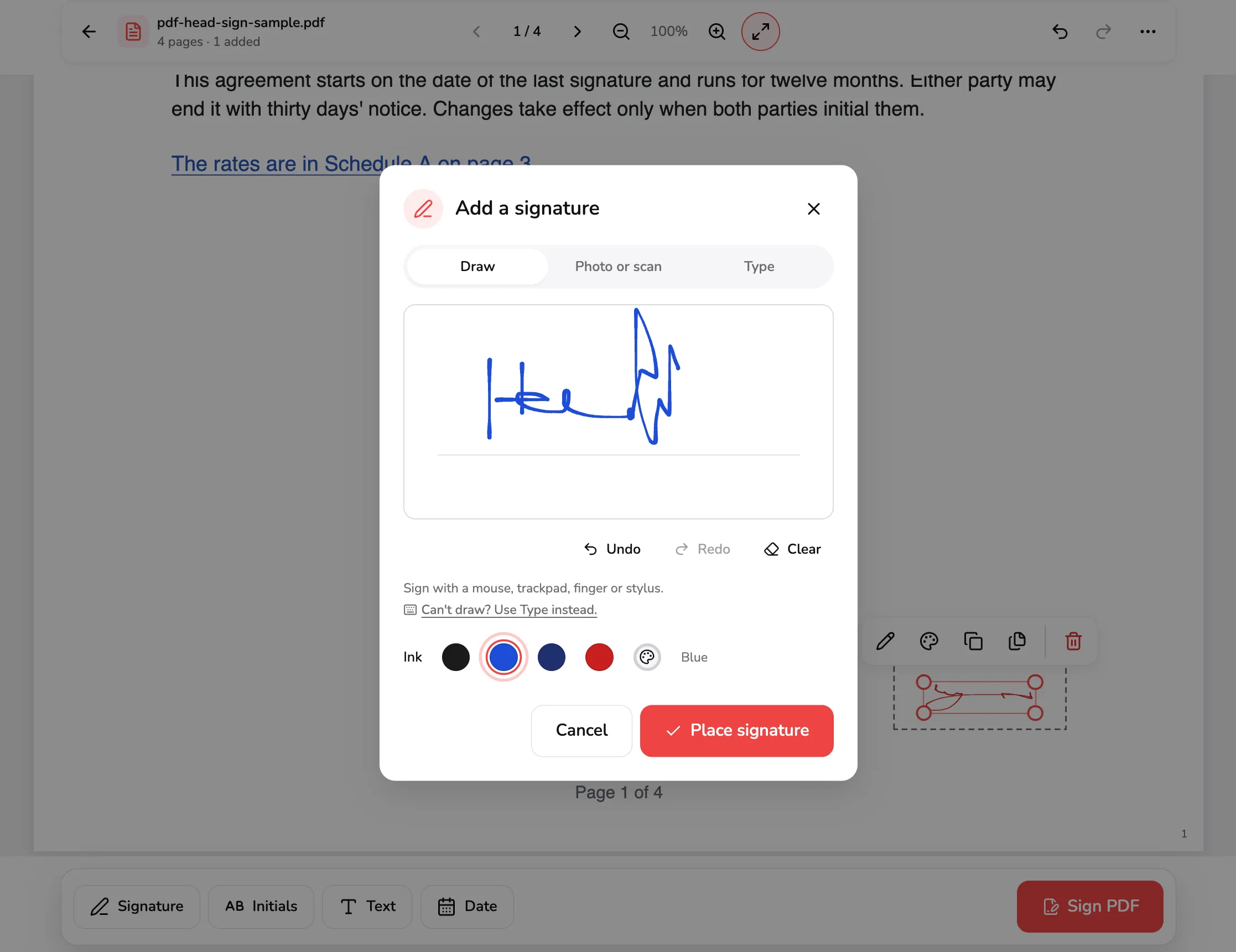
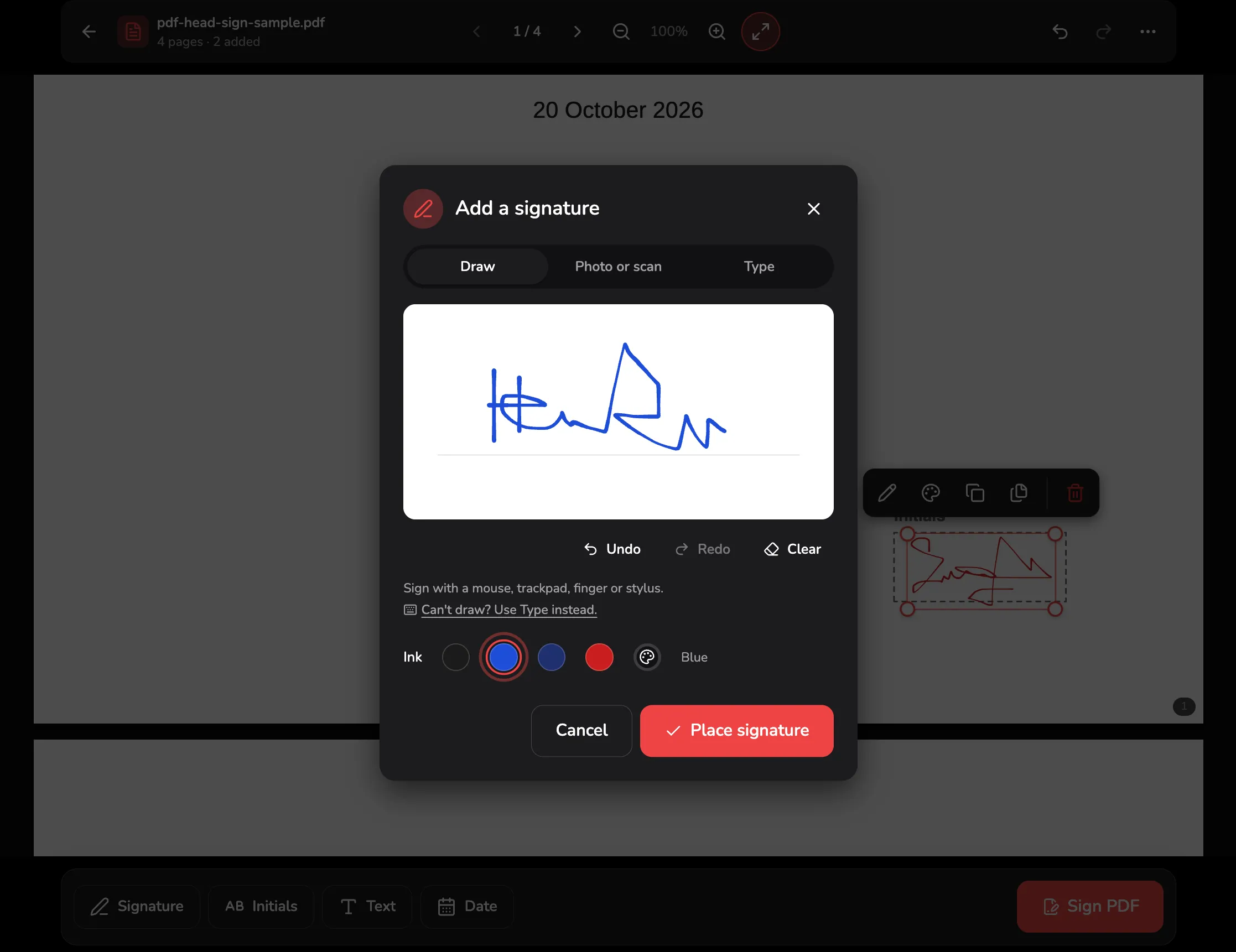
Signature in the bar at the bottom opens the create dialog. The three tabs at marker 1 are three ways to make a signature, and Draw is open first.
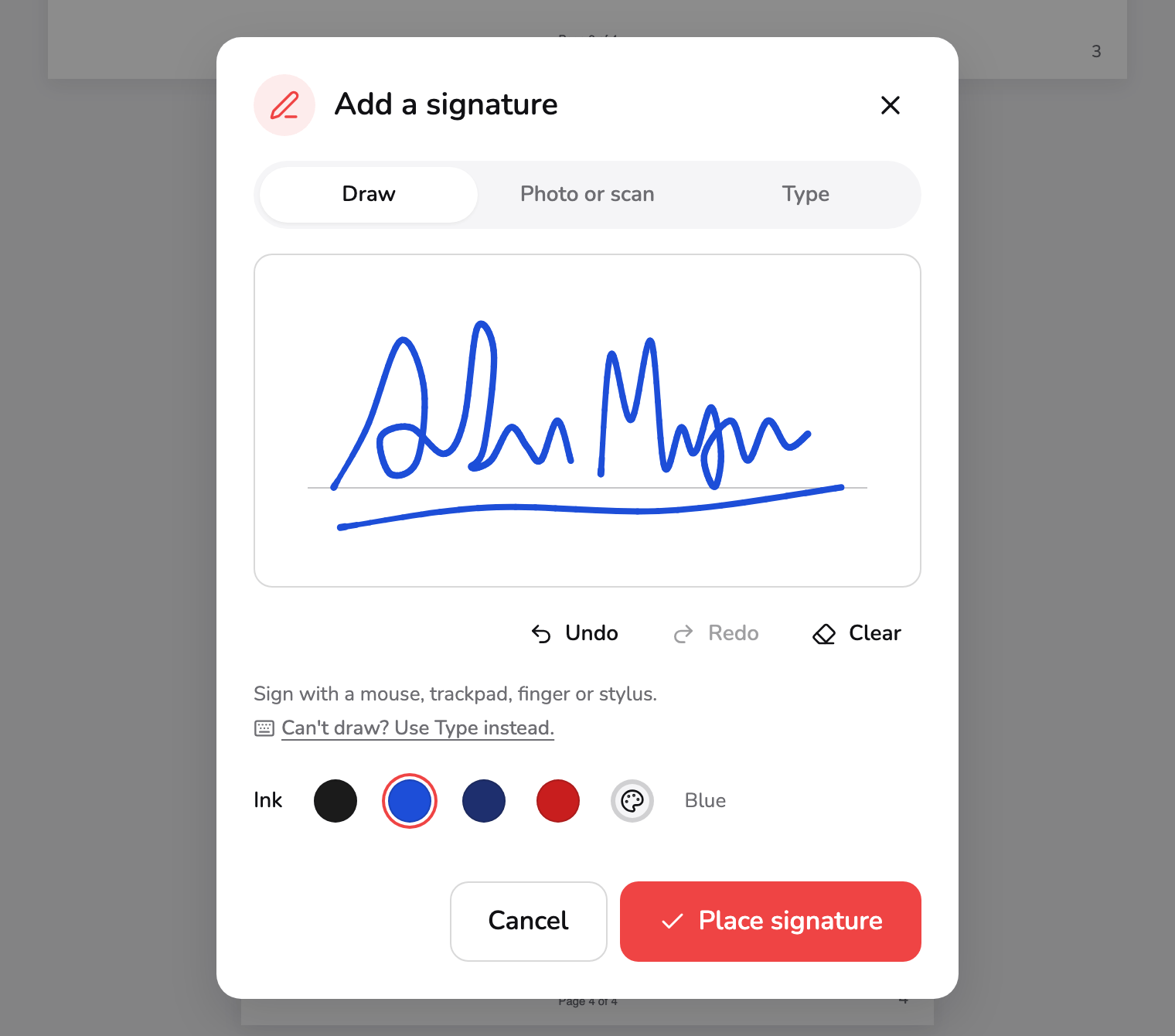
- Ways to make it. Draw, Photo or scan, or Type. A signature opens on Draw and initials on Type. What you make on one tab is kept while the dialog is open, so you can look at the others.
- Drawing pad. Draw with a mouse, trackpad, finger or stylus. Undo takes back the last stroke, Redo brings it back, and Clear wipes the pad, which Undo can restore.
- Ink. Black, Blue, Dark blue, Red, or a colour of your own from the palette swatch. The name beside the swatches says which one is chosen.
- Place signature. Puts the signature on the page, in the middle of what you can see. It is faded until there is something to place, and pressing it then says what is missing.
Draw on the pad at marker 2 with a mouse, a trackpad, a finger or a stylus. A mouse or a finger draws a thinner line the faster it moves, and a stylus follows its pressure. Undo takes back the last stroke, Redo brings it back, and Clear wipes the pad, which Undo then restores. If drawing isn’t an option, Can’t draw? Use Type instead, under the pad, switches to the Type tab with the name field ready.
The Ink row at marker 3 offers Black, Blue, Dark blue and Red, and the palette swatch at its end opens a picker for a colour of your own. The name beside the swatches says which one is chosen. Place signature at marker 4 puts the signature on the page. It looks faded until there is something to place, and pressing it then says what is missing: Draw your signature first.
The second way, Photo or scan, turns a signature you already wrote on paper into one you can place.
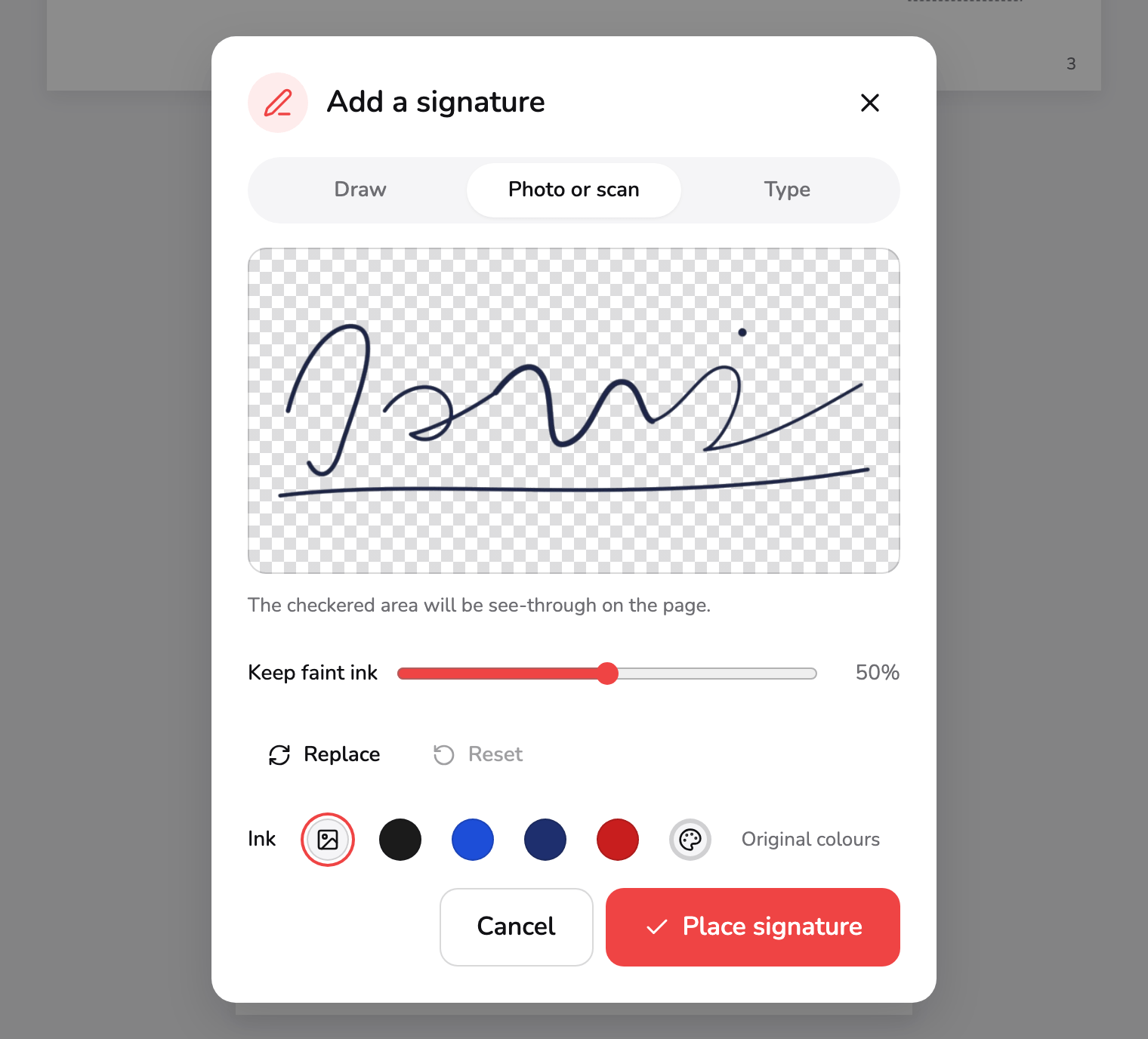
- Result without the paper. The paper and its shadows are taken away and the ink is left over a checkerboard. The checkered part will be see-through on the page.
- Keep faint ink. Move it up if thin or light strokes went missing. It starts at 50%, and Reset puts it back there.
- Replace and Reset. Replace picks another photo. Reset puts the ink and Keep faint ink back as they were when the photo opened.
- Ink. On this tab the ink starts as Original colours, the ink as photographed. Pick Black, Blue, Dark blue, Red or your own colour to recolour it.
Sign in dark ink on plain white paper, take the photo in even light, and choose it with Choose photo or drop it on the dialog. PNG, JPEG and WebP open; a HEIC photo is turned away with a message, so export it as a JPEG first. The tool takes the paper and its shadows away and shows what is left over a checkerboard, as at marker 1: the checkered part will be see-through on the page. If thin strokes have faded, move Keep faint ink, marker 2, up. Replace picks another photo, and Reset, marker 3, puts the ink and the slider back as they were.
The ink on this tab starts as Original colours, marker 4, the ink as photographed; pick another and the signature is recoloured. Your photo is read in your browser and never uploaded, and Try a sample photo, which shows before you choose one, loads the signature in this screenshot.
Type is the third way: type your name and pick one of four styles, Flowing, Formal, Casual or Plain, each drawn in the ink you chose. Where a style’s font can’t draw a letter, a note says that some letters use a standard font.
Whatever you do on one tab is kept while the dialog is open, so you can look at another tab and come back. Press Place signature when you are happy with it.
3. Put it on the signature line
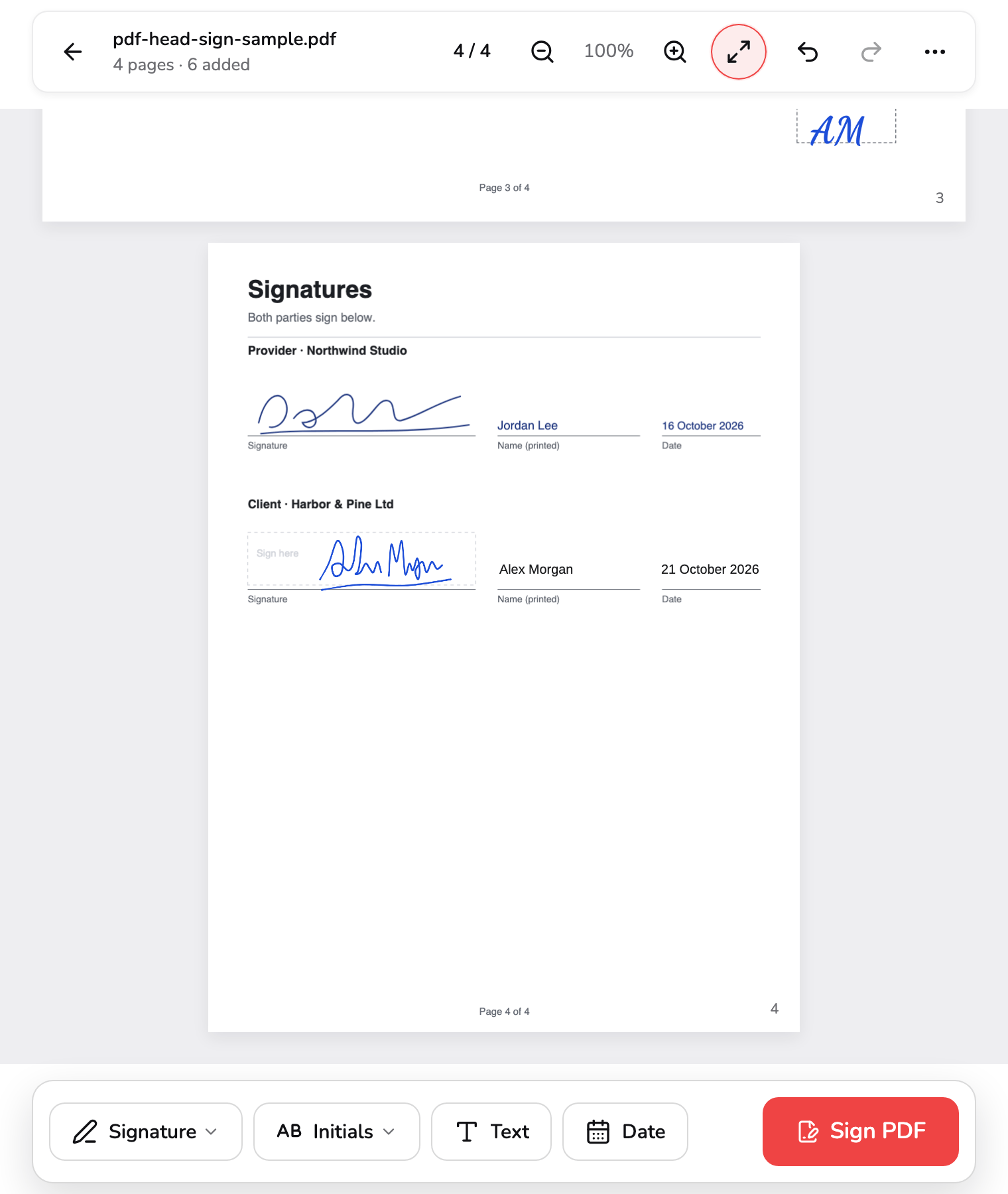
A new signature goes in the middle of the part of the page you can see, on the page with the most of itself on screen. It is selected and starts up to 40 points tall and no wider than 180, about the height of a signature line, so it usually starts small, and a long typed name starts shorter still. Page 4 of the sample is the signature page: the client signs on the line at the left.
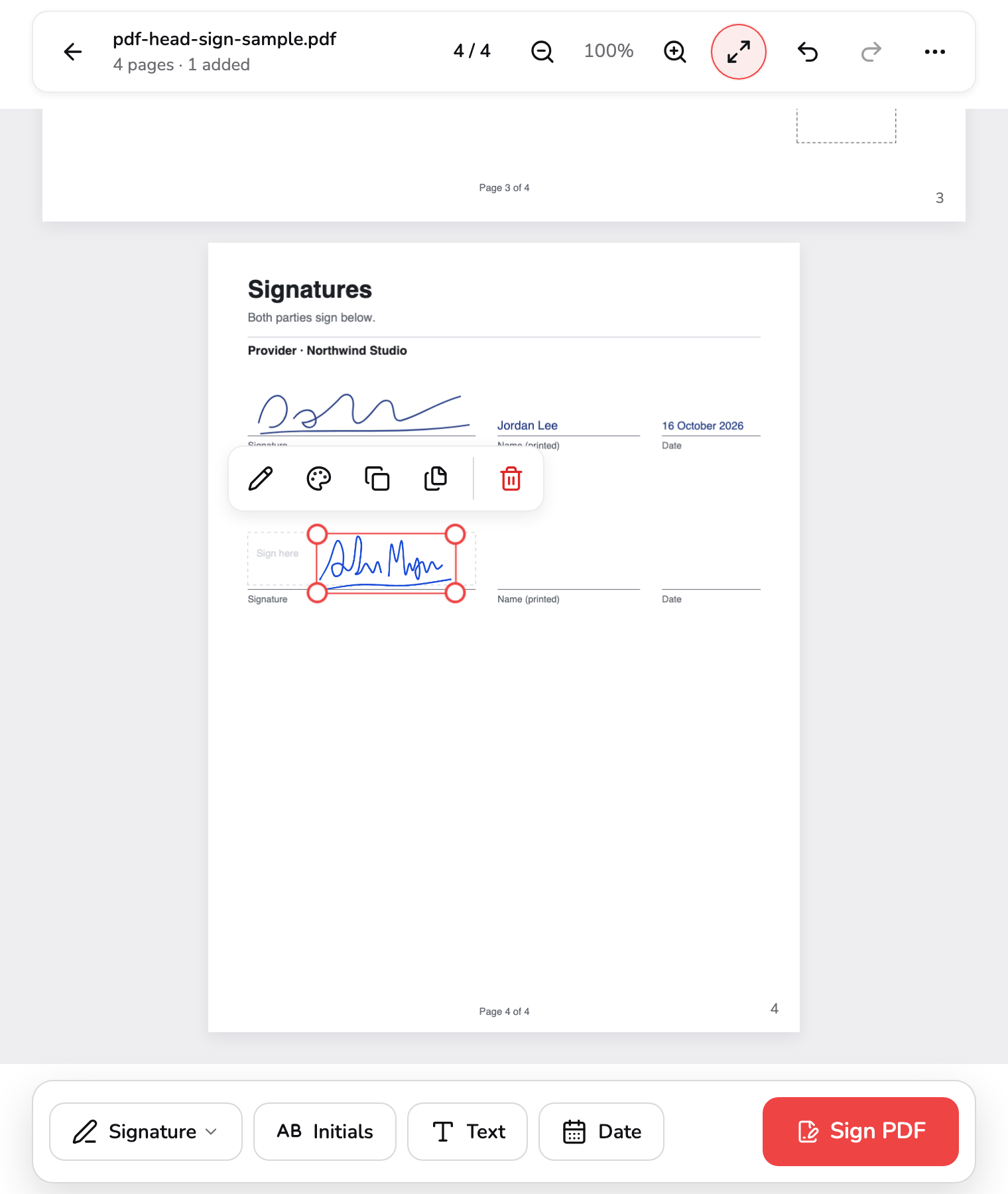
- Your signature. Drag it to move it, or drag a corner handle to resize it: the opposite corner stays put and the shape is kept. The arrow keys move it a point at a time.
- Item toolbar. Edit, Ink colour, Duplicate, Place on more pages and Delete, for the selected item. Order joins them while two items overlap. On a phone the same buttons sit in the bar at the bottom.
- Undo, Redo, More. Undo and Redo step through every change, on any page. More actions holds Replace PDF, Full screen and, from a laptop width up, Keyboard shortcuts.
Drag the signature to where it belongs; marker 1 shows it on the client’s line. Drag a corner handle to resize it: the opposite corner stays put and the shape is kept, so a signature is never squashed. Drag it onto another page and it moves there. From the keyboard, the arrow keys move the selected item a point at a time, and Shift with them ten points; Alt with ↑ or ↓ makes it a little bigger or smaller, and Shift as well makes the step larger. Delete removes it, and Esc lets go of it.
On a touch screen, tap an item to select it and then drag it. A finger that starts moving on an item you haven’t selected scrolls the page instead, and a press-and-hold picks the item up. There is no floating toolbar on a phone: while an item is selected, the same actions take over the bar at the bottom.
The toolbar at marker 2 floats over the selected item:
- Edit (the pencil) reopens the dialog on what the signature was made from; Update signature swaps the new picture in place. Double-clicking or double-tapping the signature does the same.
- Ink colour recolours it: Black, Blue, Dark blue, Red, Custom colour…, and Original colours for a signature made from a photo.
- Duplicate makes a copy a little down and to the right. Ctrl+C or ⌘+C, then Ctrl+V or ⌘+V, copies it onto the page you are looking at.
- Place on more pages is step 5.
- Delete (the bin) removes it. Order joins these buttons while two items overlap, to bring one forward or send it back.
Moved something you didn’t mean to? Undo in the bar, marker 3, steps back through every change on any page, up to your last 50, and Redo goes forward again. Ctrl+Z or ⌘+Z undoes, and Ctrl+Y or Shift+⌘+Z redoes. More actions (⋯) holds Replace PDF, Full screen where your browser allows it and, from a laptop width up, Keyboard shortcuts, which lists the keys for pages and zoom, for moving, resizing, copying and deleting an item, and for undo and redo.
4. Add your name and the date
Most signature lines have a printed name and a date beside them. Text adds a box you type in: it opens for typing at once, so type your name, then press Esc or Ctrl+Enter (⌘+Enter) to finish. Enter on its own starts a new line, and a box holds up to 200 characters. A box you leave empty is removed. Drag it onto the line, as the name at marker 1 is.
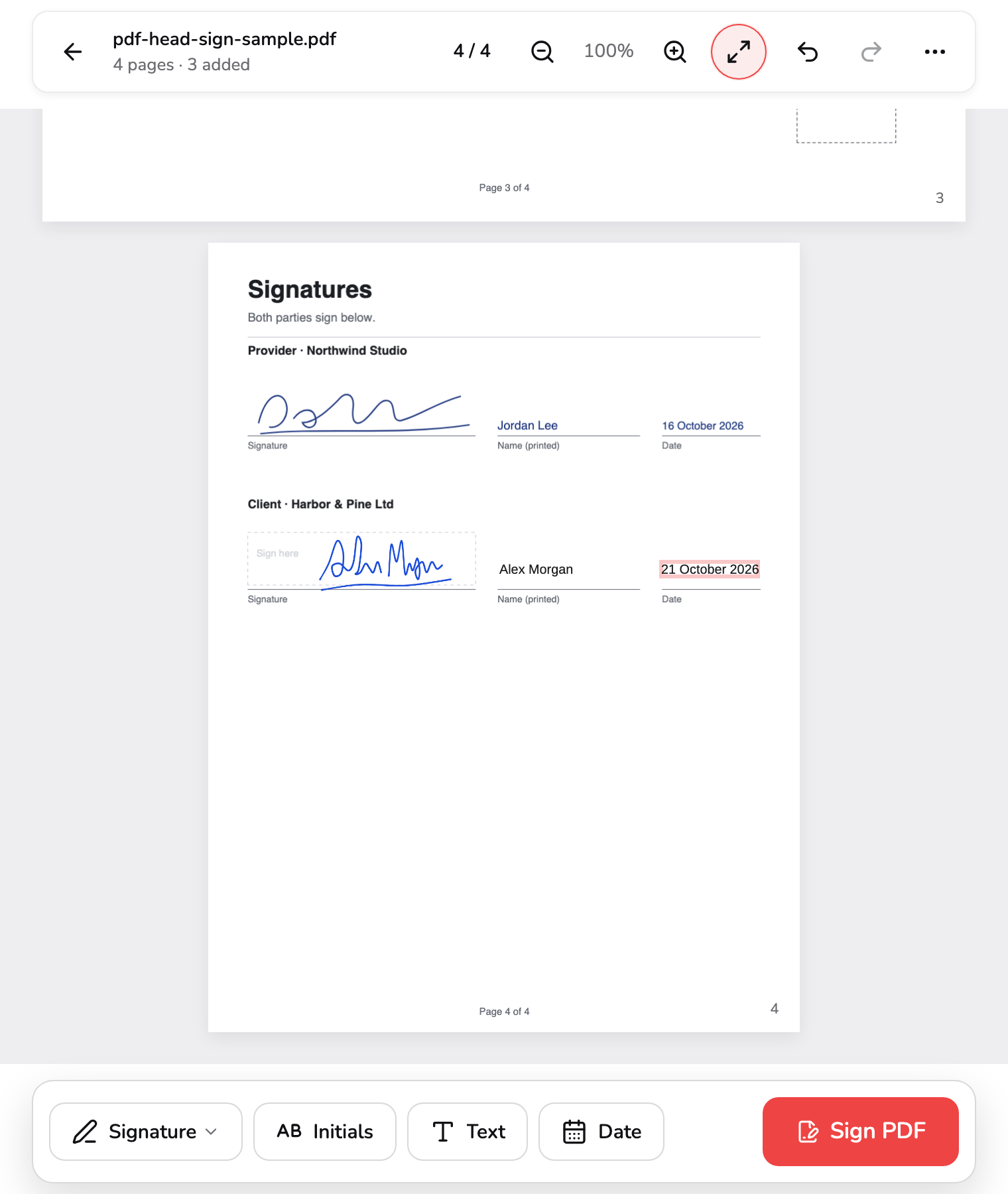
- Typed text. Text opens a box for typing. Esc or Ctrl+Enter finishes it, and a box left empty is removed. Click the text again, or press Enter, to change it.
- Date. Today's date from your device, in the language you use PDF Head in, with the month spelled out. It is text like any other, so you can select it and type a different one.
- Add to the page. Signature and Initials open the create dialog, or a list of what you made this visit once there is one. Text and Date place a box on the page most in view.
Date adds today’s date, read from your device’s clock and written with the month spelled out, in the language you use PDF Head in: 20 October 2026 at marker 2, which in German reads 20. Oktober 2026 and in Portuguese 20 de outubro de 2026. It is spelled out because a number such as 10/03 is March to one reader and October to another.
Both are ordinary text items. Select one and press Enter, or click it again, to change the words; Ink colour changes the colour; drag a corner to make the writing bigger or smaller. New text starts at 12 points. To write the date another way, edit it, or use Text instead.
The group at marker 3 is the row of add buttons in the bar at the bottom. Signature and Initials open the create dialog or, once you have made one this visit, a list of what you made, with New signature… (New initials… in the Initials list) at its foot. The list keeps the eight most recent of each kind until you close the tab and is never uploaded; each row has its own bin, and a deletion can be undone while the list stays open. Text and Date place a box on the page most in view.
5. Initial every page
Initials are made in the same dialog and placed the same way, but they open on Type, because a few letters are quicker to type than to draw.
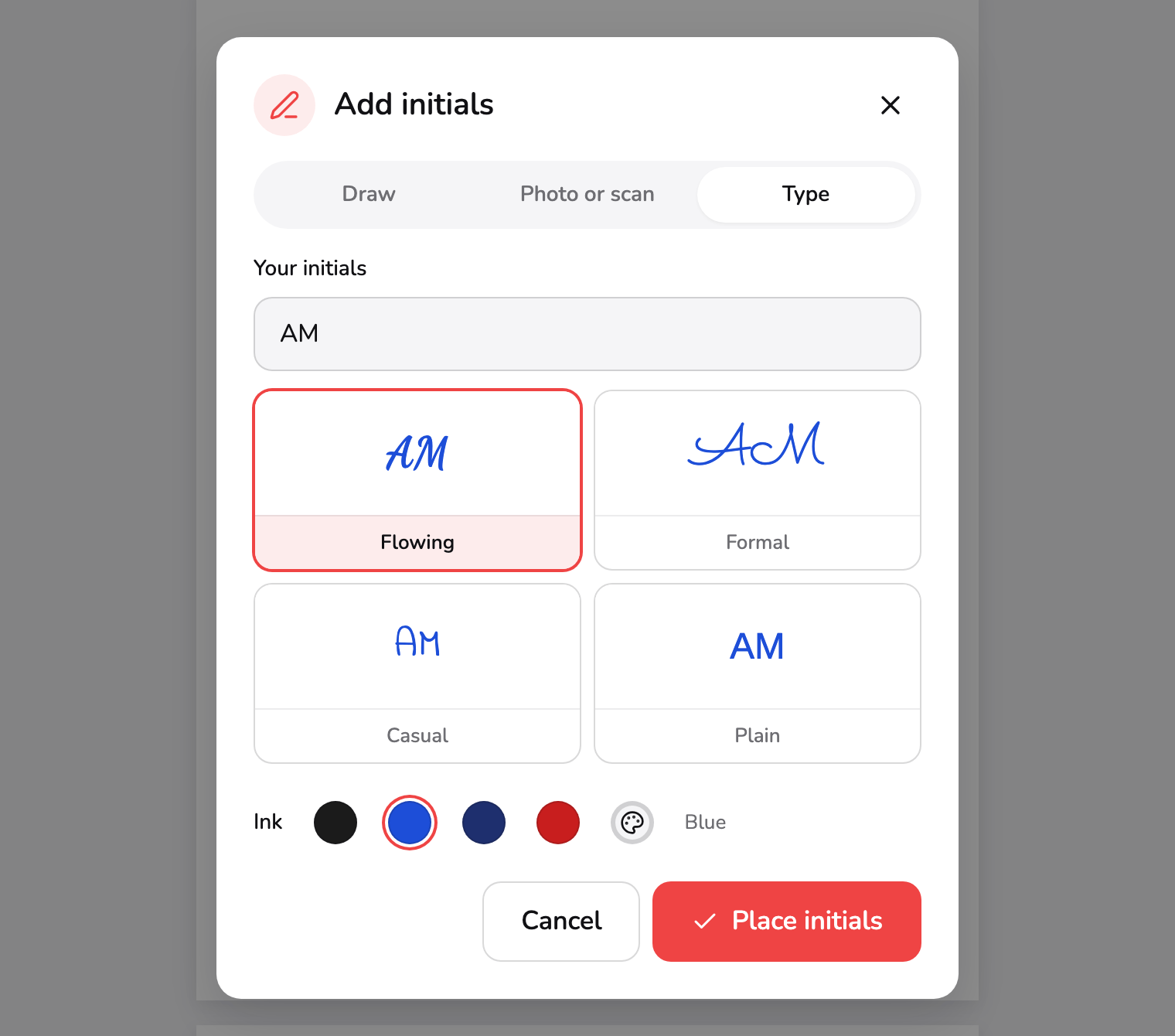
- Type. Initials open here, because a few letters are quicker to type than to draw. Draw and Photo or scan work as they do for a signature.
- Your initials. The letters to use. If you typed your name for a signature, its first and last initials are suggested here.
- Styles. Flowing, Formal, Casual or Plain, each shown in the chosen ink. The faces load as the dialog opens, and a style that fails to load is marked.
- Place initials. Puts the initials on the page, up to 28 points tall and 96 wide, in the middle of what you can see. Drag them into the page's Initials box.
Type, marker 1, is already selected. The letters go in the field at marker 2; if you typed your name for a signature, its first and last initials are suggested. The four styles at marker 3 show them in the chosen ink, and Place initials, marker 4, puts them on the page, up to 28 points tall and 96 wide. Drag them into the page’s own Initials box, as page 1 of the sample has one.
Once they are in the box, copy them to the other pages: select them and press Place on more pages in the toolbar.
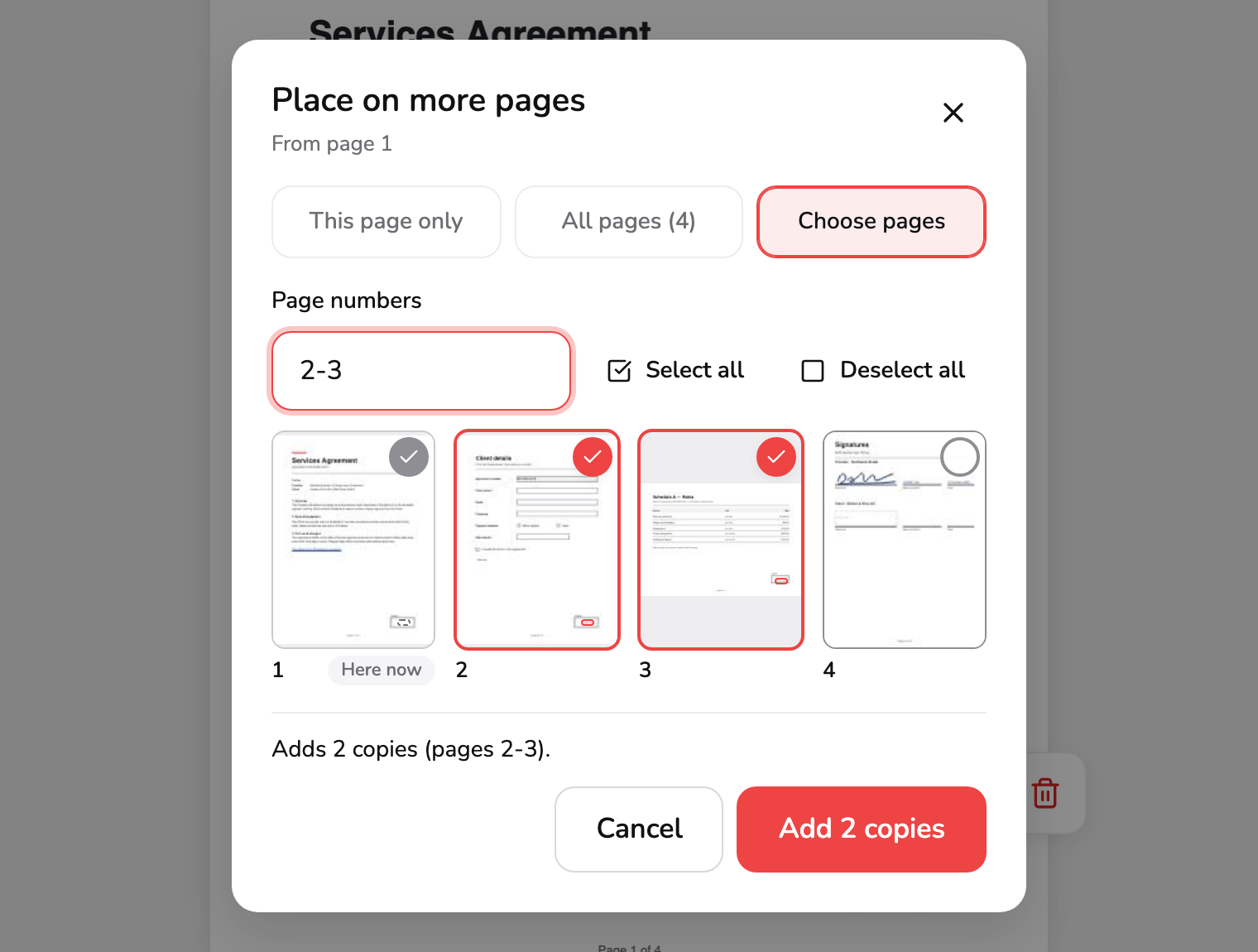
- Where. This page only, All pages, or Choose pages. A two-page PDF offers the first two; Choose pages is for PDFs of three or more.
- Page numbers. Type pages and ranges such as 1-3, 6. The tiles follow what you type, and ticking a tile changes the field. Select all and Deselect all sit beside it.
- Page tiles. A tick marks a page that will get a copy, with the copy outlined where it will land. The page you started from says Here now and keeps its item.
- Summary. How many copies will be added, and where. It also names pages that already have the item in that spot, which are skipped, and pages too small for it, which get a smaller copy.
- Add copies. Adds the copies and closes the sheet. A note at the foot of the editor then offers Undo, which takes every copy back in one step.
The sheet is about the item you selected, From page 1. The three choices at marker 1 are This page only, All pages and Choose pages; a two-page PDF offers only the first two. With Choose pages, type page numbers in the field at marker 2, such as 2-3 or 1-3, 6, or tick the tiles at marker 3: the field and the tiles are one selection, so each follows the other. Select all and Deselect all sit beside the field. The page you started from is marked Here now and keeps its item.
The line at marker 4 says what will happen before anything does: Adds 2 copies (pages 2-3). It also names pages that already have the item in that spot, which are skipped, and pages too small for it, where the copy is scaled down to fit. Each copy lands the same distance from the nearest edge of its page as the original (an item centred on its page stays centred), at the same size. Add 2 copies, marker 5, adds them and closes the sheet.
A note then appears at the foot of the editor, Added 2 copies to pages 2-3, with an Undo that takes every copy back in one step. It goes after about six seconds, and the bar’s Undo does the same afterwards. Each copy is an item of its own, so you can move, recolour or delete one without touching the others.
6. Fill in the form fields
If the PDF has real form fields, each one becomes a control where it sits on the page; page 2 of the sample is such a form. Text boxes, checkboxes, radio buttons and dropdown lists all work: click or tab into one and type or choose.
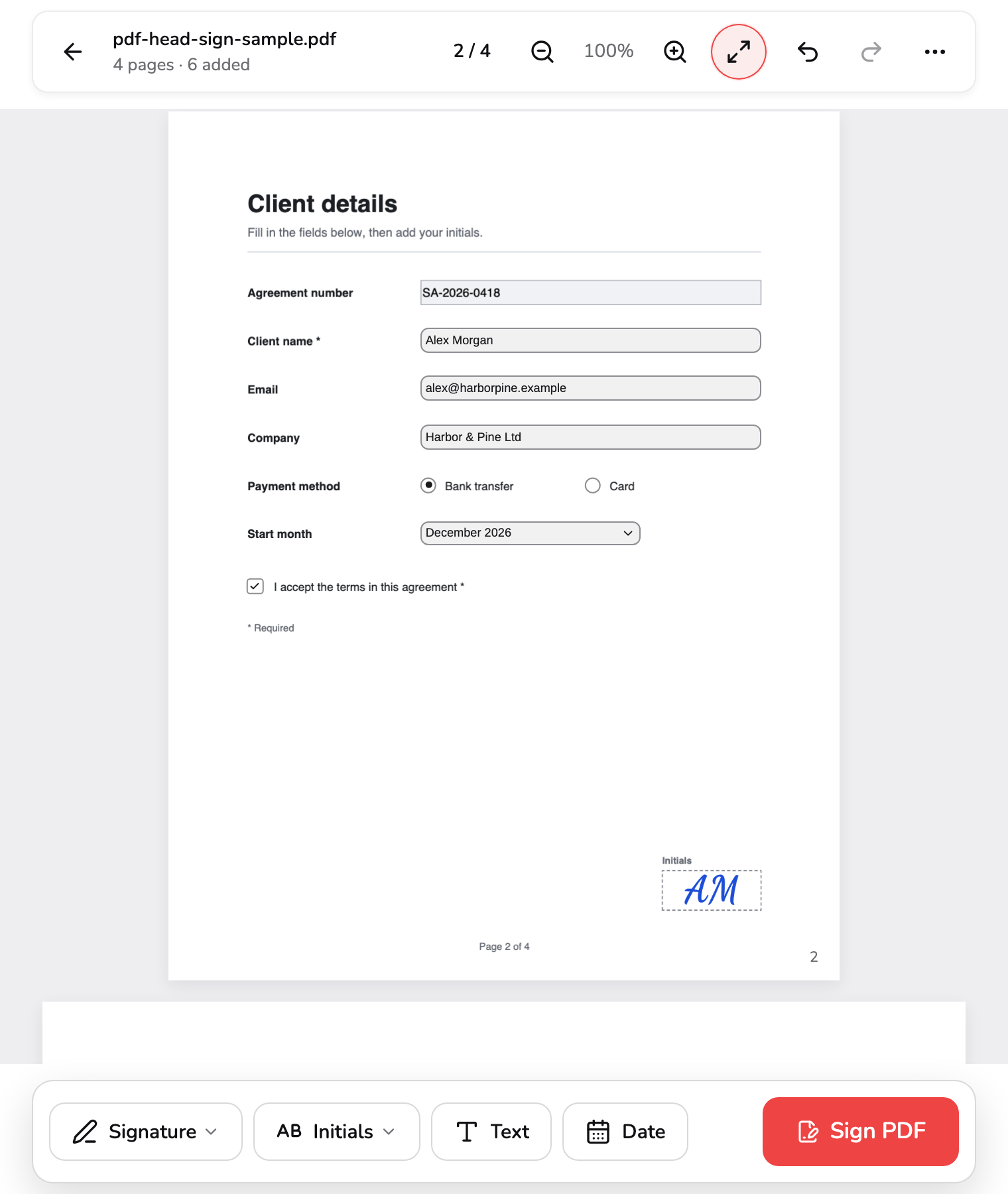
- Text field. A control sits where the PDF's own field is: click it and type. A star after the label means the form calls the field required.
- Radio buttons. Choose one option of the group; choosing another clears the first.
- Dropdown. Opens the choices the PDF's author gave. It reads Choose an option until one is picked.
- Checkbox. Click to tick or untick. Entries are saved into the form's own fields, so the signed copy still works as a form in other PDF apps.
- Your initials. The copy made by Place on more pages, in the box this page has for it. Each copy is an item of its own: move, recolour or delete it on its own.
Marker 1 is a text box, filled by typing. The star in the PDF’s own label for it marks a required field; Sign PDF doesn’t stop you if it is empty. Marker 2 is a radio button: choosing one option of the group clears the other. Marker 3 is a dropdown, which lists the choices the form’s author gave and reads Choose an option until one is picked, and marker 4 is a checkbox. A field the form locks, like the agreement number at the top, can’t be changed. Marker 5 is the initials copy from step 5, in the box this page has for it.
Your answers are saved into the form’s own fields, so the signed copy still works as a form in other PDF apps. The bar’s added count only counts the items you place, but a changed field is enough on its own for Sign PDF to work. A form with automatic calculations doesn’t recalculate here, so check any totals before you send it. If you change a field in a hybrid form that also holds Adobe XFA data, the saved copy leaves that data out, so that every PDF app shows your answers. A page that only looks like a form has no fields: put Text and Date boxes on it instead.
7. Check it, then sign
Before you press Sign PDF, look at the bar. 4 pages · 6 added at marker 1 counts the items you have placed. The page number at marker 2 opens Go to a page: every page as a thumbnail, each with how many items it holds, and a field for a page number, which is a quick way to check that every page has what it needs.
- Count. How many pages the PDF has and how many items you have added. Filled-in form fields aren't counted, but they are saved all the same.
- Page number. Opens Go to a page: every page as a thumbnail, with how many items it holds, and a field for a page number. Page Up and Page Down step one page.
- Sign PDF. Builds the signed copy and saves it in the same press, named after your file with -signed added. Faded until you have added something or changed a field.
Sign PDF, marker 3, is faded until there is something to sign, a placed item or a changed field, and pressing it then says so. Press it once the pages look right. The signed copy is built in this tab and saved at once, with no extra step, named after your file with -signed added: report.pdf becomes report-signed.pdf. While it builds, the button turns into a progress ring with Cancel beside it and editing is locked; cancelling keeps everything you placed.
The editor stays as it was. Change anything and press Sign PDF again for a fresh copy; press it again with nothing changed and it saves the same file once more without building it twice, which helps if your browser blocked or lost the download. Each signature, initials, text and date item is stamped onto its page at the position and size you gave it, the right way up on a rotated page; form answers go into the fields; and the rest of the file, its links and bookmarks included, stays as it was. The sample’s link to page 3 still works.
The PDF you opened is never changed. Close PDF (←) and Replace PDF ask first if what you added hasn’t been downloaded, and the signatures you made stay in the lists (the eight most recent of each kind) for as long as the tab is open. What you saved is a visible signature, not a certificate, and the form answers in it are still editable fields; Flatten PDF turns filled form fields into fixed page content if you want them fixed.
Which way for which job
| You want to… | Do this |
|---|---|
| Sign with a trackpad, a touch screen or a stylus | Draw |
| Reuse a signature you already wrote on paper | Photo or scan, and raise Keep faint ink if thin strokes fade |
| Sign neatly without drawing | Type your name and choose a style |
| Put your initials on every page | Make initials, then Place on more pages and All pages |
| Initial only some pages | Choose pages, then a range such as 1-3, 6 |
| Write the date your own way | Edit the Date, or use Text instead |
| Sign the next PDF without redrawing | Replace PDF, then pick your signature from the Signature list |
| Fix the form answers in place | Run the signed copy through Flatten PDF |
Access and technical limits
You can try Sign PDF with the bundled sample, all the way to the signed download. Pro ($9.99/month) is required for your own PDF and includes unlimited exports. Technical limits such as browser memory still apply, along with the 1,500-page limit above.
Which tool you want
- Put a signature, initials or a date on a PDF, or fill in its form → Sign PDF, as above.
- Highlight, draw or comment on a PDF instead → Annotate PDF; How to annotate a PDF covers it, and How to edit a PDF online sorts out which job you have.
- Form answers that should stop being editable → Flatten PDF.
- A PDF locked with a password → Unlock PDF, then sign the unlocked copy.
- A paper form to sign → Scan Document turns phone photos into a PDF; How to scan a document to PDF walks through it.
- A signed file that is too large to send → Compress PDF; How to compress a PDF explains what makes it smaller.
Common questions
Why is Place signature faded when the dialog opens?
Because there is nothing to place yet. The button stays faded until the pad holds a drawing, a photo has been read or a name is typed. Pressing it while it is faded does no harm: it says what is missing, such as “Draw your signature first”, “Add a photo of your signature first” or “Type your name first”, and the line goes again once the reason has gone.
My signature is tiny on the page. How do I make it bigger?
A new signature starts up to 40 points tall and no wider than 180, about the height of a signature line, so it is small until you size it. Drag any corner handle to grow it: the opposite corner stays put and the shape is kept. From the keyboard, select it and press Alt with the up arrow for small steps, or Shift as well for bigger ones. It stays inside its page, and a copy placed on a smaller page is scaled down to fit.
Which date format does Date use, and can I change it?
Date writes today's date from your device's clock, with the month spelled out and in the language you use PDF Head in: 20 October 2026, 20. Oktober 2026 or 20 de outubro de 2026. That is deliberate, because a number such as 10/03 is read two ways. To write it differently, select the date and press Enter, or click it again, and change the words; or use Text and write what you like.
Can I put my signature over a form field?
You can, but in the saved PDF other apps draw the field on top of your item, so part of it can be hidden. Move the item off the field, or fill in the field instead of covering it.
I pressed Sign PDF twice. Did I get two different files?
Only if you changed something in between. The first press builds the file and saves it. A second press with nothing changed saves that same file again without building it twice, which helps if your browser blocked or lost the download. Move an item, edit a field or undo a step, and the next press builds a fresh copy, unless that leaves the PDF exactly as it was saved.
I opened another PDF and my signature is gone from the page. Is it lost?
The items you placed belong to the PDF and are cleared when you close it or open another; the tool asks first if you haven't downloaded the signed copy. The signatures and initials you made stay in the Signature and Initials lists (the eight most recent of each) for as long as the tab is open, so you can place them on the next PDF without drawing them again. Close or reload the tab and they are gone: nothing is stored.